
Why Do Stencil Lines Break Up on Transfer: Causes and Fixes
Direct answer
Stencil lines break up on transfer for seven checkable reasons: a source photo under roughly 1000 px on the long edge, printed hairlines thinner than about 0.3 mm, more detail than skin can hold at that size, the wrong transfer paper, over-applied or over-wiped stencil fluid, skin that was not shaved, degreased, and fully dried, and skin stretched or curved at placement. Most breakup is decided before the paper touches skin, so fix line weight and detail density at final print size first.
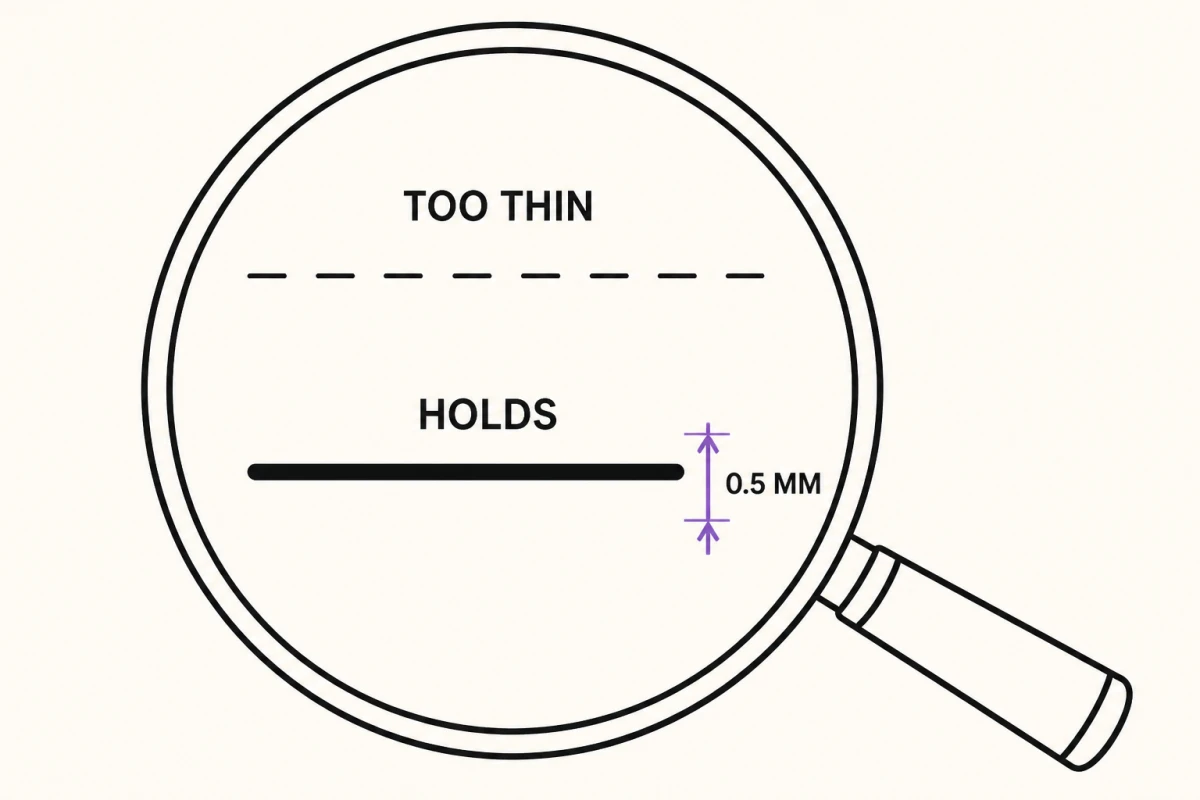
A stencil that looked sharp on paper and came off the skin as dots, gaps, and gray fog almost always failed for a reason you can name. Broken lines are not bad luck: they are a measurable problem in the file, the print, the paper, the fluid, or the skin. Work through the causes in the order below, because the earliest ones are the ones that cannot be fixed at the table.
Read the break pattern before you change anything
The way a stencil fails tells you which cause to chase. Look at the skin, then look at the sheet you just peeled, and match what you see.
| What you see | Most likely cause | First fix |
|---|---|---|
| Everything is faint but evenly present | Not enough fluid, or peeled too early | Thin, even coat; hold 30 to 60 seconds before peeling |
| Thin lines gone, heavy lines intact | Hairlines under ~0.3 mm at print size | Raise line weight to about 0.4 mm or print the design larger |
| Lines dotted or dashed along their length | Source image too small, or unshaved skin | Check source pixels; shave and re-prep |
| Fine detail merged into a gray mass | Detail density too high for the size | Strip shading, keep contours only |
| Crisp on flat areas, absent over a curve | Paper tented and lost contact | Section the design, transfer in a neutral position |
| Looked good, then vanished on the first wipe | Wiped before the stencil set | Leave it undisturbed 10 to 15 minutes |
| Already broken on the printed sheet | File, print settings, or paper | Stop and fix upstream; skin is not the problem |
Two of these are decided before you leave the printer, and they account for the majority of ruined transfers. If the printed sheet is not solid black or solid purple along every line you intend to tattoo, nothing you do at the table will rescue it.
Cause 1: the source image never had the detail
A stencil converter traces edges that exist in pixels. If those pixels are not there, it invents an edge from whatever gradient it can find, and an invented edge comes out as a broken one. Below roughly 1000 px on the long edge, a photo cannot be rescued into a clean stencil at tattoo size. You are redrawing, not converting, and it is faster to accept that than to fight the file.
The arithmetic is worth doing once. A 600 px wide reference printed 15 cm wide gives you about 100 pixels per inch. Every printed pixel is a quarter of a millimeter square, so a one-pixel edge in the original becomes a 0.25 mm smudge on paper: nearly the width of a whole fine stencil line, so the edge of every line is a guess. Upscaling raises the pixel count and can carry a marginal image over the line, but it cannot photograph detail that was never captured. It smooths, and smoothed edges hand the outline pass a soft boundary that it fragments into dashes.
Check the pixel dimensions of the file before you spend an hour on it. If a client photo is too small, ask for the original rather than the screenshot or messaging-app copy, which is usually a heavily compressed version of something better. Photo resolution for tattoo stencils covers the numbers for each print size in detail.
Cause 2: the lines are hairlines at print size
Line weight is the single most common cause, and the one people most often overlook, because the design looks fine on a phone screen. What matters is the width in millimeters on the printed page, not how it looks zoomed in.
Roughly speaking, a line of 0.3 mm or more prints solid and carries enough pigment to survive a press, a peel, and a wipe, and 0.4 to 0.5 mm gives you margin on damp, textured or stretchy skin. Between about 0.2 and 0.3 mm it is a hairline: it transfers on good skin under good conditions and fails on everything else. Below 0.2 mm it lifts off the moment anything touches it. Heavier is not automatically safer, either. The stencil line is a guide for the needle, not the tattoo’s line weight, and a line much over about 0.8 mm lays down more pigment than the edge needs and makes it harder to see where the line actually runs.
The trap is scaling. Line width scales with the design, so shrinking a piece from 20 cm to 10 cm halves every line in it. A design that transferred beautifully on a thigh will come apart on a wrist at the same file settings. Set your final size first, then judge line weight at that size.
Practical fixes, in order of how much they change the artwork:
- Raise stencil intensity so existing lines print heavier and darker.
- Lower the detail setting, which drops the faintest edges instead of printing them as broken ones.
- Print the design larger, if the placement allows it.
- Redraw the key contours by hand with a thicker brush, which is the only reliable fix for a design that genuinely needs both fine detail and a small size.
In InkLine, the Detail and Intensity sliders do the first two, and the Pen and Marker brushes handle the fourth on the same canvas before you commit paper. The print screen adds a more direct fix for the scaling trap: a line-weight setting that redraws the stencil for its print size, so the lines come out at fine 0.3 mm, medium 0.4 mm or bold 0.5 mm whatever size you print, instead of shrinking with the design as they do when left as drawn. Left as drawn, it also warns you: when the typical line will print thinner than 0.2 mm it says the lines may break up and suggests Medium, and when it will print heavier than 0.8 mm it suggests Fine or Medium for a cleaner stencil.
Cause 3: more detail than skin will hold
Paper resolves detail that skin does not. Ink spreads once it is under the surface, so two lines a millimeter apart on the sheet close up into one thicker line after the needle passes. When you crowd a stencil with detail at that spacing, the transfer looks correct for about ten seconds and then reads as a gray smear, which most people describe as the lines breaking up.
Treat one millimeter of clear space at final size as the working minimum on most skin, and give yourself more on stretchy or heavily textured areas. That constraint tells you what belongs on the stencil at all. Contours, key interior boundaries, and registration marks belong. Fine shading, stipple, and texture usually do not, because you will render those freehand anyway and a printed version of them only obscures the lines you actually need.
Choosing the stencil mode on purpose does most of this work. An Outline or Linework pass gives you structure with little else competing for space; a Tonal or Dotwork pass adds shadow boundaries, hatching or stipple, which is excellent as a map of where the shading goes and crowded as a transfer at small sizes. Which stencil mode for which design walks through the trade-offs by style.
Cause 4: the wrong paper, or the wrong side of it
Transfer paper is not one product. Thermal sheets are made to run through a thermal stencil printer and will not accept an inkjet or laser image usefully. Hectograph and freehand sheets are made for hand tracing. If you print onto a sheet the printer cannot mark properly, the result is a faint, patchy image that no amount of fluid will fix.
Three mechanical failures account for most paper problems: the sheet assembled or fed backwards so the pigment layer never faced the artwork, the pigment layer facing away from the skin at transfer, and old stock that has dried out and no longer releases. All three produce the same symptom of partial, blotchy lines. Tattoo stencil paper explained covers which sheet goes with which method.
Worth being direct about the limits here: an app plus a home printer produces a print-ready page, and that is genuinely enough for individual pieces and for apprentice work. It does not replace a dedicated thermal stencil printer for shop-volume output, and if you are transferring several stencils a day, the dedicated machine will pay for itself in saved sheets.
Cause 5: too much fluid, or a stencil wiped before it set
Stencil fluid failures split into two opposite mistakes that look similar on the skin.
Too much fluid floats the pigment. The carbon spreads sideways into the surrounding film instead of bonding to the skin, and when you wipe, it comes away in patches. Too little fluid gives you poor adhesion, so only the heaviest lines take and everything fine stays on the paper.
The target is a thin, even film that has gone tacky rather than wet. Press the sheet down once, smooth it from the center outward, hold for 30 to 60 seconds, and peel in a single motion without sliding the paper. Sliding is what turns a clean line into a doubled, blurred one.
The most common table-side mistake comes after the peel. A fresh stencil needs to dry undisturbed, commonly 10 to 15 minutes, before anything touches it. Wiping early takes the thinnest lines first, which is exactly the symptom people report as breakup. If a stencil is already compromised mid-session, stencil smudged before the session covers the recovery options and when to start over instead.
Cause 6: shaving, degreasing, and drying time
Skin prep failures are invisible until the peel.
Shave the area even when it looks smooth. Fine vellus hair holds the sheet a fraction of a millimeter off the surface, and that gap is enough to produce a dotted line wherever the hair sits. Then degrease. Lotion, sunscreen, natural oils, and yesterday’s moisturizer all block adhesion in exactly the irregular patches that make a stencil look shattered.
Drying time is the step people skip. Alcohol and green soap dissolve stencil pigment, so any residue left on the skin will eat the line as you press it down. Let the area dry completely, and give it longer than feels necessary in a warm room or on a client who is running hot. Sweat under a curing stencil does the same damage more slowly, which is why a piece can look fine at the peel and be gone twenty minutes later.
Cause 7: stretch, curve, and placement
Two placement problems break lines in ways that no file adjustment will fix.
The first is stretch. If you pull the skin taut while applying and then release it, the design contracts, and the contraction crowds fine lines into each other and cracks longer ones. Apply with the skin in the neutral position the client will hold during the session, not stretched and not slack.
The second is contact. A flat sheet cannot lie flat against a strongly curved surface. Wherever the paper tents away from the skin, you get no pigment at all, and the result is a design that is crisp everywhere except one clean bald patch across a shoulder, a calf, or a ribcage. The fix is to stop treating the transfer as one operation: split the artwork into sections, transfer each one against a region that can genuinely make contact, and align on registration marks. Designs that need more than one sheet at full size should be tiled deliberately rather than shrunk to fit.
An on-skin preview, in InkLine or anywhere else, is a visualization that helps you judge scale and position; InkLine’s is an AI-generated image of the design on a generic body part, not your client’s. It is not a measurement of how a flat design behaves across a curved surface, and it will not warn you about a tenting problem before you press.
The two-minute check before you print
Run this every time and most of the failures above never reach the skin.
- Confirm the source file is comfortably above 1000 px on the long edge for the size you are printing.
- Set the final print dimensions first, then look at line weight at that size.
- Measure the thinnest line you care about on the printed sheet. Under about 0.3 mm, go back and thicken it; 0.4 mm is a comfortable target.
- Check the tightest gap between two lines. Under about 1 mm, remove one of them.
- Hold the printed sheet at arm’s length under shop lighting. Anything you cannot read clearly there will not read on skin.
- Confirm the paper matches the method and that the pigment layer faces the right way.
The pattern in all of this is that a stencil rarely fails at the moment of transfer. It fails earlier, at a resolution you accepted, a size you changed, or a detail level you kept, and the transfer is only where the failure becomes visible.
Frequently asked questions
Why do the thin lines disappear while the thick ones transfer fine?
Thin lines carry less pigment, so they are the first thing a wipe, a stretch, or a damp patch of skin removes. A line that measures under about 0.3 mm at final print size is a hairline on the edge of transferring at all, and any one of the other causes pushes it over; 0.4 mm is a comfortable target that prints solid.
Does printing at a higher DPI stop lines from breaking up?
Only if the original file has the detail to support it. Raising DPI on a small photo enlarges the same pixels, so the printer reproduces soft, uncertain edges more precisely. Line width in millimeters, not DPI, is what decides whether a line survives the transfer.
Can I re-apply stencil over a section that came out patchy?
Re-pressing the same sheet over a partly transferred stencil almost never lines up, and the second impression usually smears the first. Wipe the area back to clean skin with alcohol, let it dry completely, and transfer a fresh sheet.
How can I tell whether it is the paper or the design before I press?
Look at the printed sheet under good light. If the lines on paper are already faint, dotted, or gray rather than solid, the problem is upstream in the file, the print settings, or the paper. If the sheet looks crisp and the skin does not, the problem is fluid, prep, or contact.
Why does the same stencil transfer cleanly on a forearm and break up on ribs?
Curved and stretchy areas break contact between paper and skin, and those spots receive no pigment at all. Ribs also run warmer and damper, which softens the stencil before it sets. Split large designs into sections and transfer each one against a surface that can lie flat.