
iPhone & iPad · iOS 17.0+ · Free download
Turn any photo into a tattoo stencil you can trace
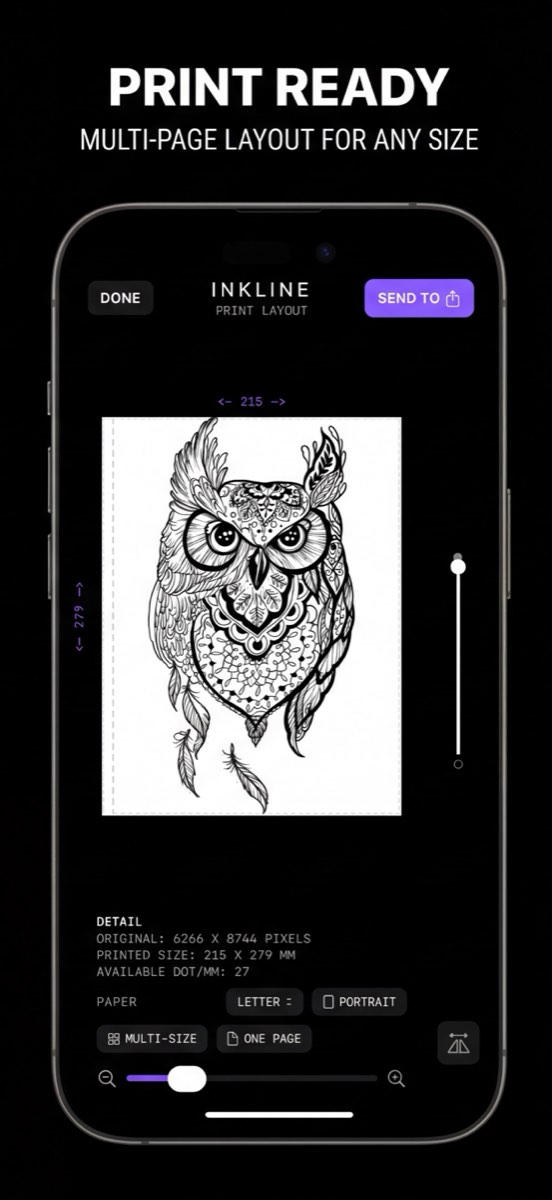
Six stencil modes, Apple Pencil clean-up and true-size printing on US Letter, US Legal, Tabloid, A4 or A3 — tiled across labelled sheets when the piece is bigger than a page.
Free to download. The manual stencil workflow — processing, editing, print layout and export — is free up to an allowance on how many images you carry through it, and needs a subscription past that allowance. AI generation uses a credit system.
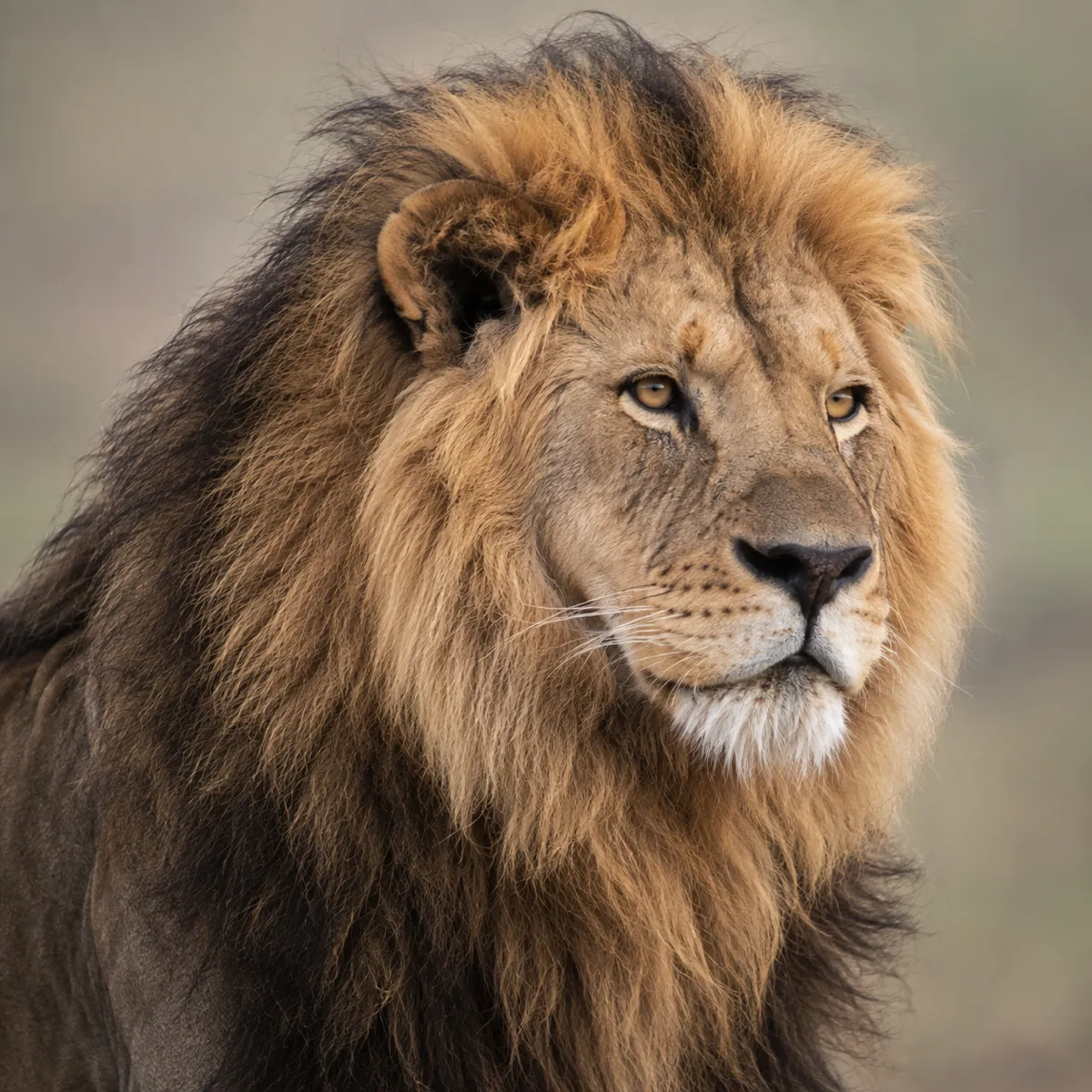
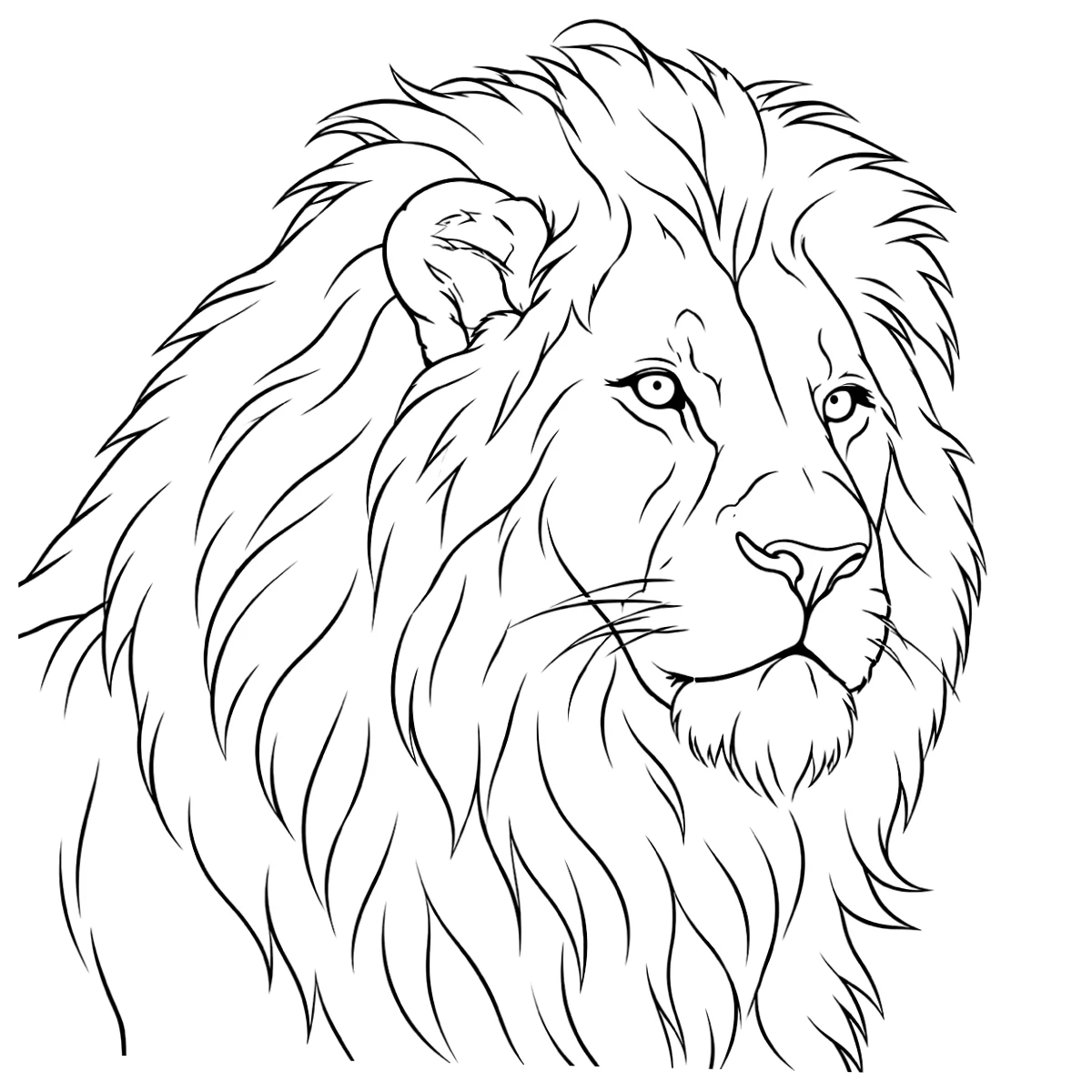
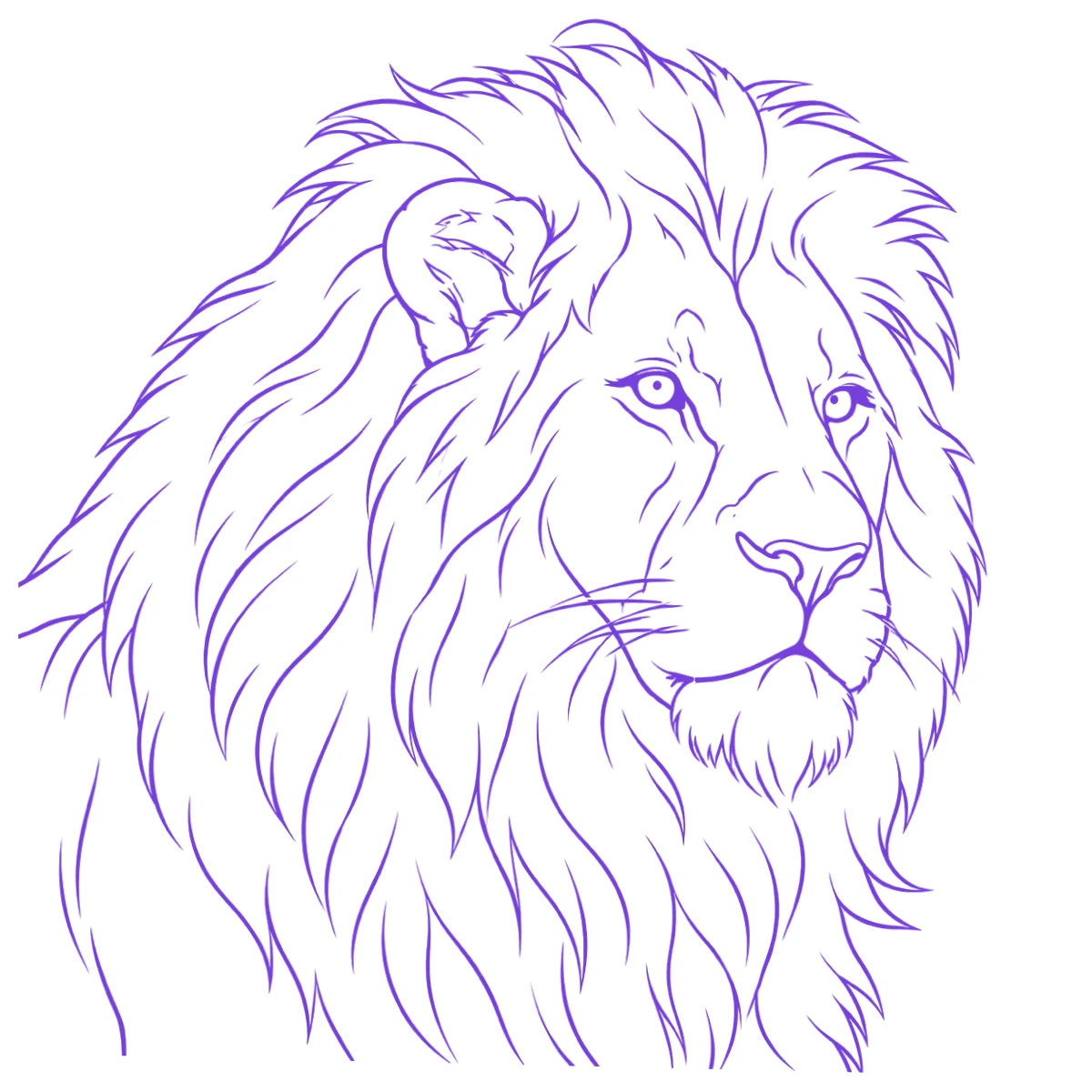
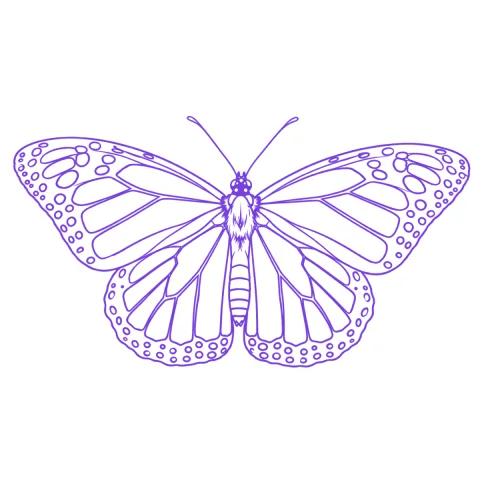
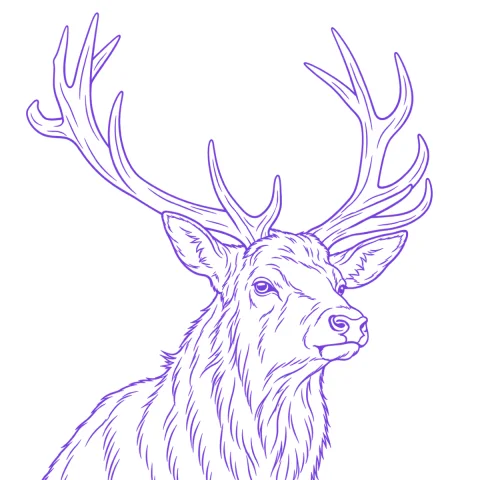
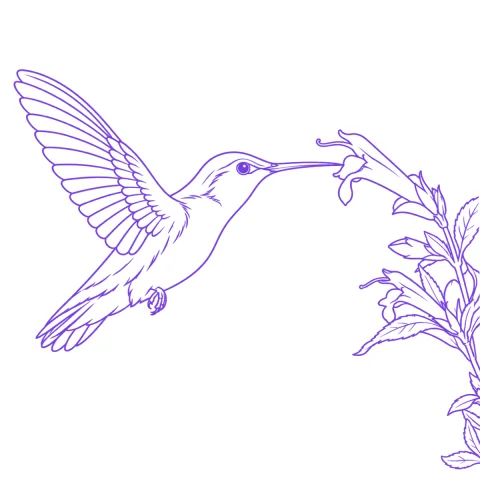
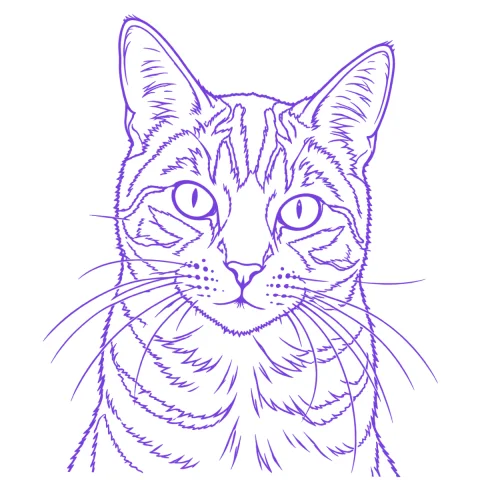
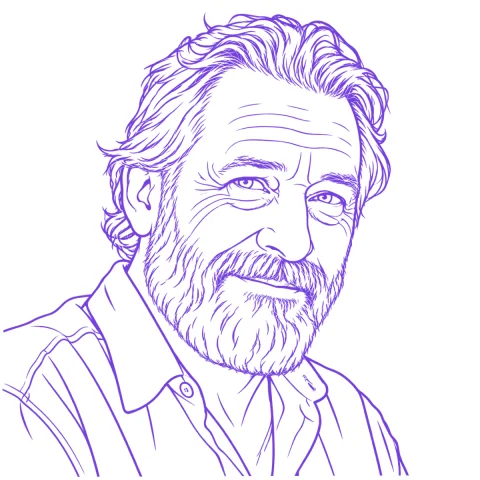
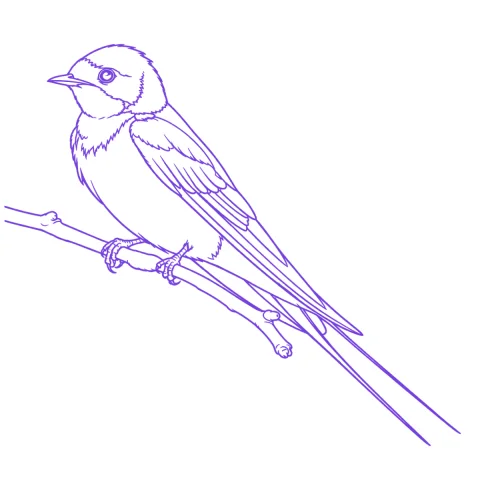
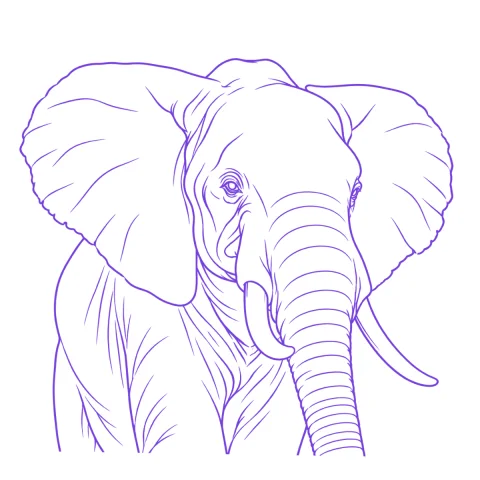
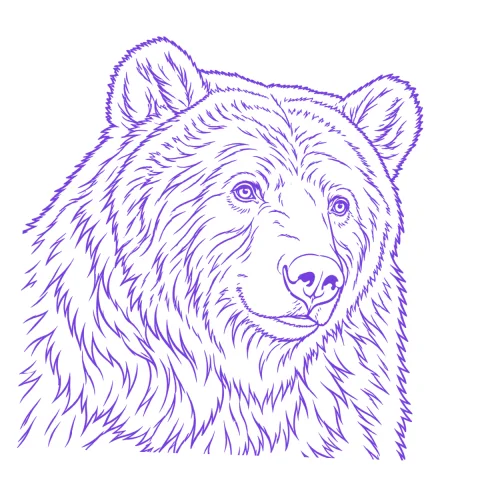
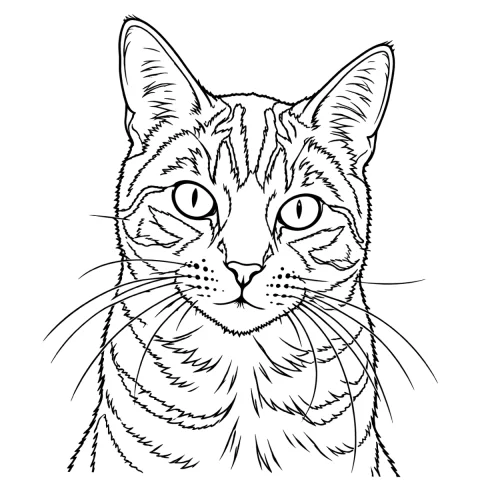
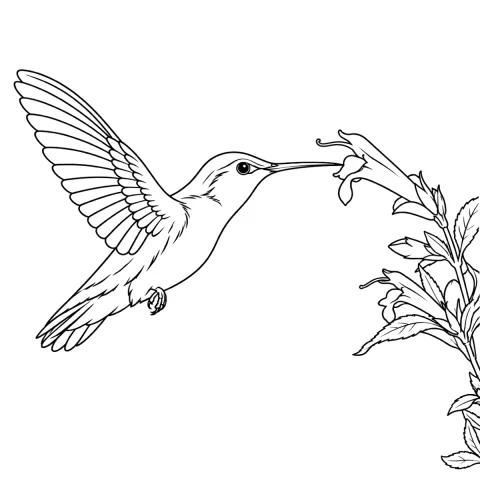
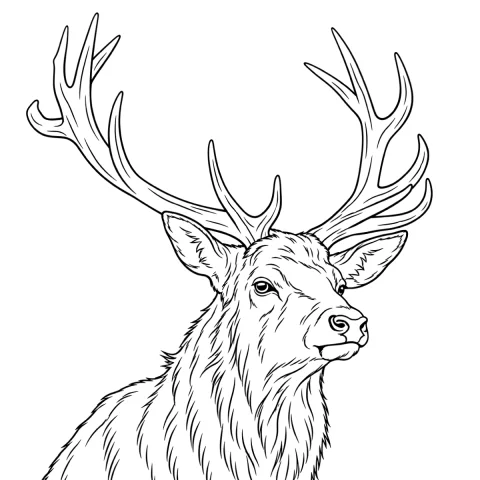
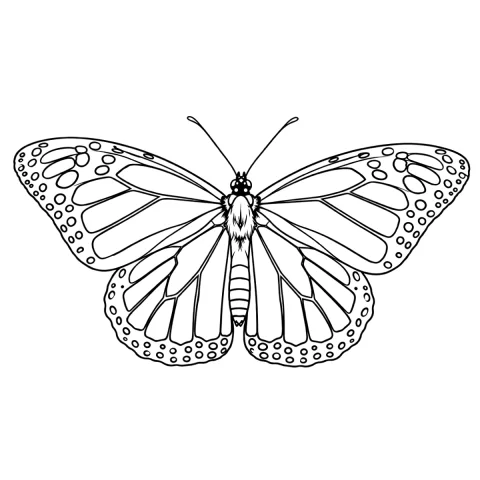
Example photo and stencil
- 6 stencil modes
- True-size printing
- Letter · Legal · Tabloid · A4 · A3
- Apple Pencil clean-up
- Processed on-device
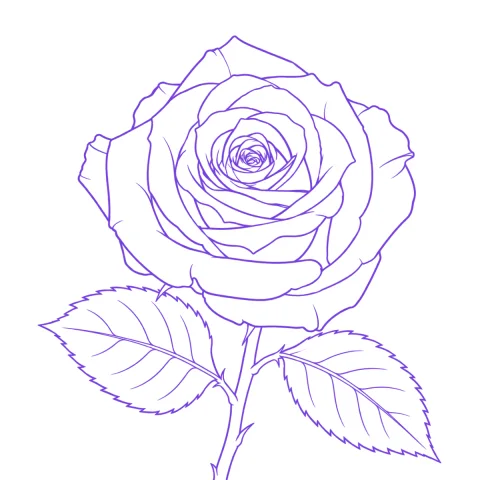
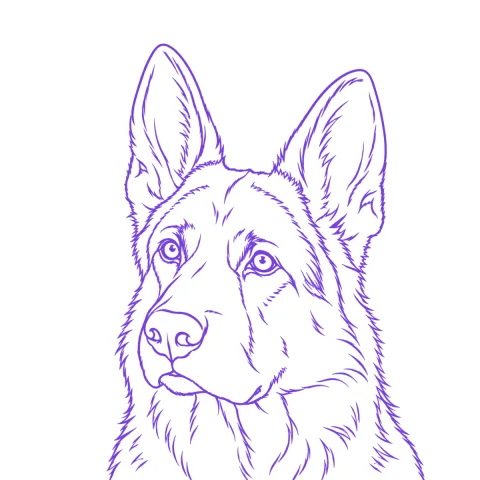
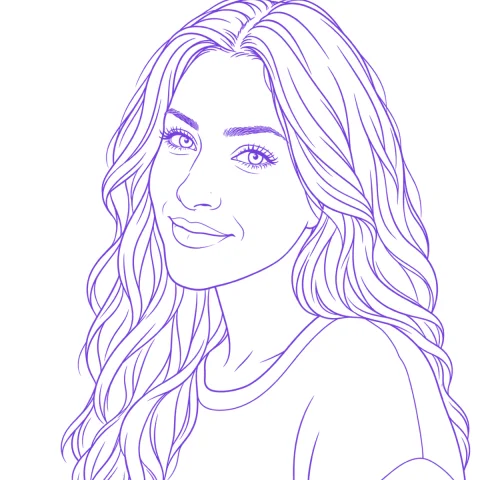
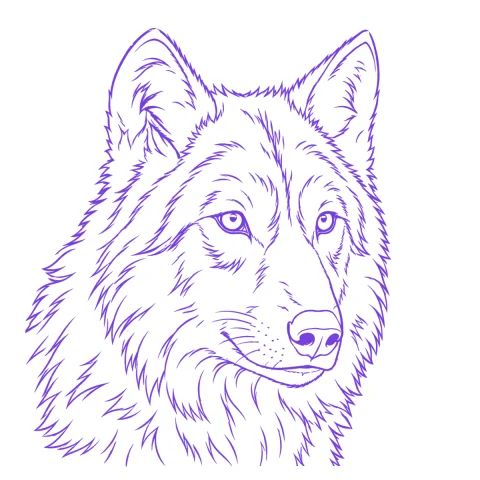
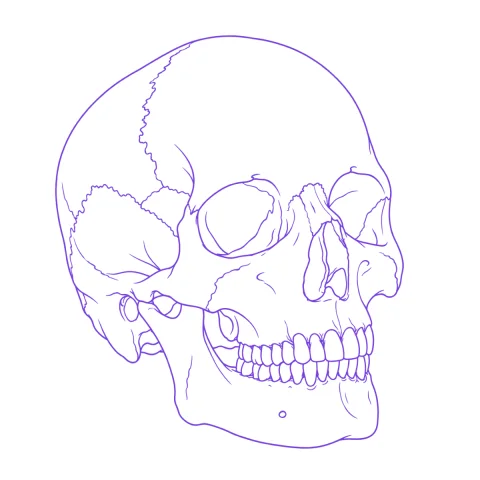
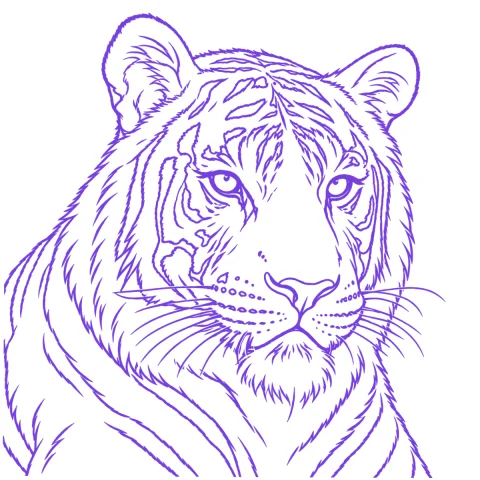
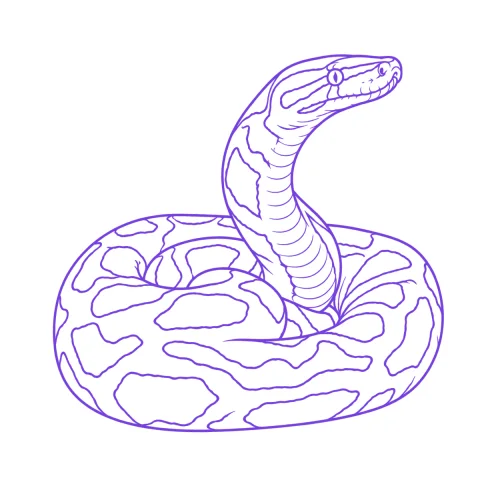
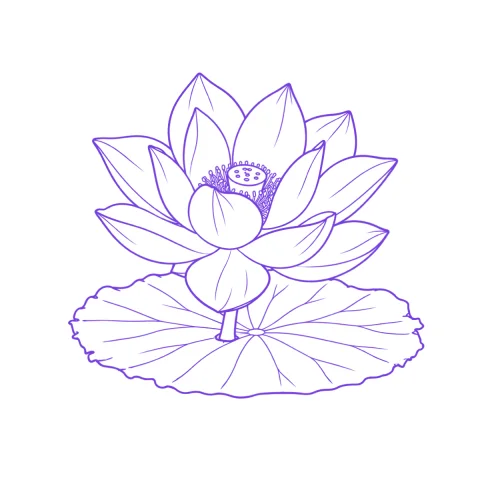
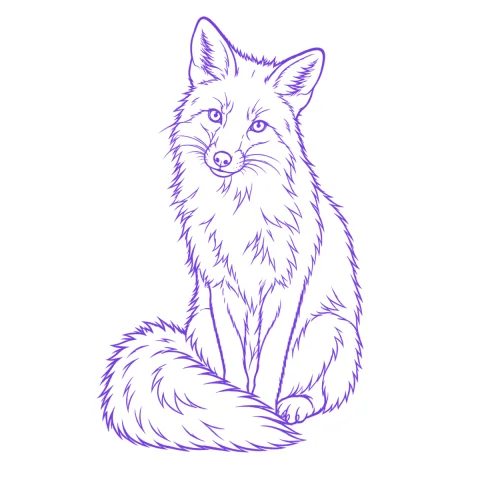
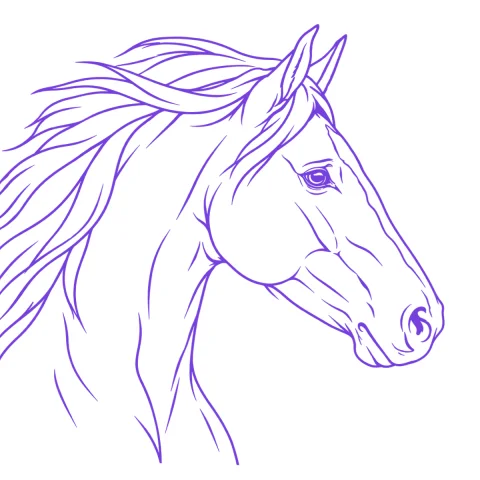
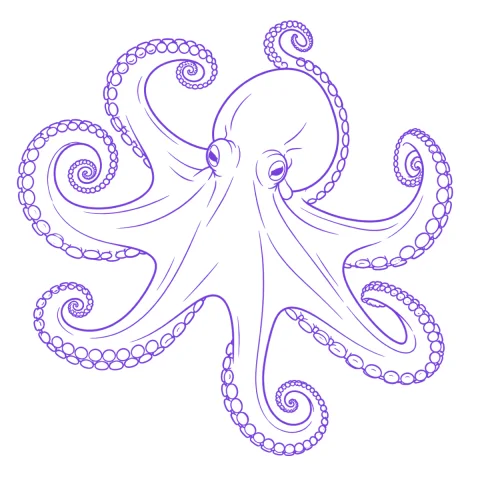
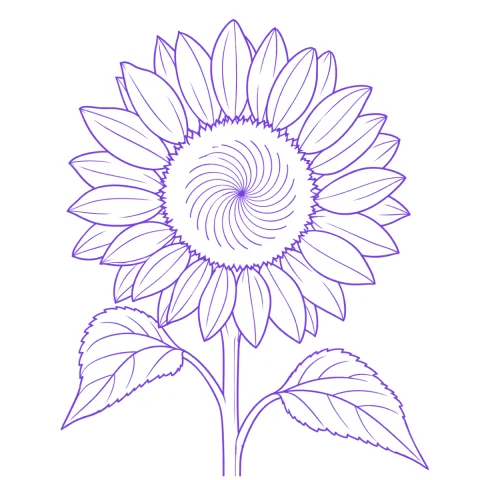
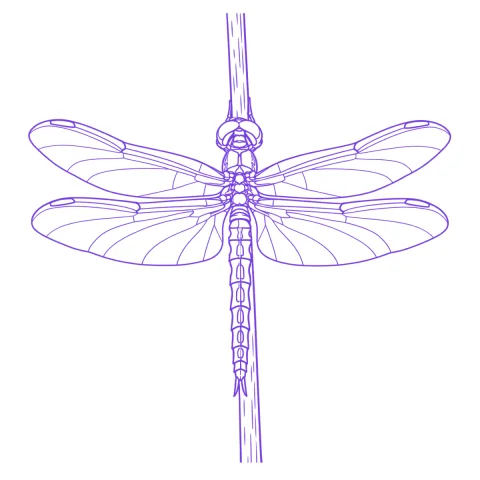
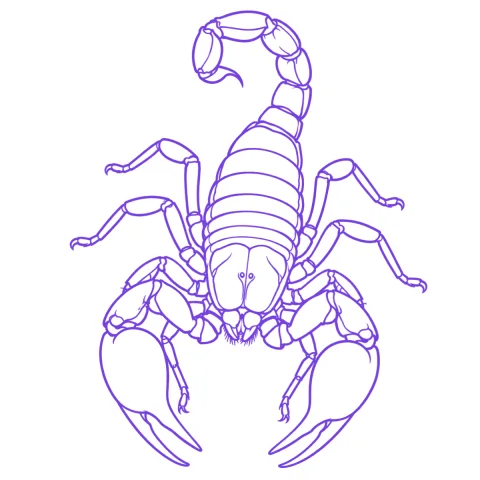
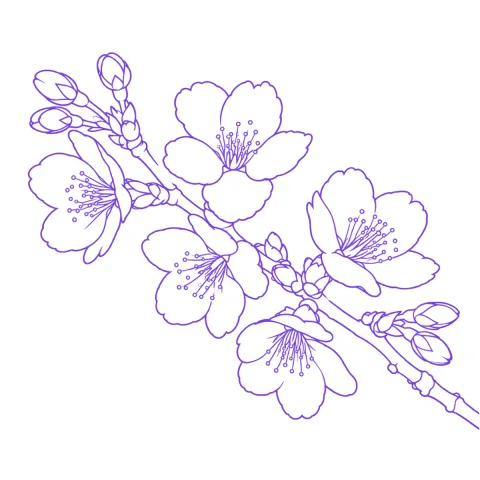
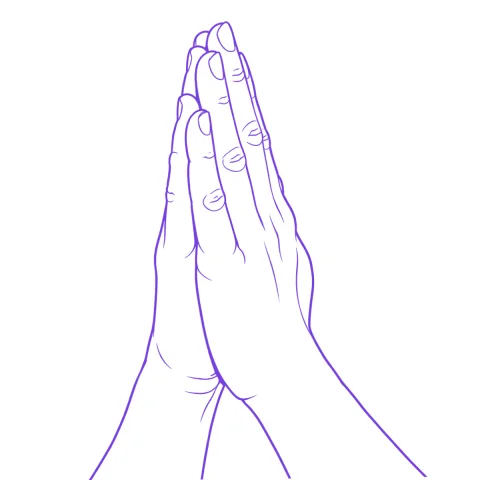
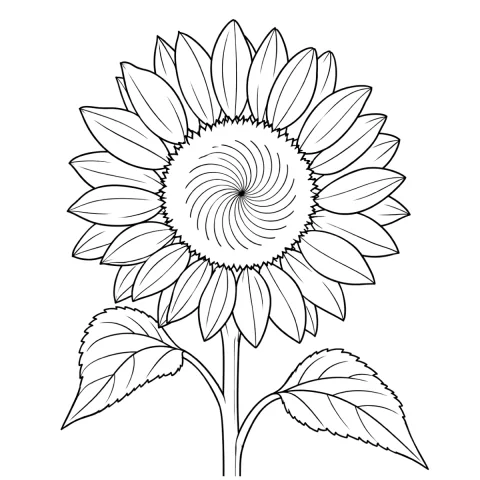
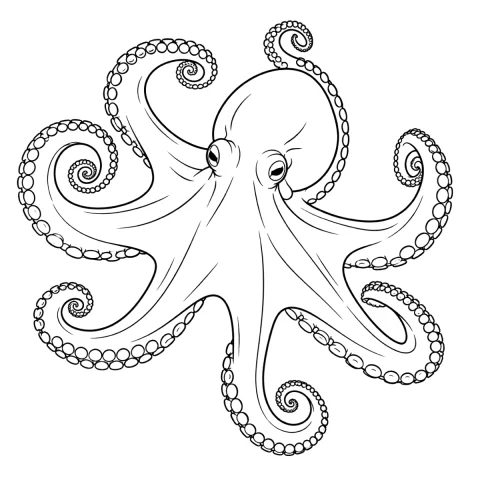
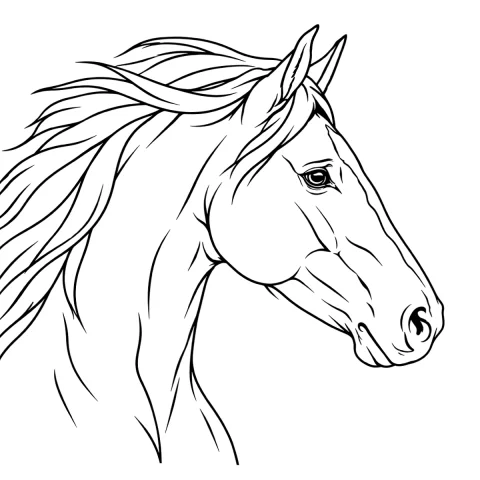
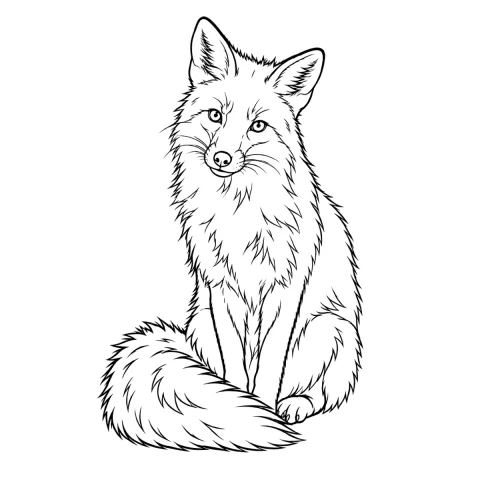
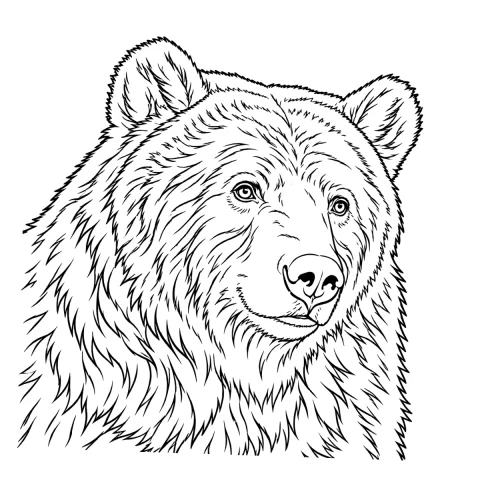
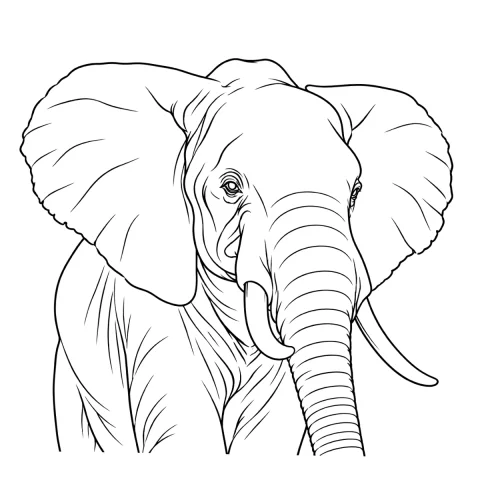
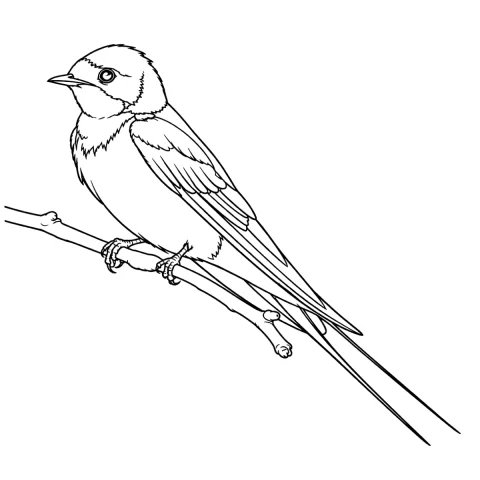
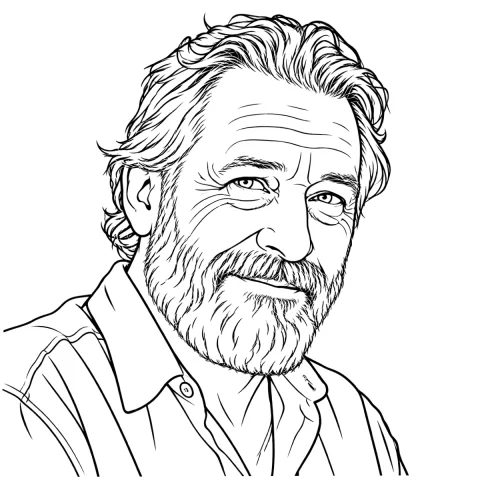
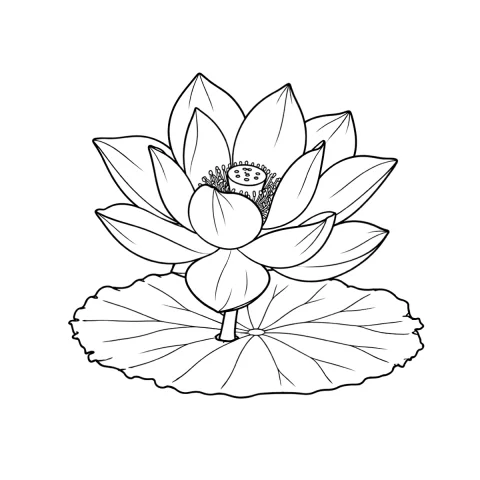
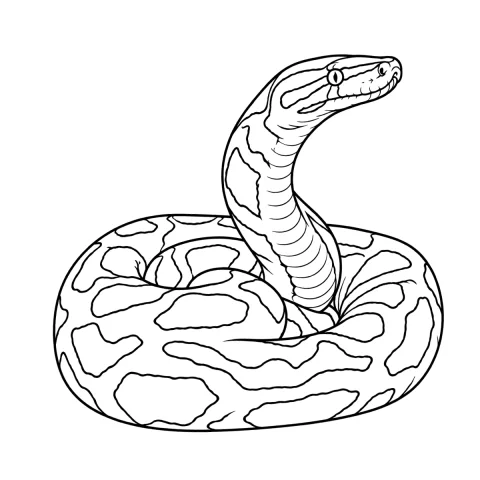
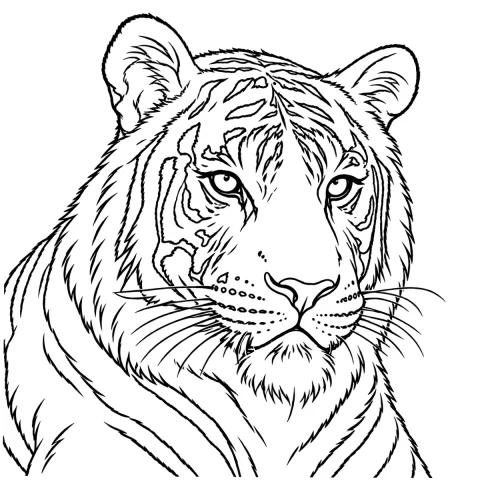
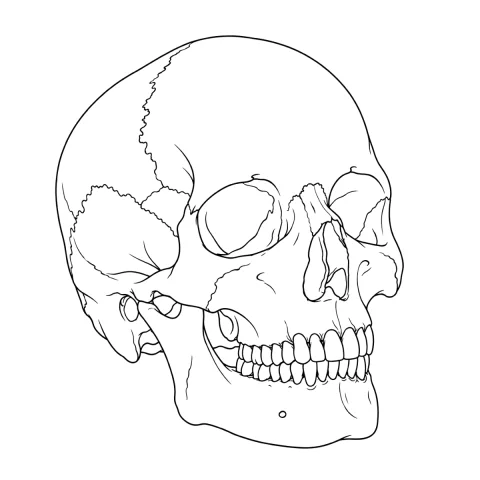
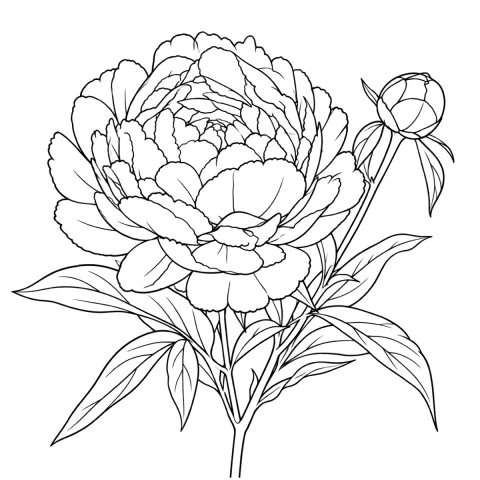
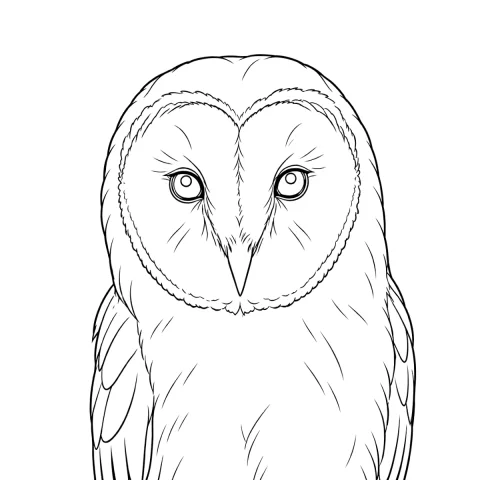
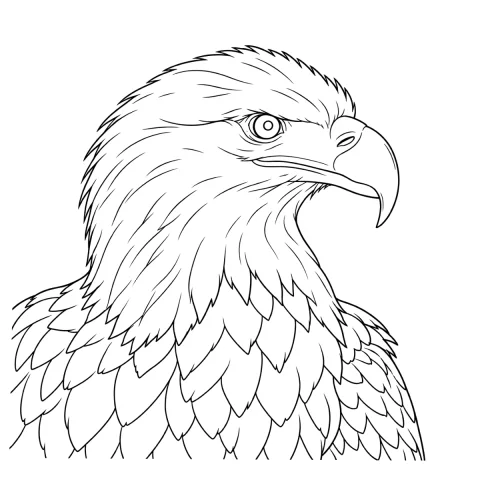
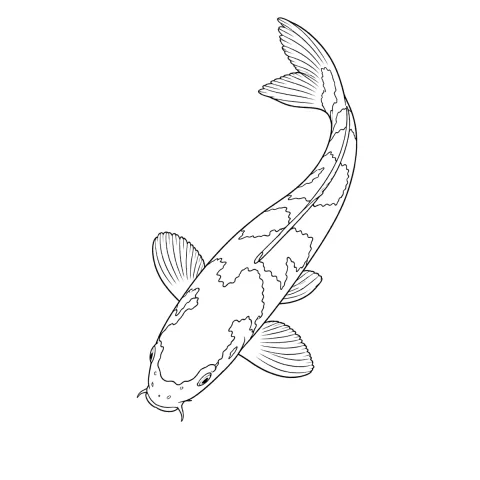
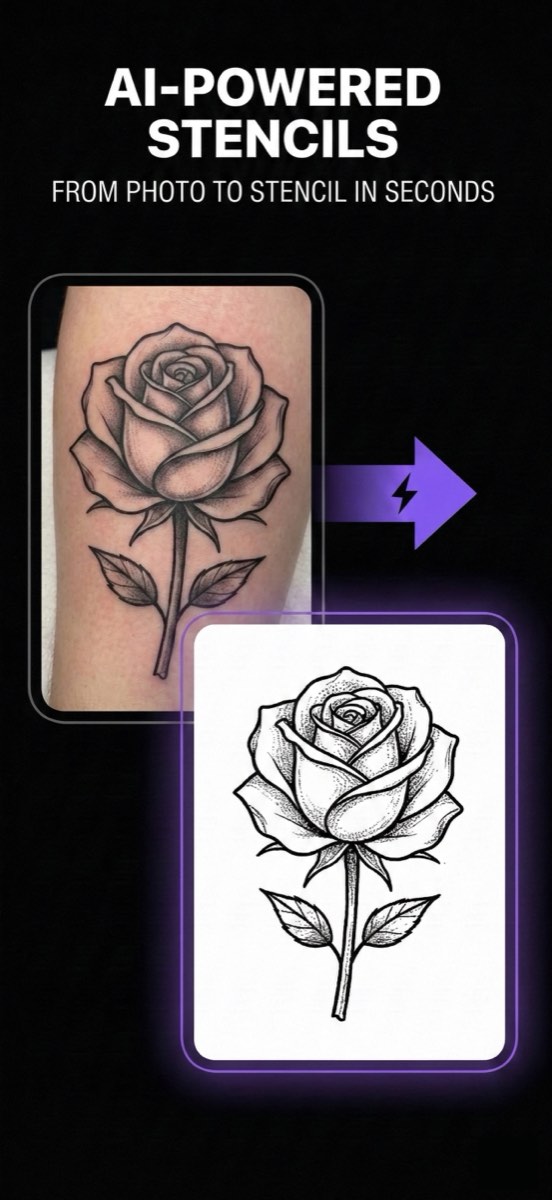
From photo to skin in three steps
InkLine converts a photo into a tattoo stencil in six modes — Linework, Sketch, Outline, Dotwork, Tonal and Denoised — lets you clean it up with Apple Pencil, and prints it at the size you type on US Letter, US Legal, Tabloid, A4 or A3. Designs bigger than one sheet are tiled across labelled pages with registration crosshairs and cut lines, which is what lets a back or sleeve piece print at true size on a home printer.
Start from a photo
A client’s reference, a pet, a flower you shot yourself. The sharper and better lit the photo, the cleaner the lines that come out of it.
Pick a mode, refine it
Linework for clean lines, Dotwork or Tonal for shading, three sliders to tune it — then fix anything the conversion missed with Apple Pencil, the photo underneath as a guide.
Print it at true size
Type the size in cm or inches and that is the size on paper: US Letter, US Legal, Tabloid, A4 or A3. Bigger than one sheet? It tiles across labelled pages with overlap, crosshairs and cut lines.
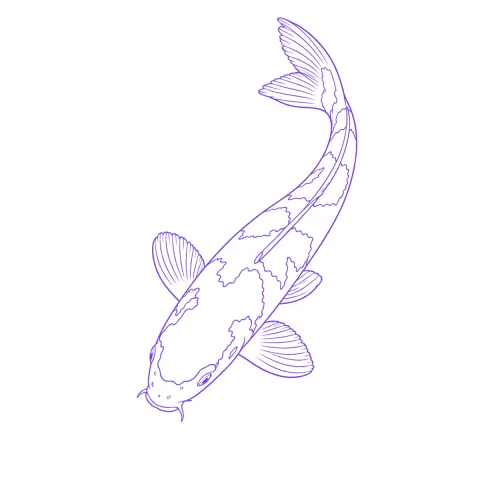
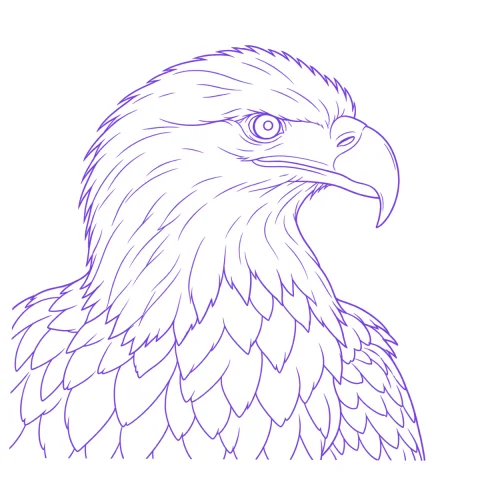
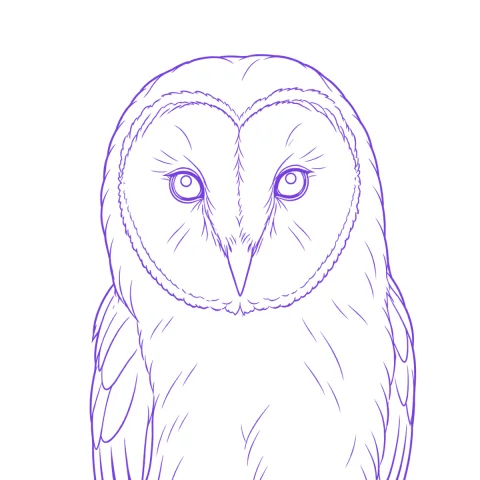
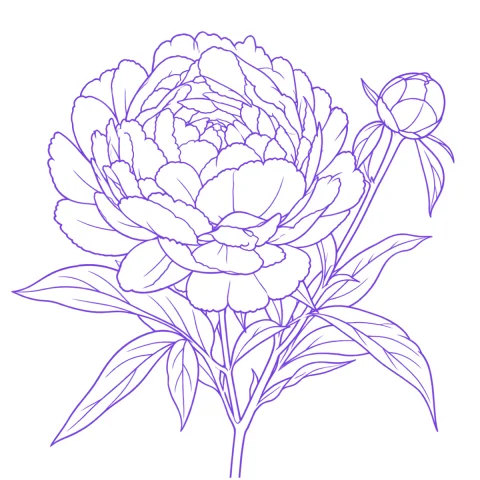
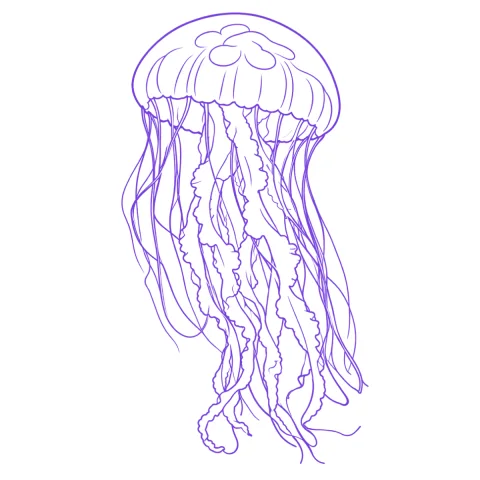
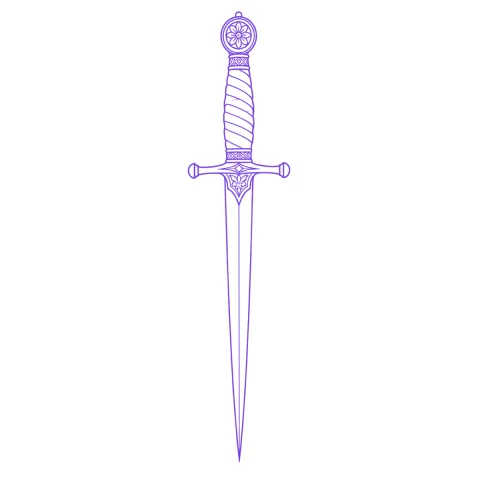
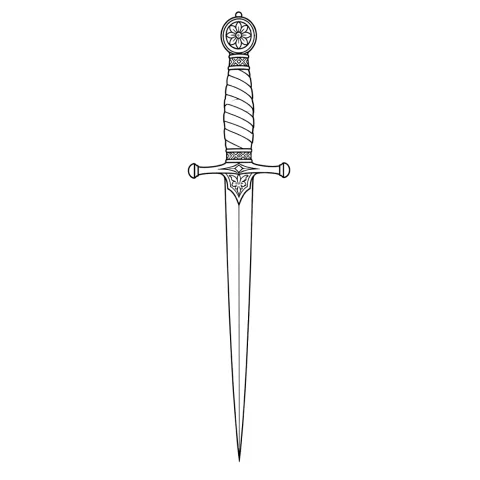
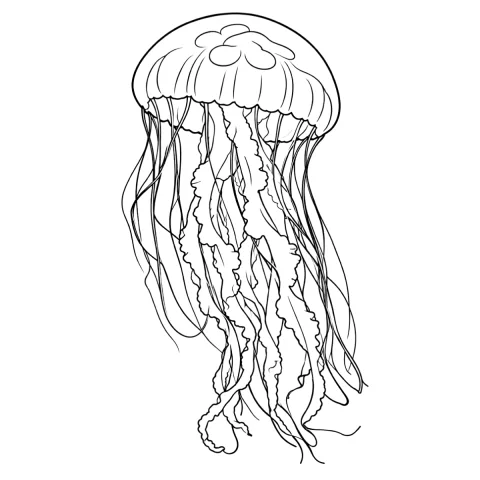
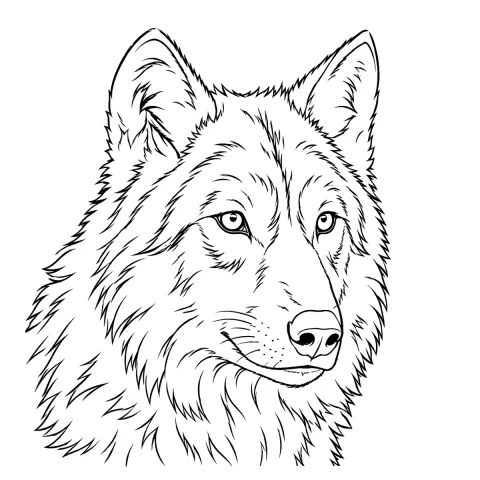
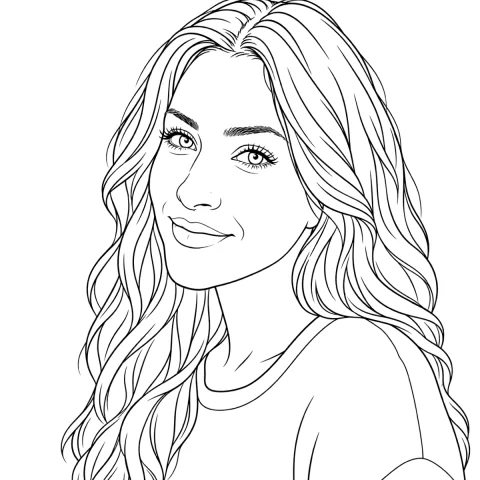
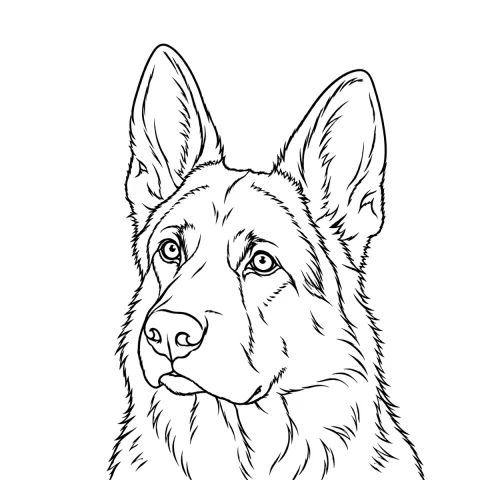
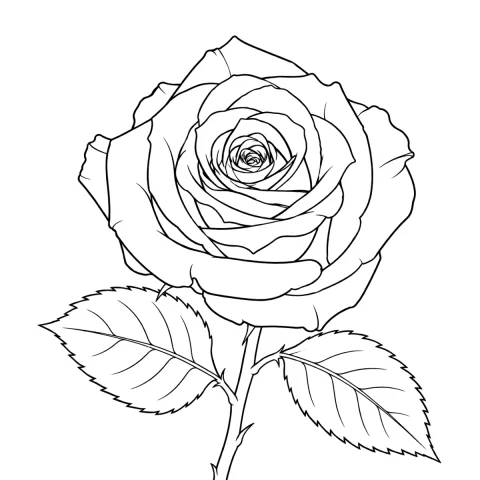
Photo in, stencil out
Hover or tap a card to see the stencil traced from the photo.
The six stencil modes
Every mode runs as local image processing on the device — no upload, no network needed. The mode you pick decides what survives onto skin.
- LineworkSolid black lines traced along the picture's contours, with near-black areas kept as solid fills and dark backdrops that run off the edge left out. The default mode.
- SketchThe pencil-sketch look: edges darken, even tones go to paper white, and shading stays as grey tones. Called Original before version 1.1.0.
- OutlineContour lines only — coarser and stricter than Linework, with no solid fills and no fine hatching.
- DotworkTraced outlines plus evenly spaced stipple dots — denser where the picture is darker, none on white paper, fewer over out-of-focus backgrounds.
- TonalA black-and-white shadow map: light outlines, dotted lines where each of two to four shadow levels begins, and hatching over the darkest — no grey fills, because grey does not transfer to skin.
- DenoisedLinework run on a noise-reduced, lightly smoothed copy of the picture, for grainy or noisy photos.
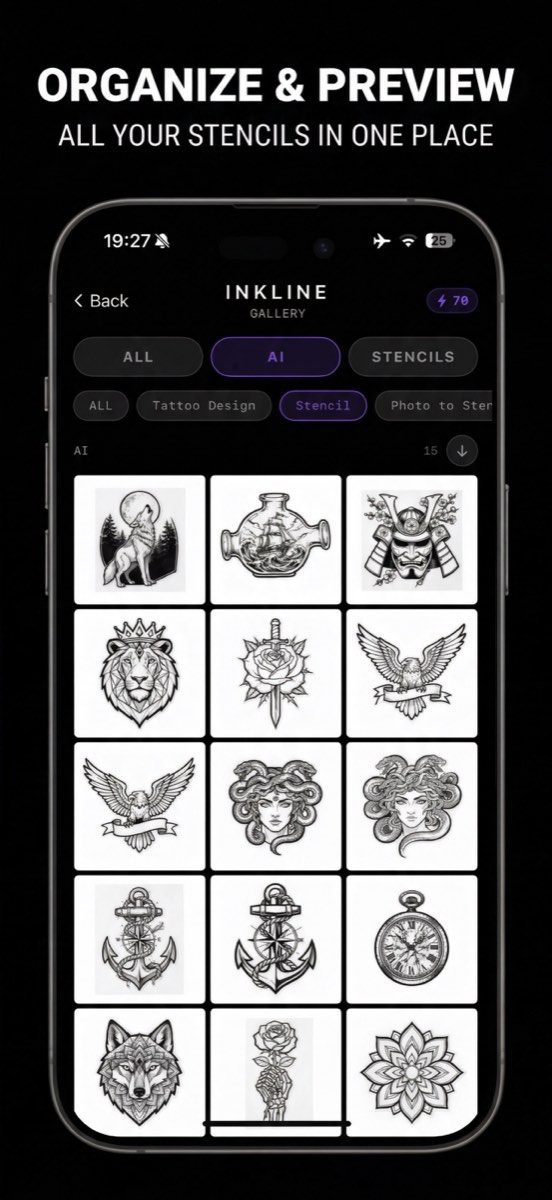
Inside the app
Guides
One question per page — what to do, what breaks, and what to check before the needle touches skin.
- Best Tattoo Stencil App for iPhone and iPad: 6 Honest PicksThe best tattoo stencil app depends on your printer, your device and how you pay. Six iPhone and iPad options compared, each with a real weakness.
- Do You Mirror a Tattoo Stencil: Which Transfer Methods Need ItThermal and carbon sheets reverse a design twice, so print it right-reading. Face-down printed transfers reverse once, so mirror. How to tell which.
- Handwriting Tattoo Stencil: From a Card or Letter to SkinTurn a loved one's handwriting into a tattoo stencil: scan it flat, lift the ink off ruled paper, even out ballpoint strokes and size it to stay legible.
- How Thick Should Tattoo Stencil Lines Be: Widths by Size and MethodStencil lines work best at about 0.3 to 0.5 mm on paper. How to pick a width for the design's size, detail and transfer method, with starting points.
- How to Apply a Stencil to Fake Skin (and Make It Stay Put)Prep, transfer product, pressure and set time for practice skin, plus why stencils bead up, fade or smear on synthetic sheets and how to fix each one.
- How to Apply a Tattoo Stencil: Prep, Placement, Press and PeelThe on-skin steps for applying a tattoo stencil: trim, prep the area, a thin coat of transfer product, position standing, press, peel, set and check.
Free browser tools
These run entirely in your browser. Nothing is uploaded, and they work without the app — they answer the two questions that ruin most stencils: is my image sharp enough, and is it printing at the size I think it is.
- Tattoo size calculator and true-size print sheetEnter a tattoo size in cm or inches, see it against a body placement, and print a calibration sheet to prove your printer is not scaling.
- Tattoo stencil print resolution checkerDrop in an image, enter the size you want to print it, and get the effective DPI with a plain verdict on whether the lines will hold.
- Print a large stencil across multiple pagesSplit an oversized tattoo stencil into US Letter, US Legal, Tabloid, A4 or A3 sheets with overlap and alignment marks, then download the tiled PDF.
- Turn a photo into a tattoo stencil onlineConvert a photo into stencil line art in your browser with detail and threshold controls. Nothing is uploaded and the download is free.
When it goes wrong
Specific problems with a real person behind them. Each page states plainly what the app cannot fix.
- Client Sent a Low Resolution Photo for a Tattoo: What to DoYour client sent a low resolution photo an hour before the session. How to measure the pixels, decide convert vs redraw, and reset expectations fast.
- Cover Up Tattoo Stencil: Measuring, Mapping and TransferringHow to plan a cover up tattoo stencil: photograph and measure the old tattoo, map its dark masses, size the new design, and work where transfers vanish.
- Freehand Tattoo Stencil Tracing on Skin: The Overlay WorkflowWorking freehand on skin with an on-screen reference overlay: when it beats a transferred stencil, and where symmetry and lettering still need a print.
- How to Make Your First Tattoo Stencil as an ApprenticeWhat a mentor actually checks on a first stencil: continuous lines, correct size for the placement, and no over-detail — plus how to prepare for review.
What InkLine does not do
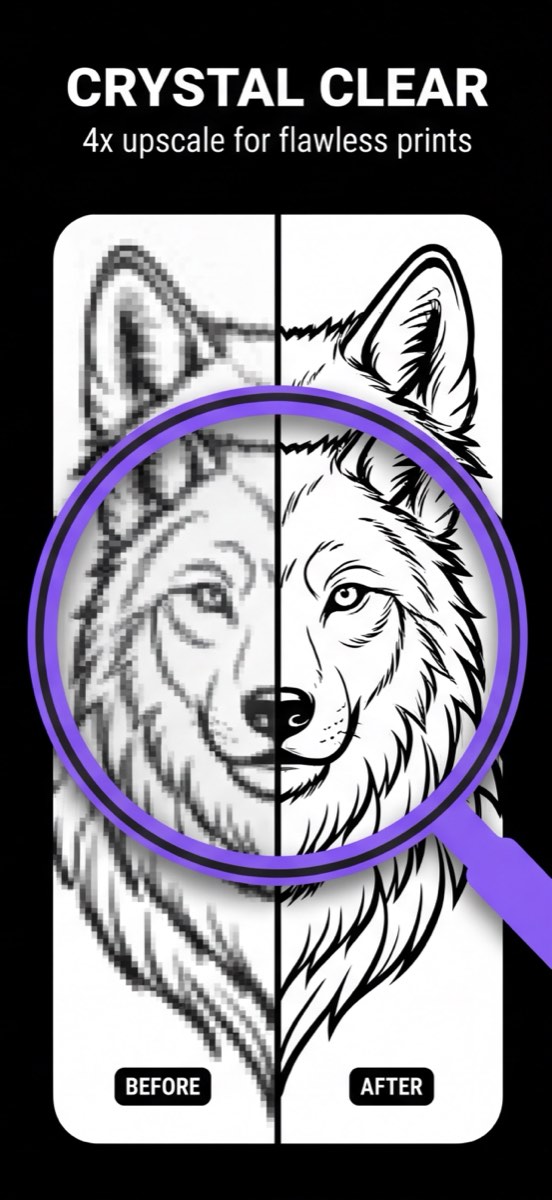
- A photo well under roughly 1000 px on its long edge rarely makes a clean stencil: the built-in upscale resamples the pixels rather than adding detail, so expect to redraw lines by hand.
- InkLine prints to standard AirPrint printers; it does not replace a dedicated thermal stencil printer for shop-volume work.
- The on-skin preview is an AI-generated image of the design on a generic body part — the placement and body you choose — not a photo of your own body, and not a measurement of how a design will sit on a curved surface.
- AI features need a network connection; the manual stencil pipeline is local image processing, apart from AI Refine, which needs a connection and a credit.
- InkLine cannot place a design on a photo of your own body: to mock up a placement, export the stencil as a PNG with a transparent background and layer it over the photo in another app.
- The gallery keeps a flat image, not an editable project: reopening a saved stencil starts from that image, without its mode, sliders, history or print layout.