
Which Stencil Mode to Use for a Tattoo Design: All 6 Compared
Direct answer
Which stencil mode to use for a tattoo design depends on what the source image is made of and what the stencil has to carry: Linework for most line-led designs, Outline for the barest contour pass, Tonal to map where the shadows sit in black-and-grey work, Dotwork for stippled shading, Sketch when grey pencil shading is the point, and Denoised for grainy phone photos. Detail and Intensity apply to all six modes, but Cleanup applies only to Linework, Sketch, Denoised and Outline. In InkLine all six run locally on the device, so testing every one costs nothing but a few seconds.
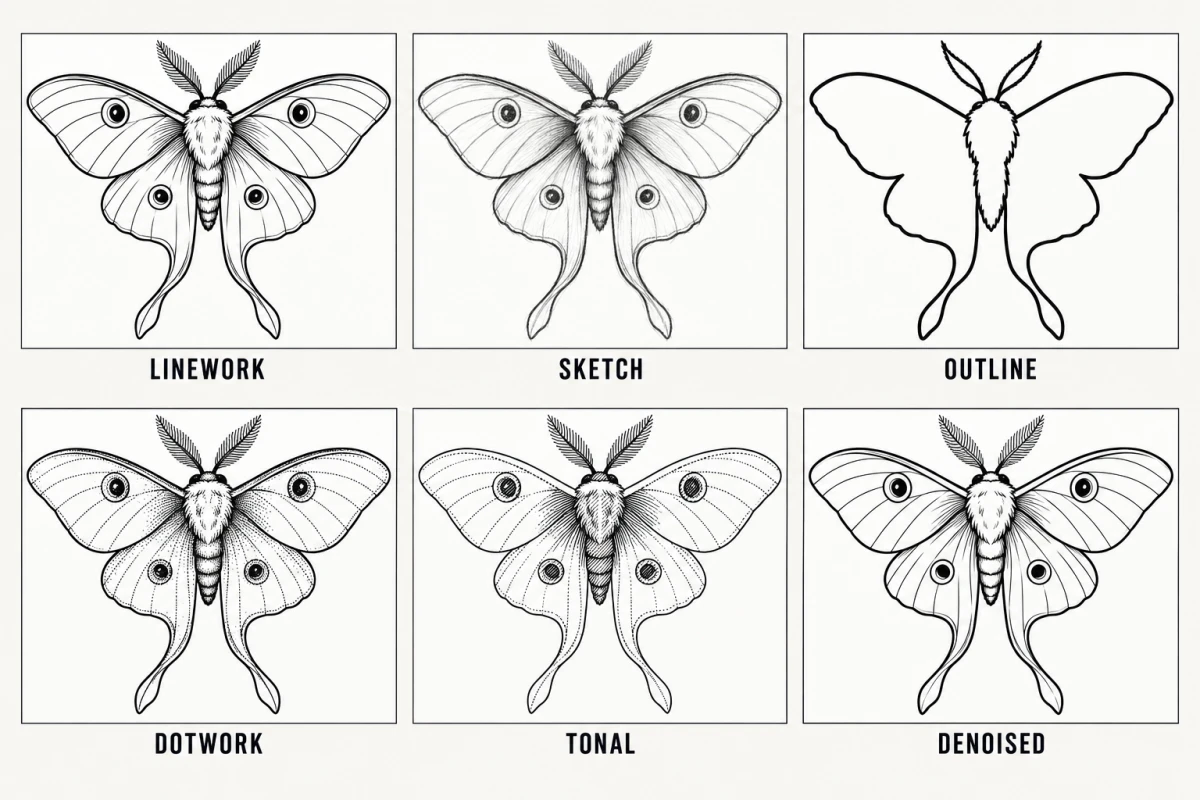
Six stencil modes sounds like five too many until you run the same photo through all of them and watch most of them miss what you needed. A mode is not a style filter laid over a finished result. It decides which part of your source image survives the conversion to black and white, and everything you do afterward with sliders, brushes and erasers is downstream of that one choice. Pick the mode that matches what your source is physically made of and what the stencil has to tell you at the machine, not the mode named after the style you are aiming for.
Start here: the decision table
Match the row that describes your source image, not the row that describes the tattoo you want.
| Your source image | First mode to try | Why it wins | If it fails |
|---|---|---|---|
| Flat digital art, or a clean scan of ink on white paper | Linework | Traces solid black lines along the contours and keeps near-black areas as solid fills | Outline, if you want the contours without the fills |
| Phone photo of a drawing, shot under room or window light | Denoised | Grain is smoothed away before the lines are traced, so it never becomes specks | Linework, if the photo was actually well lit |
| A photo of an object or animal with clear shapes | Linework | Gives you traceable lines, including fur and folds, instead of a grey mass | Outline, if Linework carries more interior line than you will use |
| Portrait, fur, smoke, fabric folds, anything shaped by light | Tonal | Maps two to four shadow levels as dotted boundaries, with hatching in the darkest, in pure black and white | Linework with Detail raised, for the features as lines |
| Stippled, pointillist or sand-textured designs | Dotwork | Renders tone as spaced dots, denser where darker, that you can actually pack by hand | Tonal, then convert the shadow map to dots at the machine |
| A pencil drawing, or a sketch-style design where the grey shading is the point | Sketch | Darkens the edges, sends even tones to paper white and keeps shading as greys | Linework, if the shading will not transfer anyway |
| Very dark, backlit or high-ISO photos | Denoised first, then judge | Noise concentrates in shadows, so it has to go before anything else is decided | Reshoot the photo; no mode fixes an underexposed source |
If you remember only one rule, make it this one: Linework for what you will line, Tonal for what you will shade, Denoised for anything grainy. Outline is the stripped-down version of Linework, Dotwork is for one specific rendering technique, and Sketch is for when the pencil look itself is what you want to see.
Linework is where the app starts a new user, and after that InkLine opens each new stencil in the last mode you applied. That is convenient and also a trap: the mode that suited yesterday’s client photo is not automatically right for today’s. This decision is cheap to get wrong, because processing in InkLine runs on the device and cycling through all six modes on the same image takes seconds and no data. Do that before you touch a single slider. Most people who end up frustrated with a stencil chose a mode in the first two seconds, spent ten minutes fighting the sliders, and never went back to check whether a different mode would have given them a better starting point for free.
What each mode preserves, and what it discards
In the order the app lists them:
Linework traces solid black lines along the picture’s contours. Areas that are already near-black stay as solid fills, and dark backdrops that run off the edge of the frame are left out rather than printed as a slab of black. It is the mode that produces what most people picture when they say “stencil”: confident black lines on white, with fills only where the source is genuinely black. It suits traditional, neo-traditional, blackwork and most illustrative work, and it is the right first try for a clean scan.
Sketch gives the pencil-sketch look: edges darken, even tones go to paper white, and shading stays as grey tones. Sketch was called Original before version 1.1.0, and the conversion is the same. It is the mode to reach for when the grey pencil shading is the point, as in a sketch-style design or a pencil drawing you want to see as drawn. Be realistic about the transfer, though: grey tones print pale and transfer faint or not at all, so on skin a Sketch stencil is mostly its darkened edges, and the shading is reference you keep beside you.
Outline keeps contour lines only. It is coarser and stricter than Linework, with no solid fills and no fine hatching, which makes it the barest contour pass the app offers. Use it for a design you intend to fill or shade by hand at the machine, or when Linework is carrying more interior line than you want to trace. It fails on subjects with no hard edges, which is why a portrait run through Outline comes back looking like a topographic map.
Dotwork traces the outlines and adds evenly spaced stipple dots, denser where the picture is darker, with none on white paper and fewer over out-of-focus backgrounds. It suits designs that will actually be executed in stippling, because the transfer then tells you where density changes. Used on the wrong subject it produces a stencil that is technically accurate and practically unreadable on skin. The dotwork stencils page goes deeper into density and spacing.
Tonal is a black-and-white shadow map. It draws light outlines, a dotted line where each of two to four shadow levels begins, and hatching over the darkest level. There are no grey fills, and that is deliberate: grey does not transfer to skin, so a stencil built from grey tone gives you a smudge where you needed a boundary. It is the mode for realism, black-and-grey portraits, wildlife and anything where the information lives in the shadows rather than in the edges, and it should be read as a map of where each value starts, not as lines to trace. The realism stencils page covers how artists use that map in practice.
Denoised runs Linework on a noise-reduced, lightly smoothed copy of the picture. That ordering matters more than it sounds. Once grain has been pushed to pure black it is indistinguishable from a real mark, and no slider can tell the difference. Denoised is the answer for grainy client photos, reference shots taken across a dim room, and anything captured indoors without proper light. The cost is a small amount of genuine fine detail, which is a fair trade when the alternative is a stencil peppered with specks.
How Detail, Intensity and Cleanup interact with each mode
Three sliders shape the result, and they do not apply identically across modes.
Detail controls how much fine structure is kept. Push it up on Linework and you gain hairlines and wrinkles, but you also promote paper texture and sensor grain to full-strength marks. Pull it down and only the major outlines remain, which is often what a small piece needs.
Intensity controls how heavy the result is. It is the slider most people over-apply. A stencil that looks strong and confident on a bright phone screen frequently transfers as a solid mass. When in doubt, back Intensity off past the point where the preview looks slightly weak.
Cleanup removes small dark specks and pushes pale greys to white, and it is available on Linework, Sketch, Denoised and Outline only. That restriction is deliberate rather than an omission: in Dotwork and Tonal, the small marks are the artwork. A cleanup pass over a stippled field or a dotted shadow boundary would erase exactly the information the mode exists to give you.
| Mode | Detail | Intensity | Cleanup |
|---|---|---|---|
| Linework | Available | Available | Available |
| Sketch | Available | Available | Available |
| Outline | Available | Available | Available |
| Dotwork | Available | Available | Not available |
| Tonal | Available | Available | Not available |
| Denoised | Available | Available | Available |
If you are working in Dotwork or Tonal and need to remove a stray artifact, the answer is the eraser, not a slider. The Edit screen has stroke-by-stroke undo and redo, and every processing step stays on a timeline you can move back along, so an over-aggressive erase is recoverable.
Matching the mode to what you are actually tattooing
For traditional, neo-traditional and blackwork designs, Linework is usually correct on the first attempt. These styles are defined by their contours and their solid blacks, and Linework keeps both. If the fills are too heavy to transfer cleanly, switch to Outline for the stencil and fill by hand.
For realism and portraits, use Tonal and accept that the stencil is a guide to where each shadow level begins, not a set of lines. Anyone expecting a portrait stencil to look like a line drawing is expecting the wrong artifact.
For geometric and ornamental work, Linework or Outline, with Detail moderately high and Cleanup applied lightly to remove scan specks without eating the thin repeat elements.
For sketch-style pieces, Sketch is the natural first try, because the character of the style lives in loose, darkened edges; just plan to carry the grey shading from a reference rather than from the transfer. For watercolor, the stencil usually only needs the boundaries the color has to respect, which is Outline or Linework territory.
For anything photographed in poor light, start with Denoised regardless of destination style, then compare it against your target mode once you know the source is clean enough to be worth converting. The broader photo-to-stencil workflow, including framing and lighting the source, is covered in how to make a tattoo stencil from a photo.
When the mode is not the problem
Mode selection cannot rescue a source that does not carry enough information. Below roughly 1000 px on the long edge, no mode produces a clean stencil from a photograph; at that point you are redrawing the design, not converting it. The Edit screen can put the original photo under the stencil as a guide while you draw, which is the better use of your time than fighting the conversion. The optional 2x upscale on import resamples the pixels you have, and Sharpen works on edges that already exist; neither recovers detail the camera never captured.
Two other limits are worth stating plainly. First, a phone plus a home printer does not replace a dedicated thermal stencil printer for shop-volume work; it replaces it for one-off and travel work, which is a different claim. Second, the on-skin preview is an AI-generated image of the design on a generic body part, not a measurement of how a design sits on a curved surface, so it should not be used to settle a sizing argument with a client.
A one-minute routine that gets it right
- Look at your source and answer one question: is this made of edges or made of shadow?
- If it came from a camera in poor light, run Denoised first and judge the cleanliness before anything else.
- Cycle all six modes without touching a slider. Note which one is closest, not which one is finished.
- Set Intensity lower than looks right on screen, then adjust Detail.
- Apply Cleanup only if you are in Linework, Sketch, Denoised or Outline, and only in small increments.
- If none of the six gets you above roughly 80 percent of the way there, the source is the problem. Reshoot or redraw.
That sequence takes under a minute and removes the most common failure in stencil work, which is committing to the first result the app shows and then spending a quarter of an hour correcting a choice that should have been changed at step three. The stencil modes reference lists what each mode does in InkLine; this page is about deciding which one to reach for.
Frequently asked questions
Which mode should I use for a photo taken on my phone?
If it was shot in anything less than bright light, start with Denoised. Phone sensors add grain in dim light, and that grain turns into specks the moment the image is pushed to black and white; Denoised runs Linework on a noise-reduced, lightly smoothed copy, so the grain is gone before any line is traced. A sharp, well-lit phone photo can go straight to Linework.
Why is the Cleanup slider unavailable in Dotwork and Tonal?
Cleanup removes small dark specks and pushes pale greys to white, and in Dotwork and Tonal the small marks are the artwork: the stipple dots in one, the dotted shadow boundaries and hatching in the other. It applies to Linework, Sketch, Denoised and Outline, where a stray speck is genuinely noise.
Should I use Linework or Outline for a line tattoo?
Start with Linework. It traces solid black lines along the picture's contours, keeps finer lines such as hair and folds, and holds near-black areas as solid fills. Switch to Outline when you want only the skeleton: it is coarser and stricter, with no fills and no fine hatching, which suits a design you will fill or shade freehand.
Which mode should I use for a portrait or a realism piece?
Tonal, in most cases. Portraits depend on where the shadows fall across the cheek, jaw and hairline, and Tonal maps that in black and white only: light outlines, a dotted line where each of two to four shadow levels begins, and hatching over the darkest. It leaves out grey fills on purpose, because grey does not transfer to skin.
Does switching modes need a network connection?
No. All six stencil modes are local image processing in InkLine, so you can cycle through them in airplane mode. The AI features are the ones that need a connection.