
Tattoo Stencil Extraction Modes: What Each of the Six Does
Direct answer
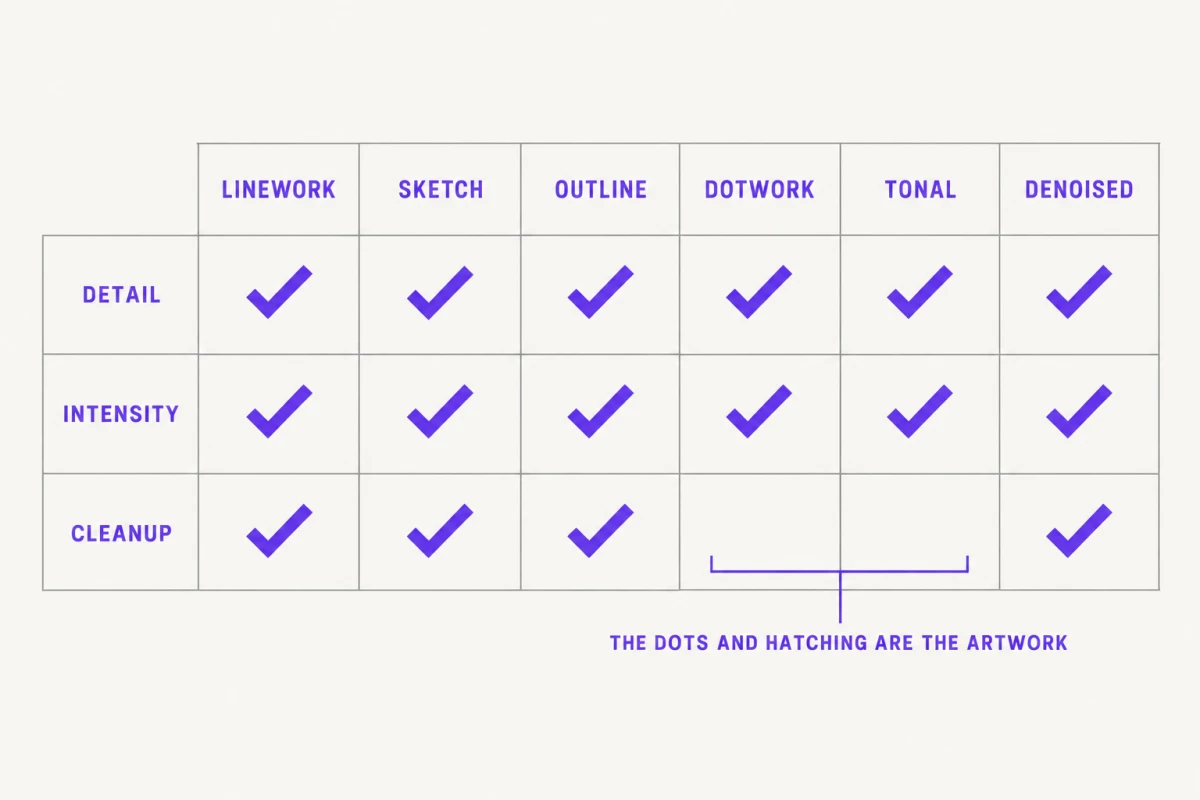
Tattoo stencil extraction modes decide which part of a source image survives the conversion to black and white. There are six, in picker order: Linework (the default: solid traced lines, near-black areas kept as fills), Sketch (a pencil-sketch look with gray shading), Outline (contour lines only), Dotwork (outlines plus stipple dots), Tonal (a black-and-white shadow map) and Denoised (Linework on a noise-reduced copy, for grainy photos). Detail and Intensity work in all six; Cleanup works in Linework, Sketch, Outline and Denoised. In InkLine every mode runs locally on the device.
An extraction mode is not a filter applied to a finished stencil. It is the algorithm that decides which information in your source image is treated as signal and which is treated as background, before anything is drawn, erased or printed. Six modes ship in InkLine, and the difference between them is the difference between a stencil you can transfer and a gray smear. This page describes what each one does to the image, what survives it, and which sources it is built for.
The six modes at a glance
| Mode | What the processing does | What survives | Built for |
|---|---|---|---|
| Linework | Traces solid black lines along the picture’s contours; keeps near-black areas as solid fills; drops dark backdrops that run off the edge | Contours and solid blacks, drawn as pen strokes rather than texture | Most photos and most line-led designs; the default |
| Sketch | Pencil-sketch conversion: edges darken, even tones go to paper white, shading stays as gray | Edges plus soft gray shading | Pencil drawings and sketch-style work where the gray is the point |
| Outline | Contour lines only, coarser and stricter than Linework | The main boundaries between shapes, no fills, no fine hatching | The barest contour pass, when you will shade freehand |
| Dotwork | Traced outlines plus evenly spaced stipple dots, denser where the picture is darker | Outlines and density: where dots pack tight and where they open up | Stippled and pointillist work built dot by dot |
| Tonal | A black-and-white shadow map: light outlines, dotted lines where each of two to four shadow levels begins, hatching over the darkest | Where shadows start and which areas are darkest, as shapes rather than gray | Black-and-gray realism, portraits, wildlife, fabric |
| Denoised | Linework run on a noise-reduced, lightly smoothed copy | Real structure, with grain smoothed away before it can be traced | Grainy or noisy photos: dim studio light, high ISO |
Read that table by source, not by ambition. The mode that suits a photograph of a bird is decided by whether that bird’s form is carried by hard edges or by gradual shading, not by whether you intend to tattoo it in blackwork. Getting this wrong is the most common reason a stencil fights back, and it is also the cheapest thing to fix: cycling through all six modes on the same image takes seconds, so do that before touching a slider.
A new install starts every stencil in Linework. After that, InkLine starts each new stencil in whichever mode you last applied, so if most of your work is dotwork, the picker will usually already be sitting on Dotwork. The companion guide which stencil mode to use for a tattoo design works through the decision case by case; this page explains the mechanism underneath it.
Linework: traced lines, the default
Linework traces solid black lines along the contours it finds in the picture, so a photograph comes out as pen strokes rather than as speckled texture. Areas that are already near-black, such as a dark pupil or a solid black panel in a traditional design, are kept as solid fills. Dark backdrops that run off the edge of the picture, such as a studio photo’s black background or a dark corner of foliage, are left out, because they would print as a slab of transfer ink with nothing to follow.
That combination is why it is the default. It suits most of what arrives on an artist’s phone: a clean scan of a drawing, a photo of an object on a plain background, a pet in decent light, a generated design. When it goes wrong, it goes wrong visibly, with too many lines on a busy background or too few on a low-contrast subject, and Detail and Intensity are the first things to adjust.
Sketch: the pencil look, with gray shading
Sketch is the pencil-sketch conversion, and it was called Original before version 1.1.0; the algorithm is the same. Edges darken, areas of even tone go to paper white, and shading stays as shades of gray.
That makes it the right choice when gray is genuinely the point: a pencil drawing you want to see as a drawing, a sketch-style design, or a reference you want on screen with its shading intact while you draw over it. It is the wrong choice when the stencil is headed for thermal paper and you expect the gray to transfer. Transfer paper and skin do not hold soft gray reliably, so a Sketch stencil tends to transfer as its darkest lines with the shading thinned out or lost. If the shading has to survive, Tonal carries it as shapes instead.
Outline: contours only
Outline reduces the image to contour lines and nothing else: no solid fills and no fine hatching. It is coarser and stricter than Linework, so small internal detail drops out and the major shapes remain. The result is the barest version of a stencil, every line a line you will actually put down.
It works when the boundaries you want already exist as hard edges in the source and you plan to handle the rest freehand, which describes a lot of traditional, geometric and ornamental work. It fails on subjects with no hard edges. Run a portrait through Outline and it finds edges anyway, in the cheekbone shadow and the hairline, and returns something closer to a contour map than a face. That is the mode telling you the subject is made of tone. Photo to line art covers the line-tracing route in more depth, including what to do with edges you do not want.
Dotwork: outlines plus stipple
Dotwork keeps traced outlines and renders shading as stipple dots. The dots are evenly spaced rather than laid out in rows, they pack denser where the picture is darker, there are none on white paper, and there are fewer over out-of-focus backgrounds, so the subject stands on its own.
The reason to use it is that the stencil then matches the technique. A dotwork piece is built dot by dot, and a transfer showing gray tells you nothing about density; a transfer showing dots tells you exactly where the density changes. For a mandala, a stippled gradient or a textured background, that is a far more useful map to work from.
Scale matters more here than in any other mode. A stipple field that reads clearly at 20 cm can transfer as a smudge at 6 cm, so decide the print size before you judge a Dotwork result.
Tonal: shadows as shapes, not gray
Tonal is built for black-and-gray work, and it does not keep gray shading. It draws a black-and-white shadow map instead: light outlines, a dotted line where each of two to four shadow levels begins, and hatching over the darkest level. The boundary lines are dotted on purpose, so they read as the edge of a shadow rather than being tattooed as outlines.
The reasoning is the same one behind every good hand-drawn realism stencil. Gray fills do not transfer to skin; what an artist needs from the stencil is where each shadow starts and which areas go darkest, and the shading itself is built with the machine. Read a Tonal stencil as a map of values, not as a picture. Expecting it to look like a finished drawing is expecting the wrong artifact.
Denoised: Linework on a cleaned copy
Denoised runs a noise reduction and a light smoothing pass over the picture, then traces it with Linework. The ordering is the whole point. Grain that has been traced into a line is indistinguishable from an intentional mark, and every later stage, from the sliders to the print, treats it as artwork.
This is the mode for grainy or noisy photos: a phone shot in dim indoor light, a high-ISO frame, a reference that looks like it was photographed through sandpaper. It gives up a little genuine fine detail in exchange, which is a fair trade when the alternative is a transfer covered in specks. If a photo was well lit, Linework will hold more, so compare the two rather than defaulting to Denoised for every camera image.
Detail, Intensity and Cleanup
Three sliders shape the output, and they do not behave the same way in every mode.
Detail controls how fine a feature still counts. High Detail recovers hairlines and thin repeat elements, and it also recovers paper texture and grain. Low Detail keeps only the major lines, which is often right for a design that will be transferred large.
Intensity makes the result bolder: heavier lines, and more of the picture treated as dark. It is the slider most people over-apply, because a stencil that looks strong on a bright screen frequently transfers as a solid mass.
Cleanup removes small dark specks and pushes pale grays to white. It works in Linework, Sketch, Outline and Denoised, and it is absent from Dotwork and Tonal on purpose, because there the dots and hatching are the artwork and a speck filter would erase them.
| Mode | Detail | Intensity | Cleanup |
|---|---|---|---|
| Linework | Yes | Yes | Yes |
| Sketch | Yes | Yes | Yes |
| Outline | Yes | Yes | Yes |
| Dotwork | Yes | Yes | No |
| Tonal | Yes | Yes | No |
| Denoised | Yes | Yes | Yes |
In Dotwork or Tonal, the tool for removing a stray mark is the eraser rather than a slider. Every step is kept on a timeline you can move back along, and the Edit screen has stroke-by-stroke undo, so an over-aggressive erase is recoverable.
Sharpen, grayscale and upscaling
Three further controls sit alongside the modes and apply across them.
Sharpen steepens edges before the stencil step, with Intensity and Radius sliders. It works at the scale the stencil engine traces rather than pixel by pixel, so it strengthens contours more than it raises grain. On a genuinely grainy photo, Denoised is still the better first move.
Grayscale is where every mode starts. By default the conversion is color-aware: where two colors of the same brightness meet, such as a red rose against green leaves, a plain brightness conversion would turn both into one gray and the edge between them would vanish, so InkLine keeps that outline. An HSV conversion is available as an optional switch on the import screen, which builds the gray from each pixel’s value (its strongest color channel) instead. It is worth a second import on a color source when the default is not separating what you need.
Upscaling comes in two kinds. The import screen offers a 2x upscale: local resampling, not AI, switched on by default for images under 2000 px and capped, like every image in the workspace, at 4096 px on the long side. It gives thin lines more pixels to be traced across, and it adds no detail the camera did not capture. The AI kind is separate: x4 AI upscaling on AI-generated results and a 2x AI Refine step in the workspace, each costing a credit and needing a connection. Photo resolution for tattoo stencils sets out the thresholds in detail.
Everything runs on the device
All six modes, all three sliders, sharpen, the grayscale conversion and the import upscale are local image processing performed by InkLine on your iPhone or iPad. No image is uploaded to run them and no network connection is required, so the manual pipeline works in airplane mode, in a basement studio and at a convention where several hundred phones are competing for the same signal. Client reference photos stay on your device.
The line to keep straight: the manual stencil workflow is local, and the AI features are not. AI generation and AI Refine need a connection and run on credits. Local does not mean unmetered, though. The manual workflow, meaning processing, editing, print layout and export, is free up to an allowance on how many images you carry through it, and past that allowance it needs a subscription; that tier is sold on its own, separately from AI credits. The allowance is configured remotely per install and can change without an app update, which is why no number for it appears on this site.
Where the modes stop helping
Mode selection cannot rescue a source that never carried enough information. Below roughly 1000 px on the long edge, no mode produces a clean stencil from a photograph. At that point you are redrawing the design rather than converting it, and tracing the lines by hand with the original photo shown under the stencil on the Edit screen is a faster and more honest route than fighting the extraction. The full workflow, from framing the source to printing the result, is covered in how to make a tattoo stencil from a photo.
Two other boundaries are worth stating plainly. A phone and a home AirPrint printer do not replace a dedicated thermal stencil printer for shop-volume work; they replace it for one-off, travel and apprentice work, which is a narrower and more defensible claim. And the on-skin preview is an AI-generated image of the design on a generic body part, not a measurement of how a design sits on a curved surface, so it should not be the thing that settles a sizing decision with a client.
Used within those limits, the value of having six modes is that the wrong answer is cheap. Run the image through all six, keep the one that starts closest, and spend your slider time refining a good starting point instead of rescuing a bad one.
Frequently asked questions
Do the extraction modes work without an internet connection?
Yes. All six modes, the Detail, Intensity and Cleanup sliders, sharpen, the grayscale conversion and the 2x upscale on the import screen are local image processing, so they run in airplane mode or in a convention hall with no usable signal. AI Refine and the AI generation features are the parts that need a connection.
What is the difference between Sketch and Tonal?
Sketch gives a pencil-sketch look: edges darken, even tones go to paper white and shading stays as gray. Tonal turns shading into shapes instead: light outlines, dotted lines where each of two to four shadow levels begins, and hatching over the darkest level, with no gray fills, because gray does not transfer to skin.
Does upscaling make a low-resolution photo usable?
It extends the usable range; it does not recover information that was never captured. The 2x upscale on the import screen resamples the pixels locally, so thin lines have more pixels to be traced across, but it adds no detail. Below roughly 1000 px on the long edge you are redrawing the design rather than converting it.
Which mode produces the cleanest line art for tracing?
Linework, for most sources: it traces solid black lines along the contours and keeps near-black areas as fills. Outline is the stricter pass, contour lines only with no fills and no fine hatching, for when you want the barest map and will shade freehand. On a grainy photo, Denoised runs the same line tracing on a cleaned copy.
Are my client photos uploaded anywhere during processing?
Not for the stencil modes. Extraction, the sliders, sharpen and the import upscale are performed on the device by the app itself. The AI features, including AI Refine, run on a server, which is why they need a network connection and a credit.