
What Resolution Does a Photo Need for a Tattoo Stencil?
Direct answer
The resolution a photo needs for a tattoo stencil is decided by print size, not by megapixels: divide the image's pixel dimensions by the printed inches to get effective DPI, target 300 DPI, and treat 200 DPI as the floor for bold outline work. A 1200 px photo printed 4 inches wide is 300 DPI; the same file at 8 inches is 150 DPI and thin lines start breaking up. Below roughly 1000 px on the long edge no tool converts the photo cleanly, InkLine included, and the honest move is to redraw it.
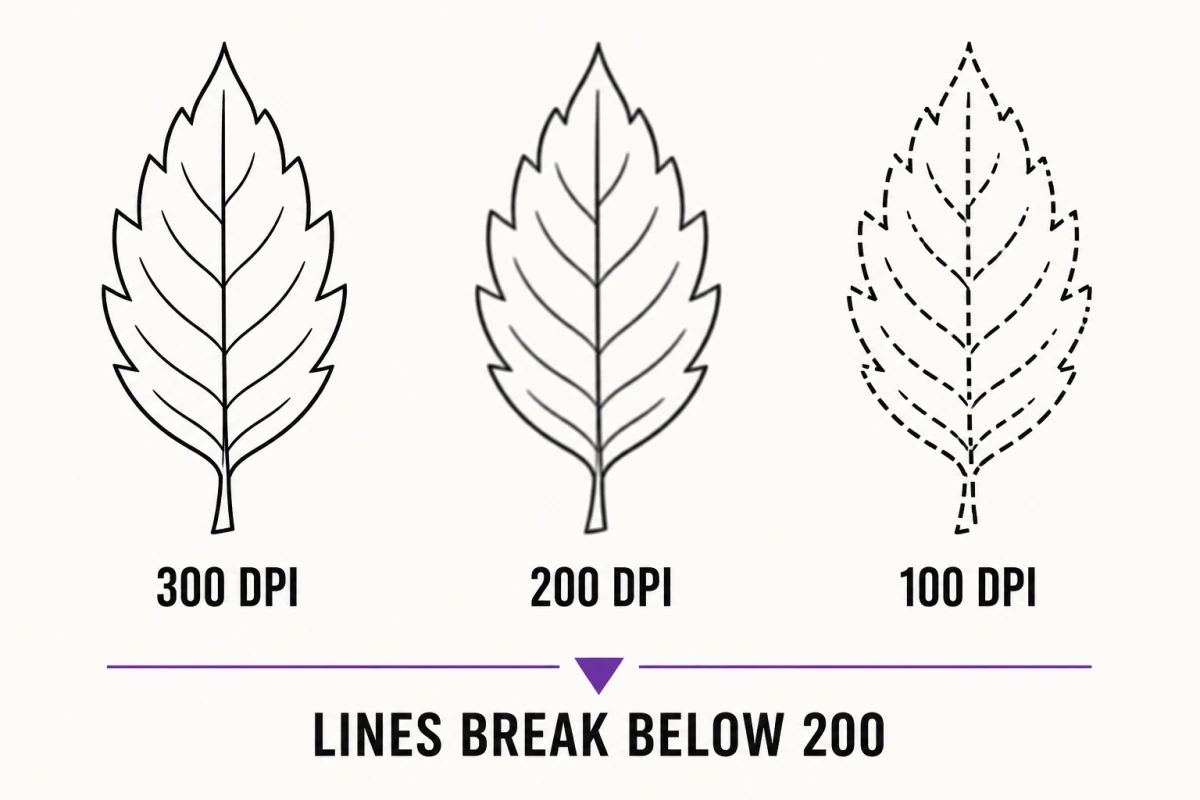
Most stencil problems that look like a software problem are a pixel problem. The photo was never large enough for the size it is being printed at, and no extraction mode, slider, or upscaler can add information the camera did not record. Here is the arithmetic, the two numbers worth memorizing, and the point where the honest answer is to redraw.
Effective DPI is the only number that matters
A file’s resolution means nothing on its own. Three thousand pixels is enormous for a wrist piece and thin for a back piece. The number that decides whether a stencil holds is effective DPI: the pixels you actually have, divided by the inches you actually print.
effective DPI = pixel dimension ÷ printed inches, measured on the same axis
Two worked examples using the same file:
- A 1200 px wide photo printed 4 inches wide is 1200 ÷ 4 = 300 DPI. Fine linework survives, edges stay crisp.
- The same 1200 px photo printed 8 inches wide is 1200 ÷ 8 = 150 DPI. Every edge is now spread across half as many dots. Thin lines break into dashes and small internal details turn to mush.
Nothing about the file changed. The only thing that changed was how far you asked it to stretch. This is why “is this photo high enough resolution” cannot be answered until someone says how big the tattoo is.
| Long edge (px) | Max size at 300 DPI | Max size at 200 DPI | Realistic use |
|---|---|---|---|
| 800 | 2.7 in (6.8 cm) | 4.0 in (10 cm) | below the floor — redraw |
| 1000 | 3.3 in (8.5 cm) | 5.0 in (12.7 cm) | the hard floor |
| 1500 | 5.0 in (12.7 cm) | 7.5 in (19 cm) | wrist, ankle, small flash |
| 2000 | 6.7 in (17 cm) | 10.0 in (25 cm) | forearm scale |
| 3000 | 10.0 in (25 cm) | 15.0 in (38 cm) | thigh, calf, half sleeve |
| 4032 (12 MP long edge) | 13.4 in (34 cm) | 20.2 in (51 cm) | back piece at bold detail |
Do this arithmetic before you commit to a size in front of a client. The print resolution checker takes pixel dimensions and a target print size and returns effective DPI, so you are not doing division on your phone’s calculator while someone waits.
One trap in that table: paper size is not the same as design size. A US Letter sheet is 8.5 × 11 inches but most printers reserve a margin, so a single-sheet design realistically maxes out near 8 inches wide. Going bigger means tiling across multiple sheets, and tiling does not add pixels. A 1500 px photo tiled across four sheets to make a 14-inch design is running at 107 DPI, and it will look exactly that bad.
300 DPI, 200 DPI, and what each one costs you
Translate the numbers into line widths and they stop being abstract. A 0.5 mm stencil line is 0.02 inches wide:
- At 300 DPI it is about 6 dots across. It reproduces as a line.
- At 200 DPI it is about 4 dots across. Still a line, slightly softer at the ends.
- At 150 DPI it is 3 dots. It survives if it is straight, and dashes where it curves.
- At 100 DPI it is 2 dots. It is now a suggestion.
That is why 300 DPI is the target and 200 DPI is a defensible floor for bold work only — traditional outlines, blackwork fills, tribal, lettering above about 15 mm cap height. Those styles have no element thin enough to fall apart at 4 dots. Single-needle script, dotwork stippling, ornamental filigree and realism hatching all have elements below 0.3 mm, and those want 300 DPI minimum, with 400 giving you visible headroom to clean up before printing.
Keep line width and resolution apart in your head, because they fail differently. InkLine’s print screen can redraw the stencil’s lines at a set width for the size you print — fine 0.3 mm, medium 0.4 mm or bold 0.5 mm — which stops a shrunk design from printing hairlines. It cannot put back an edge the photo never had. A bold 0.5 mm line traced from a 100 DPI source is a thick, confident line in a slightly wrong place.
Stencils are also less forgiving than photographic prints, which is why photo-printing rules of thumb mislead people here. A photo print blends: a soft edge stays soft and your eye accepts it. Stencil extraction makes a hard decision at every pixel — line or no line. A gradient edge spread across two low-resolution pixels becomes a visible staircase, the thermal transfer reproduces the staircase faithfully, and the needle follows it. Low resolution in a stencil does not read as “slightly soft.” It reads as jagged and broken.
Below about 1000 px on the long edge, you are redrawing
This is the hard limit and it is worth being blunt about. Below roughly 1000 pixels on the long edge, a photo cannot be rescued into a clean stencil. That is true in InkLine, and it is true in every other tool that converts an image to black and white, because there is no processing step that recovers information that was never captured.
A thousand pixels buys you 3.3 inches at 300 DPI or 5 inches at 200 DPI. So a sub-1000 px source caps you at palm-sized bold work, and only if it was a clean, sharp, well-lit thousand pixels to begin with.
Most sub-1000 px sources arrive from a small number of places: screenshots of social posts, which are often 1080 px wide before you crop to the actual design and land near 600; photos forwarded through messaging apps that recompress on send; thumbnails saved from a search results page; and screenshots of screenshots.
Compression is a second, separate problem from pixel count. A 1080 px JPEG that has been re-saved four times carries 8 × 8 blocking artifacts in every flat area. Conversion reads those blocks as texture and hands back specks. The tools for a messy file are built for grain rather than blocking: Denoised traces on a noise-reduced, lightly smoothed copy of a noisy photo, and the Cleanup slider removes small dark specks. Both quiet the background, and both remove real detail at the same rate — you are trading edge fidelity for a cleaner sheet, and below the floor you have no edge fidelity to spend.
When you are genuinely under the floor, stop trying to convert your way out. Make a light pass — Outline at low Detail gives you a rough skeleton — then open the Edit screen, tap Photo to put the original photo under the stencil at reduced opacity, and redraw the linework yourself with Apple Pencil, erasing the broken lines as you replace them. The photo guide is never saved, exported or printed, so only your lines leave the app. That is a redraw, it takes longer, and it is the right call. If a client sent you something too small, saying so early costs you five minutes; discovering it at stencil time costs you the appointment.
What upscaling can and cannot recover
InkLine has two kinds of upscaling, and they are worth keeping apart. The import screen’s 2x upscale is local resampling: on by default for images under 2000 px, capped at 4096 px on the long side, with no network and no credit involved. The AI options — a x4 upscale on AI-generated results and a 2x AI Refine in the workspace — each use a credit and need a connection. The local one is genuinely useful in a narrow band. Here is the honest split.
What it can do. It gives the conversion more pixels to place an edge in, which means smoother contours and fewer staircase artifacts. It moves a source sitting around 200 DPI closer, in terms of edge quality, to a 300 DPI one. And it hands the printer a raster closer to the printer’s own native resolution, which reduces a second round of resampling at print time.
What it cannot do. It cannot invent detail. If the hatching in a client’s photo is a gray smear spanning three pixels, upscaling produces a smooth gray smear spanning twelve. It looks better at 100% zoom and carries exactly the same information. Worse, upscaling enlarges JPEG artifacts into structured shapes that look intentional, so a bad source can come back looking confidently wrong rather than obviously bad.
Order matters. Upscale the photo before conversion, so the conversion has more pixels to work from — which is why the 2x option sits on the import screen. Upscaling a finished one-bit stencil only rounds off jaggies you already baked in.
The working rule: upscaling is a finishing step for a source that is already above the floor, not a rescue for one below it. At an effective 220 DPI, upscaling gets you a visibly cleaner stencil. At 90 DPI, it gets you a cleaner-looking version of a stencil that was never going to hold.
The AI photo-to-line-art route behaves differently, because it redraws the picture rather than tracing the pixels you have, and therefore tolerates a weaker source — but it interprets, so the result is an interpretation of the reference, not a faithful conversion of it. Check it against the original before you commit. It also needs a network connection and a credit, unlike the manual processing chain. InkLine is a free download; the manual stencil workflow — processing, editing, print layout and export — is free up to an allowance on how many images you carry through it and needs a subscription past that allowance, and AI generation runs on a credit system.
A 60-second resolution check
Run this before you agree to a size, not after.
- Get the real pixel dimensions. In Photos, open the image info panel; in Files, check the item’s details. Do not trust file size in megabytes — a heavily compressed 8 MB file and a clean 800 KB one can have the same pixel count.
- Measure the placement. Get the actual printed inches or centimeters off the client’s arm with a tape, rather than estimating from the photo.
- Divide. Cropped long edge in pixels ÷ printed long edge in inches.
- Compare. 300 or above, proceed. 200 to 300, bold work only. Under 200, shrink the design or redraw it.
- Zoom to 100% and inspect the thinnest element you intend to keep. If it is already soft on screen at full zoom, it will be softer on skin.
- Look at a flat area for blocking. Visible square patches in a plain background mean compression damage that no slider fully undoes.
What to ask a client for
Most low-resolution problems are solved by asking a better question up front. Ask for the original file, not a screenshot of it, and specifically not a copy pasted into a chat thread. Ask them to send it by email or AirDrop at actual size, since most messaging apps recompress by default. Ask what the source is: a photo they took is usually fine, a picture found online is usually not, and a photo of a printed drawing is fine if they shoot it flat in daylight rather than screenshotting a scan.
Then ask about size before you pick the photo, because the size determines the requirement. A single sentence — “how many inches tall do you want it?” — turns an unanswerable resolution question into a division problem you can settle in ten seconds. Give them the target in pixels: 300 for every inch, plus margin for cropping. For a 6-inch forearm piece, that is 1800 px across the subject itself, so asking for 2500 px or more gives you room to crop, rotate and level without falling under the line.
Frequently asked questions
How many megapixels do I need for a tattoo stencil?
Megapixels are the wrong unit because they say nothing about print size. A 12 MP phone photo (4032 × 3024 px) prints to about 13 inches at 300 DPI, but if you crop to a subject that fills a third of the frame you are down to roughly 1300 px and 4.5 inches. Work from the cropped pixel dimensions and the printed inches, not the camera spec.
Is 200 DPI good enough for a tattoo stencil?
For bold work, usually yes. At 200 DPI a 0.5 mm line is about four dots wide, which holds for traditional outlines, blackwork, lettering and tribal. Single-needle script, dotwork stippling and realism hatching need 300 DPI or better because their thinnest elements collapse first.
Can I use a screenshot from Instagram as a stencil source?
Only for something small. Social screenshots typically top out around 1080 px on the long edge before you crop, which caps you at roughly 3.5 inches at 300 DPI, and they usually carry visible JPEG compression blocks that extraction reads as texture. Ask for the original file instead.
Does upscaling a low-resolution photo make it usable?
Upscaling adds pixels, not information. It genuinely helps a borderline source by giving the extraction step more room to place a smooth edge, but it cannot recover detail the camera never recorded, and it enlarges compression artifacts into shapes that look deliberate. Use it above the floor, not as a rescue below it.
What resolution should I ask a client to send?
Ask for the original file rather than a screenshot or a message-app copy, and give them the target: at least 300 pixels for every inch the tattoo will be. For a 6-inch forearm piece that is 1800 px on the long edge of the cropped subject, so ask for more than you need to survive cropping.