
Client reference
Client Sent a Low Resolution Photo for a Tattoo: What to Do
Direct answer
When a client sends a low resolution photo for a tattoo, check the long edge in pixels before you touch a slider: under roughly 1000 px you are redrawing the design, not converting it. Between about 1000 and 1500 px, denoise first, then pull outlines and repair the breaks by hand. Upscaling smooths edges that already exist but cannot invent detail the camera never captured, so redrawing the lines over the photo, which InkLine's Edit screen can show under the stencil as a guide, is often the faster route with a session an hour away.
It is an hour before the appointment and the reference in your messages is a screenshot of a screenshot: soft, gray, 480 px across, with the corner of someone’s home screen still in frame. The client is on their way. This page is the triage order — measure first, decide convert or redraw second, and reset expectations before you start drawing rather than after.
Measure the long edge before you touch anything
Every decision on this page hangs on one number: the pixel count of the photo’s longer side. Not the file size in megabytes, not how it looks on your phone screen, not whether the client says it is “high quality.” On an iPhone or iPad, open the image in Photos, swipe up or tap the info button, and the dimensions appear directly under the date. Import it into InkLine and the dimensions travel with it.
Once you have that number, the triage is mechanical:
| Long edge | What you are actually doing | Realistic approach |
|---|---|---|
| Under 600 px | Redrawing from scratch | Photo guide under a light stencil, draw your own linework |
| 600–1000 px | Redrawing, with the photo as a guide | Photo guide at low opacity, redraw the major masses only |
| 1000–1500 px | Converting, then repairing by hand | Denoised with Cleanup kept low, or Outline for the bare contours |
| 1500–2500 px | Converting cleanly | Linework, or Denoised if the photo is grainy, minimal hand repair |
| Over 2500 px | Full range available | Any of the six modes, including Tonal and Dotwork |
The reason the line sits near 1000 px is print size, not preference. A stencil printed at 300 dpi consumes 300 px for every inch of skin. A modest 5 in (13 cm) forearm piece therefore wants about 1500 px on that edge to print without visible softening. A 500 px screenshot stretched to 5 in is delivering 100 px per inch, which is where letterforms fuse, thin lines drop out, and the transfer prints a suggestion of a design rather than a design. There is more arithmetic behind this in the photo resolution guide, but the short version is that pixels per printed inch is the only number that matters, and you already have both halves of it.
Do this measurement before you open a single slider. Artists lose twenty minutes to Detail and Intensity on a file that was never going to work, and those twenty minutes were the redraw time.
What screenshot damage actually looks like
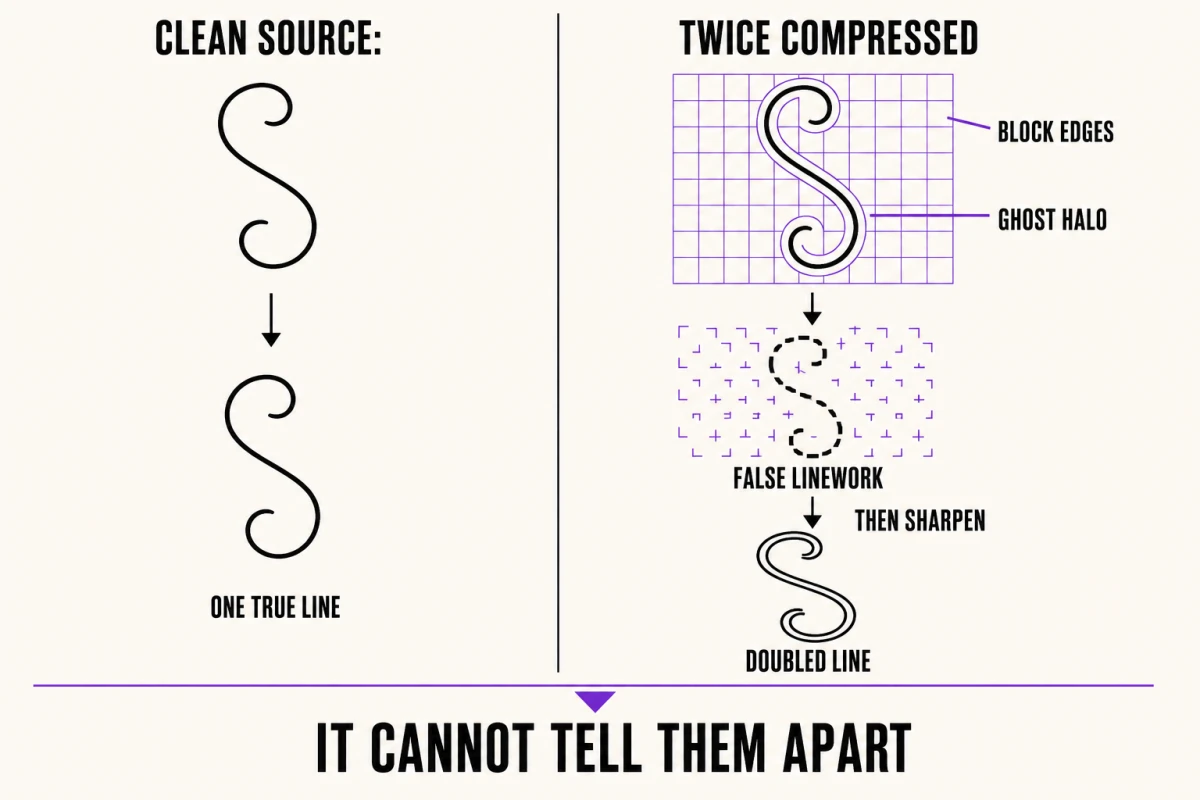
A screenshot of a screenshot is not simply a small photo. It has been through JPEG compression twice, and that leaves specific artifacts that fight stencil extraction in specific ways.
Compression works in 8×8 pixel blocks. Push it hard enough and those block boundaries become visible as faint square edges across flat areas — skin, sky, paper. An outline pass cannot distinguish a compression block edge from a real contour, so it traces the grid, and you get a stencil with a faint checkerboard baked into it. Compression also produces ringing: ghost halos hugging every high-contrast edge. When you sharpen to recover crispness, you amplify those halos into doubled lines, which is why a sharpened low-res reference often produces two parallel strokes where the original had one. Color information is compressed harder than brightness, so any design relying on color separation rather than tonal separation loses its boundaries first.
This is also the most common cause of the broken, dashed, wandering linework covered in why stencil lines break up. The extraction is doing its job correctly; the edges in the file are genuinely that inconsistent.
What denoising and upscaling genuinely recover
Both tools are useful. Neither is a rescue, and knowing the difference is what keeps you from burning the hour you have left.
Denoising genuinely helps on a noisy photo. InkLine’s Denoised mode runs Linework on a noise-reduced, lightly smoothed copy of the picture, so grain and small specks are gone before any line is traced. On a grainy 1200 px photo this is frequently the difference between a usable stencil and an unusable one. It is built for noise rather than compression blocks, so on a twice-compressed screenshot it helps less, and you should expect to erase some block edges by hand. Denoise before anything else. Denoising after sharpening is close to worthless, because sharpening has already promoted the noise into structure.
Upscaling helps less than people expect. The 2x upscale on InkLine’s import screen is local resampling: it gives the conversion more pixels to work with and smoother edges, and it is on by default for images under 2000 px. The AI options go further — a x4 upscale on AI-generated results and 2x AI Refine in the workspace, each costing a credit and needing a connection — and they reconstruct edges plausibly. What none of them can do is invent detail that was never captured. If the original photo lost the client’s grandmother’s facial features, or the fine crosshatching inside an ornamental panel, upscaling returns a larger, cleaner, more confident version of the same missing information. Sometimes it fills the gap with a shape that looks like detail and is not — smooth invented texture where a real edge used to be. That is worse than blur, because blur is obviously blur and invented detail is not.
The practical order: let the import screen’s upscale do its job before conversion, denoise before you trace, and judge the result at print size before you spend a credit on anything else.
Trace over it instead of converting it
Once you are under 1000 px, stop trying to convert. The photo has stopped being source material and has become a reference, and the tool changes accordingly.
Load the photo and make a light pass so there is a stencil to work on — Outline at low Detail gives you a rough skeleton. Then open the Edit screen and tap Photo: the original sits under the stencil as a photo guide, at 40 percent by default and adjustable from 0 to 90, and you redraw the design over it with the Pen brush and an Apple Pencil, erasing the machine’s broken lines as you replace them. The guide is never saved, exported or printed, so only your linework leaves the app. You are not tracing pixel edges — there are no reliable pixel edges left. You are using the photo for proportion, placement, and gesture while making every line decision yourself. This is faster than it sounds. A blurry reference forces you to commit to a reading of the design, and committing is the part that takes time when you are trying to preserve someone else’s ambiguous linework.
It is also usually the better tattoo. A stencil traced from your own hand has consistent line weight, deliberate spacing, and gaps sized for how ink actually spreads in skin — none of which survive a mechanical conversion of a degraded file. The photo-to-stencil workflow guide covers the conversion path for when you do have a good file.
One more thing belongs in this decision. If the low-res image is a screenshot of a finished tattoo by another artist, resolution is the smaller problem. That design is someone’s copyrighted work, and the right answer is to build the client’s concept in your own hand rather than reproduce it. The AI generation tools can help you rough out an original composition from a text description of what the client wants, though generation needs a network connection and uses credits, and the manual overlay-and-trace route needs neither.
Reset the client’s expectations in one message
Send this before you start drawing, not after. Three sentences, in this order: what the file is, what it means, what you need.
State the measurement — “the image you sent is 480 pixels wide, which is about a third of what a printed stencil needs at this size.” State the consequence honestly — fine detail will be interpreted rather than reproduced, and the tattoo will be your reading of the design. State the two options with a deadline — send the original photo (from the camera roll, not a screenshot, and not through a messaging app that recompresses it) within twenty minutes, or you draw an original version and you both approve it together at the start of the appointment.
Most clients pick option one and find the original faster than you expect, because the file usually exists and they simply forwarded the wrong copy. The ones who cannot are almost always relieved to hear a plan instead of a complaint. What loses bookings is discovering the problem while the client is in the chair and the stencil is already on their arm.
For future bookings, put the requirement in your deposit message: original file, not a screenshot, sent as a full-size attachment or through a service that does not recompress. One sentence in a template solves most of these before they happen.
What this cannot fix
- Below roughly 1000 px on the long edge, no processing mode in InkLine will rescue the file into a clean stencil. You are redrawing, and the app's job shifts from converting to giving you something to trace.
- Upscaling works on what is already in the pixels. The 2x upscale on import is local resampling, and the AI options (a x4 upscale on AI-generated results, 2x AI Refine in the workspace) cost a credit and guess rather than recover. None of them reconstructs a face, a script flourish, or fine ornamental detail that was destroyed before the file reached you.
- InkLine cannot tell you whether the image your client screenshotted is someone else's copyrighted work. That call is yours, and it usually means redrawing the concept rather than converting the file.
Frequently asked questions
What is the minimum resolution for a tattoo stencil?
Aim for at least 1500 px on the long edge for a design you intend to convert, and treat roughly 1000 px as the hard floor. Below that, extraction modes produce broken, wandering lines that take longer to repair than redrawing the piece would have taken.
Can AI upscaling fix a low resolution tattoo reference?
Upscaling makes existing edges larger and cleaner, which genuinely helps a soft 1200 px photo hold together at print size. It cannot recover detail that was never captured, so an upscaled 500 px screenshot is a bigger blurry image, not a better reference.
My client only has a screenshot they saved from social media. Can I use it?
Technically you may be able to trace it, but a screenshot of a finished tattoo is another artist's work and copying it is a professional problem before it is a resolution problem. Use it to understand what the client wants, then draw your own version.
Should I denoise or sharpen a soft photo first?
Denoise first, always. Sharpening a noisy file amplifies the noise into speckles that the outline pass then reads as linework, and no amount of cleanup afterward separates real edges from that manufactured grain.
How do I tell the client the photo will not work without losing the booking?
Send one message that states the problem, the consequence, and the two options, in that order, with a deadline. Most clients respond well to being told a better file gets them a more accurate tattoo, and many can find the original within minutes.