
From an old family photo
Memorial Tattoo Stencil From an Old Photo: Scan, Repair, Trace
Direct answer
For a memorial tattoo stencil from an old photo, scan the print flat at 1200 dpi rather than photographing it, crop to the area the tattoo will use, and check that the crop alone measures at least about 1000 px on its long edge. Run a denoised pass so grain and dust are gone before any line is traced, then repair scratches by hand over the photo. Any AI upscale or refine can shift a face's likeness, so show the family the stencil before the session; InkLine's photo guide lets you redraw over the original.
Photo to stencil, on an example
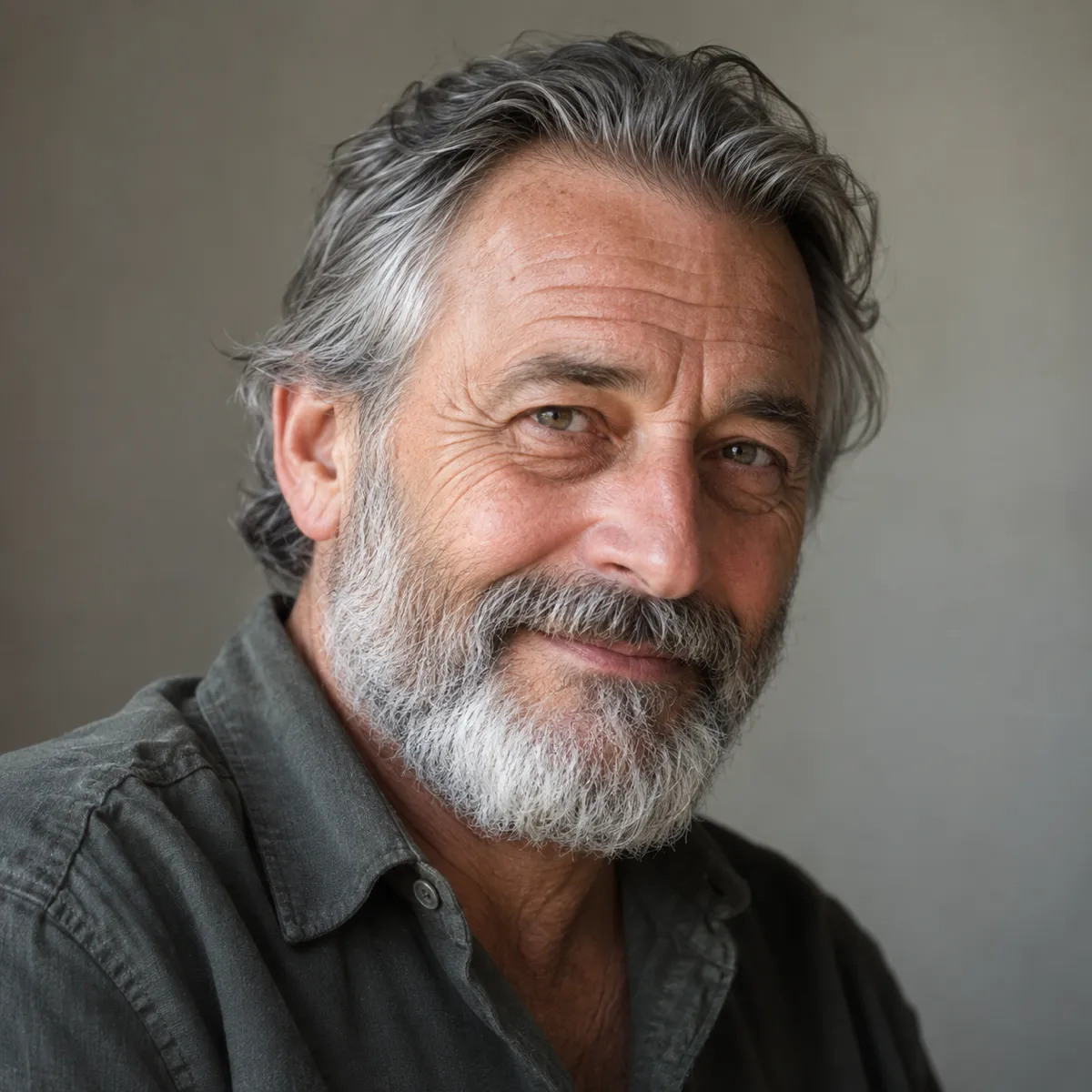
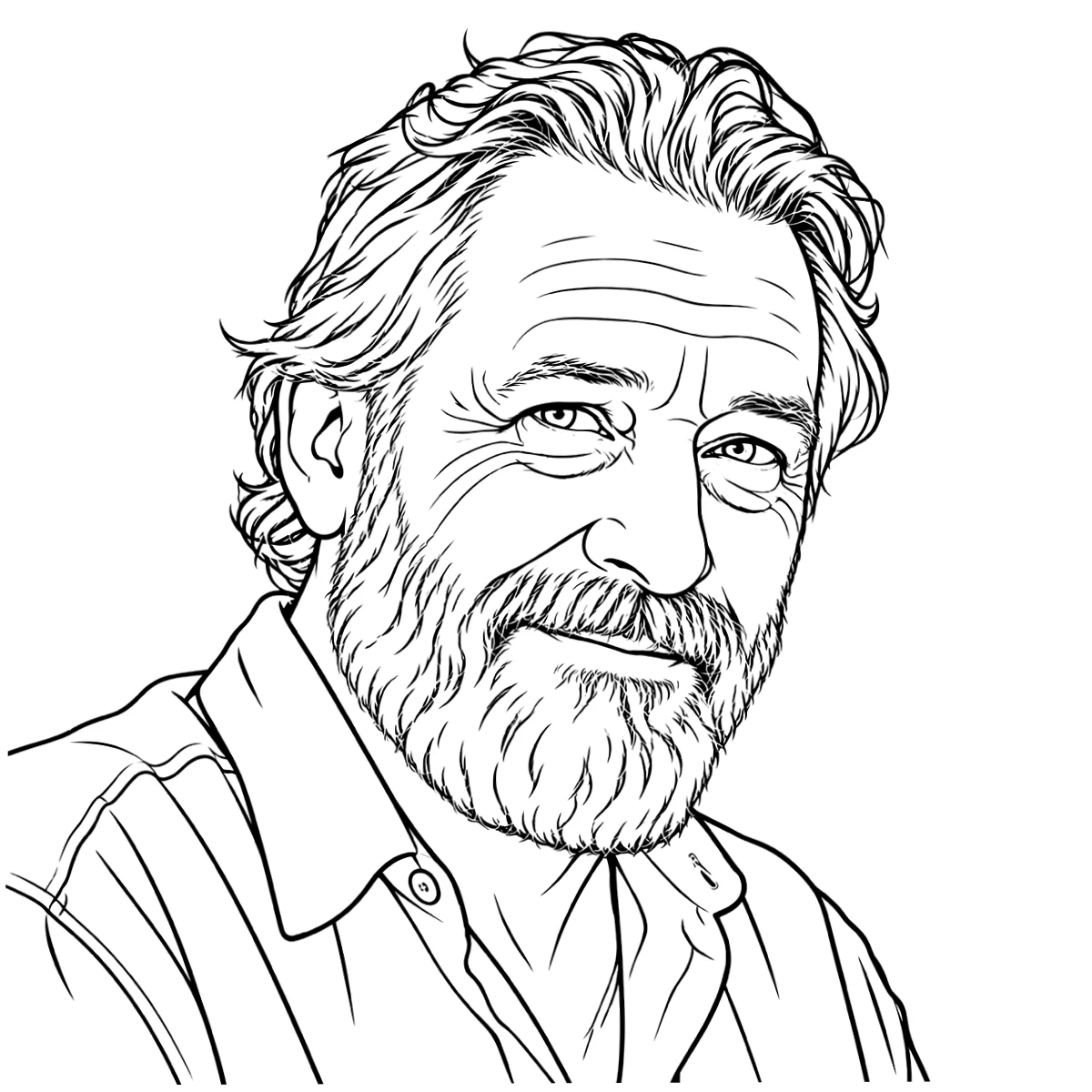
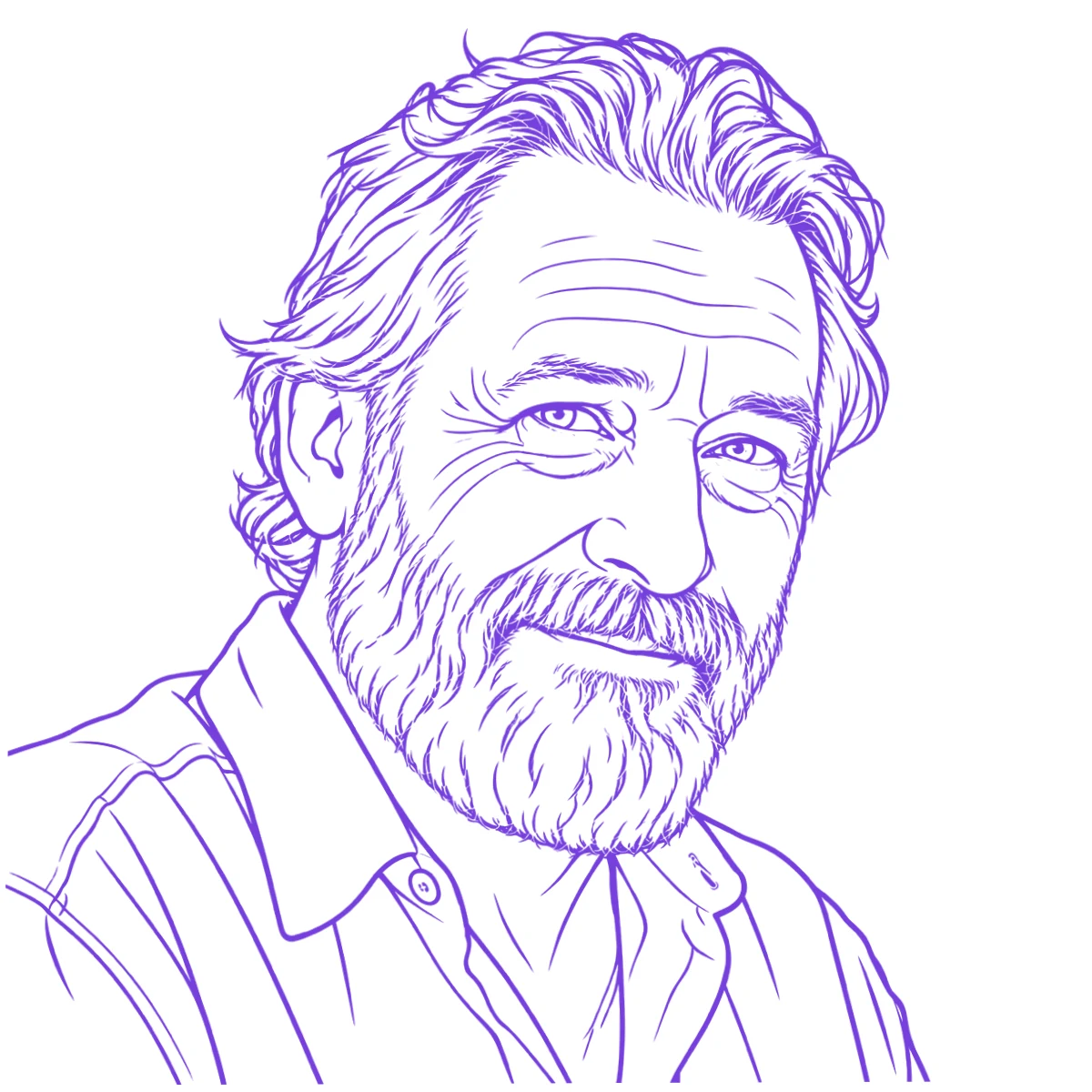
The reference photo and this stencil are AI-generated examples made for this library — not a client photo, and not InkLine output.
A memorial piece often starts with the only photo there is: a small print from a drawer, a little faded, with a crease across one corner and the person’s face no bigger than a thumbnail. The stencil has to carry a likeness that matters to someone, from a source that was never meant to be enlarged. This page covers the practical order: digitise the print properly, measure the part you need, clean the damage in the right sequence, and get the family’s eyes on the stencil before the needle.
Scan the print, then measure the face, not the file
The single biggest gain happens before any app is opened. A flatbed scanner lights the print evenly from below, holds it flat against glass, and records it square-on. A phone photo of the same print fights glare off glossy paper, the curl of an old print, perspective distortion from holding the phone at a slight angle, and the camera’s own sharpening and noise reduction, which smear exactly the fine tonal detail a portrait depends on.
If a scanner is not available, give the phone the best chance it has. Take the print out of its frame and out from behind any glass, which adds reflections and a second layer of dust. Lay it flat in soft daylight near a window, turn the flash off, hold the phone directly above and parallel to the print, and let the print fill the frame. Take several shots and keep the sharpest.
Then do the arithmetic that matters. The question is not how big the scan is; it is how many pixels cover the part of the photo the tattoo will use. In old snapshots that part is usually a face, and it is small.
| Print and subject | Face height on the print | Scanned at 600 dpi | Scanned at 1200 dpi |
|---|---|---|---|
| Wallet print, head and shoulders | about 1 in (2.5 cm) | about 600 px | about 1200 px |
| 4 × 6 in snapshot, half-length | about 0.75 in (19 mm) | about 450 px | about 900 px |
| 4 × 6 in group photo | about 0.3 in (8 mm) | about 180 px | about 360 px |
A rough floor for converting a region into a clean stencil is about 1000 px on its long edge, and a realism portrait wants more. That floor applies to the region you crop, not the whole image: a 7,000-pixel scan of a family group can still give you a 360-pixel face. Scanning at a higher optical (not interpolated) setting is worth a test on the face itself, but past the print’s own detail a higher setting mostly records grain and paper texture more sharply. A phone photo of a 4 × 6 print that fills a 12-megapixel frame lands at roughly 670 px per inch, so a 0.75-inch face comes out near 500 px.
Crop to the region before you import, and keep the full scan. The crop matters for another reason too: InkLine caps the longest side of any image in its workspace at 4096 px, so a full 1200 dpi scan of a 4 × 6 print would be scaled down as it loads, shrinking the face with it.
Clean up scratches, dust and grain in the right order
Old prints carry four kinds of damage, and each behaves differently once a stencil engine reads it.
Grain and fine noise come from the film and the paper. An outline pass reads them as hundreds of tiny edges. Dust and specks sit on top of the print or the scanner glass, and show as dark or light dots. Scratches and creases are long, thin lines that look exactly like linework to software. Silvering and fading are patches where the image has lifted or browned, so contrast simply disappears in part of the face.
The order is denoise first, extract second, repair by hand third. Sharpening a grainy scan before denoising promotes the grain into structure, and no later step separates it from real edges again. In InkLine, Denoised mode runs Linework on a noise-reduced, lightly smoothed copy of the picture, which removes much of the grain and speckle before any line is traced. Then the Cleanup slider removes small dark specks from the stencil and pushes pale greys to white; keep it modest on a face, because it can also remove the small dark marks that make an eye read as an eye.
Scratches, creases and silvered areas do not clean up automatically, because to the software they are real content. Open the Edit screen, put the original photo under the stencil as a photo guide at whatever opacity helps (it goes from 0 to 90 percent and is never printed or exported), erase the false line the scratch produced, and redraw the real contour with an Apple Pencil. Where the print is missing information entirely, under a crease or a silvered cheek, you are deciding what was there. Make that decision with the family, not alone.
Choose Tonal for a portrait, Linework for an outline-led piece
Memorial tattoos split into two kinds, and the mode should follow the design rather than the photo.
A realism or black-and-grey portrait needs the stencil to map where the shadows sit, so the artist knows where the planes of the face turn. Tonal produces a black-and-white shadow map: light outlines, dotted lines where each of two to four shadow levels begins, and hatching over the darkest areas, with no grey fills, because grey does not transfer to skin. It is the closer fit for portrait work, but it needs a cleaner source than Linework does, so it suits a face that measured comfortably above the floor. Cleanup does not apply in Tonal, which means grain has to be dealt with at the scanning and cropping stage. The realism stencils page covers how much a shadow map should carry.
An outline-led memorial, such as a fine-line silhouette, a portrait reduced to a few confident contours, or a meaningful object from the photo like a hat or a pair of hands, wants Linework or Denoised, followed by a hand pass. These modes are more forgiving of a modest crop, because the artist redraws the important lines anyway.
Two modes cannot be blended into one stencil in the app; a second mode runs on the first one’s output. Try each on the original photo, compare them, and keep the one closer to the design.
Be careful with anything that changes the face
Small, soft faces tempt everyone toward upscaling. Know what each option does before you use it on a portrait that matters this much.
InkLine’s 2x upscale on import is local resampling. It gives the stencil engine more pixels and smoother edges, and is on by default for images under 2000 px, but it adds no detail the print did not hold. The AI options go further: x4 upscaling on AI-generated results and 2x AI Refine in the workspace, each using a credit and needing a network connection. They reconstruct detail plausibly, and on a face plausible is the risk. An eye shape, the set of a mouth, or the line of a nose can come back subtly different, and a stranger will not notice what a daughter or a widower sees immediately.
If you use an AI step, put the result beside the original scan and look at the features one at a time, then let someone who knew the person approve it. When in doubt, skip the AI and redraw over the photo guide; your hand interprets, but it does not invent a face. For the arithmetic of how far a small file can stretch, see the photo resolution guide.
On cost: InkLine is a free download, the manual workflow of processing, editing, print layout and export is free up to an allowance on how many images you carry through it and needs a subscription past that, and the AI steps use credits.
Keep the original safe and show the stencil before the session
Practical care is part of handling a memorial piece. Ask the client to bring the print in person or scan it themselves rather than posting it; if it does come to the studio, handle it by the edges, keep it out of the work area, and give it back the same day. Never write on the back, tape it down, or leave it on the scanner. A good scan, saved in two places, means the print never has to be handled again.
Send the client the stencil, printed or as an image, a few days before the appointment, and invite them to share it with family. Explain plainly which parts came straight from the photo and which you redrew because the print was scratched, faded or too small. People in grief are usually grateful to be told this beforehand and upset to discover it afterwards. Give them a simple choice: approve it, or point to what does not look right so you can adjust it from the photo.
On the day, keep the original scan open beside you and print a plain-paper proof at final size first. Small corrections to an eye or a hairline are far easier on paper than on skin, and a memorial portrait is the one tattoo where getting the face right matters more than staying on schedule.
What this cannot fix
- InkLine has no photo-restoration or retouching tool. Cleanup removes small dark specks from the stencil, but a scratch, crease or missing corner across a face is something you redraw by hand over the photo guide.
- The local 2x upscale on import resamples the pixels you already have; it does not restore a faded or grainy print. The AI options (x4 upscale on AI-generated results, 2x AI Refine in the workspace) each use a credit, need a network connection, and can change a face's likeness.
- If the face in the print measures well under roughly 1000 px after scanning and cropping, no processing mode will turn it into a clean portrait stencil. You are redrawing from the photo, not converting it.
- The app cannot judge likeness. Only the family can say whether the stencil still looks like the person, so build in time to show it to them before the session.
Frequently asked questions
Is it better to scan an old photo or take a picture of it with my phone?
Scan it on a flatbed if you can. A scanner lights the print evenly, keeps it flat and records it with no perspective distortion or glare, while a phone photo of a glossy or curled print fights all three. If a phone is the only option, take the print out of its frame, shoot straight down in soft daylight with the flash off, and fill the frame with the print.
What resolution should I scan an old photo at for a tattoo?
1200 dpi is a good default for small prints, because the face in an old snapshot is often under an inch tall. What matters is the pixel count of the region you will tattoo: aim for at least about 1000 px on its long edge, and more for a realism piece.
Can a damaged or faded photo still be used for a memorial tattoo?
Usually, yes, as a reference. Grain and dust respond well to denoising, but scratches, cracks and silvered patches have to be redrawn by hand, and an artist working from a damaged print is interpreting the missing parts. Say so to the family before the session.
Will AI photo restoration change how the person looks?
It can. AI upscaling and refinement fill in detail the print never held, and on a face that invented detail can alter the eyes, mouth or the shape of a smile. Always compare the result with the original side by side and let someone who knew the person approve it.