
Tattoo Tracing App With Reference Overlay: How Tracing Works
Direct answer
A tattoo tracing app with a reference overlay puts the source photo under the lines you are drawing, at an opacity you control, so you can trace, fix or redraw them against the real picture instead of guessing. Set the photo faint enough that your own strokes read darker than it, draw, then hide it and judge the lines alone; anything that falls apart without the photo underneath was never a finished line. In InkLine this is the photo guide on the Edit screen: 0–90% opacity, 40% by default, never saved, exported or printed. You draw on top of the generated stencil; there is no blank canvas.
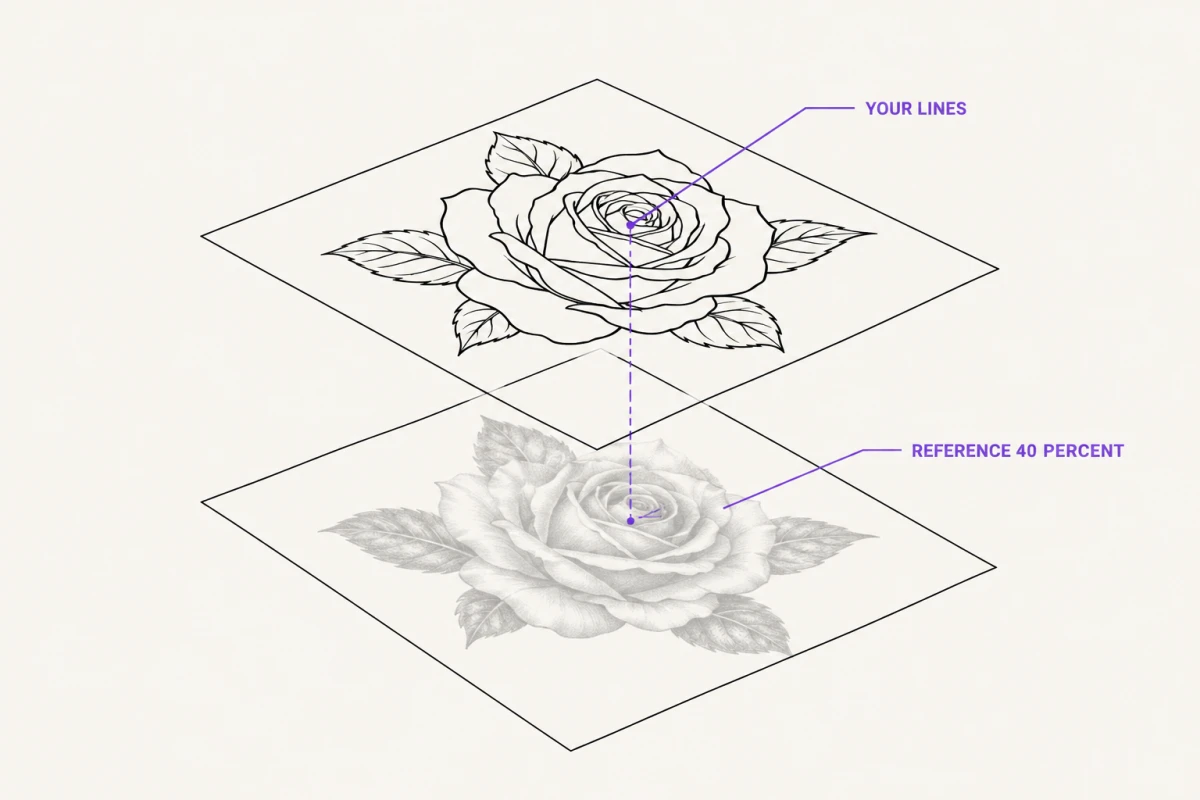
A reference overlay does the one thing an automatic extraction mode cannot: it leaves the decisions to you. In InkLine that overlay is the photo guide on the Edit screen. Tap Photo, and the original photo sits under the stencil at an opacity you choose, so every line you trace, fix or redraw is one you drew while looking at the real picture. This page covers the working method, the jobs it does better than conversion alone, the view that is for checking rather than drawing, and where the limits and the copyright line sit.
How to trace against the photo guide, step by step
The order matters more than the tooling, because two of these steps are expensive to undo once you are twenty lines in.
Settle direction before the first stroke. The photo guide is the photo you loaded, lined up under the stencil, so there is nothing to position or scale by hand. Direction is still a decision, though. If the design needs to run the other way, such as a piece moving from a left forearm to a right one, flip it on the load screen before you process it, while nothing is committed.
Start from the best stencil the modes can give you. You are drawing on top of the generated stencil, not on an empty layer, so the base matters. Linework suits most sources; Outline leaves the least behind if you intend to redraw most of it. Get it as close as you can with the mode and the sliders, then start drawing.
Set the opacity so the photo is clearly weaker than your strokes. The guide runs from 0 to 90% and starts at 40%. A photo at high opacity looks helpful and makes tracing feel accurate, but it swamps your own line: you cannot see where you laid a heavy stroke and where you feathered out, so line weight goes flat. The test is simple: glance away and back, and your line should be the first thing your eye lands on.
Draw the structure before the detail. Long strokes first, in one pass each, following the largest forms. Short, scratchy repair strokes are the signature of a traced drawing and they survive into the transfer. The Apple Pencil drawing tools let each ink draw with pressure, so the taper at the end of a stroke comes from how you lift, or at an even width when a contour has to hold one weight from end to end.
Hide the photo every few minutes. This is the single most useful habit on this page. With the photo visible, your eye fills in everything you have not yet drawn, and the drawing always looks further along than it is. Tap Photo off and you see only what will print: gaps where two lines nearly meet but do not, a shape that reads as a blob without the photograph behind it, a face that only worked because the photo was supplying the eyes. Anything that collapses when the photo disappears was never a finished line. Fix it, bring the guide back, carry on.
Undo strokes rather than erasing across finished work. The Edit screen undoes and redoes stroke by stroke, and the stroke eraser removes one whole line with a touch, so a wrong stroke can go without costing its neighbors. Rubbing out across finished linework with a pixel eraser to remove one wrong stroke usually costs you three good ones. Beyond the Edit screen, every step is kept on a timeline you can move back along; applying a new step from an earlier point replaces the steps after it, so decide before you branch.
The Reference view is for checking, not drawing
InkLine has a second place where the photo and the stencil meet, and it is easy to confuse with the first. The Reference view shows the stencil’s lines tinted in one of six colors, faded against the original photo with an opacity slider. It is a view-only check: you cannot draw in it.
Use it at the end rather than during the work. Tinting the lines in a color the photo does not contain makes it obvious where the stencil drifts from the subject, where a shadow was traced as a contour, and where a feature is missing entirely. Then go back to the Edit screen, where the photo guide is, to make the fix.
Redrawing a reference that is too low-resolution to convert
Below roughly 1000 px on the long edge, no processing mode will rescue a photo into a clean stencil. The information is not there to recover. Detail sliders will amplify compression blocks, sharpening will draw halos around them, and the import screen’s 2x upscale will give you more pixels without giving you more detail. You are not converting at that point; you are redrawing, and the sooner you accept that, the better the result.
The photo guide is what makes redrawing practical. A 600 px screenshot a client sent from a messaging app is useless as a source file but adequate as a guide: it still carries proportion, layout, the relationship between shapes and the intent. Process it in a mode that leaves a sparse base, such as Outline at a low Detail setting, set the photo guide faint, remove the lines you will not keep with the stroke eraser, and redraw over the top. The output is linework you decided, not an enlarged copy of a small image’s noise. It is the honest answer when a client photo is too low-resolution to convert.
Budget the time accordingly. Automatic conversion is a thirty-second operation. Tracing a moderately complex piece is twenty minutes to an hour of drawing, and pretending otherwise to a client who is waiting is how sessions run late.
Turning a photograph into linework by hand
A photograph is made of tone. A stencil is made of lines. Converting between the two is an interpretation, and interpretation is a job for a person.
Automatic line tracing finds edges where the picture changes sharply. It has no way of knowing that the hard shadow across a jaw is lighting rather than structure, or that the softest transition in the whole image, the edge of a nostril or the join between two petals, is the line that has to be there for the drawing to read. That is why photo conversions of faces and organic subjects so often come out with strong lines in the wrong places and nothing where the form actually turns.
Tracing inverts the problem. You decide which tonal transitions become lines and which become nothing, which shadows are worth committing to solid black, and where to break a line so the eye completes it. Work in this order: silhouette, then the internal lines that carry the structure, then whatever shading the piece needs. Hide the photo after each stage. If the silhouette alone does not read as the subject, the detail will not save it.
For pieces that will be drawn on the body rather than transferred from paper, the same logic applies to your on-device guide while you work freehand onto skin: the drawing is the reference, and the reference is not the drawing.
Line practice for apprentices
Tracing against a photo is one of the few genuinely useful drills available on a tablet. Load a reference, erase the part of the stencil you want to practice, set the photo guide faint, and try to lay each line down again in a single confident stroke. Then hide the photo and look at what you produced without the crutch.
What that exercise exposes, in order: shaky long lines, inconsistent weight across a curve, corners approached too slowly, and the habit of drawing the same line four times hoping one lands. None of these are visible while the photo is on. All of them show up in a transfer, and all of them show up on skin.
Two constraints keep it honest. Practice on references you have the right to use: your own drawings and photographs, public-domain material, or licensed stock. And treat the traced result as an exercise rather than a portfolio piece; tracing teaches your hand, it does not teach you composition. Apprentices working through their first stencils generally get more out of ten traced lines drawn slowly and reviewed with the photo hidden than out of a finished traced piece.
What the photo guide will not do for you
It will not correct your drawing. The photo shows where the line should be; whether your stroke lands there is entirely down to your hand, and the guide has no opinion about it.
It will not compensate for a reference that is wrong. If the source photo is shot at an angle, the perspective distortion is baked into your tracing too. Fix the reference or account for the angle deliberately; do not assume tracing neutralizes it.
It will not give you a blank page. There is no empty drawing layer in InkLine: you always work on the generated stencil, and a near-blank start means choosing a sparse mode and erasing, not switching the stencil off.
It will not tell you how a flat design behaves on a curved limb. A drawing traced flat is still a flat drawing, and a forearm, ribcage or calf will stretch it in ways no on-screen guide predicts. The on-skin preview in InkLine is an AI-generated image of the design on a generic body part, not a measurement of how it wraps.
And it will not replace drawing skill. Tracing is a method for transferring proportion and layout accurately. Everything that makes a tattoo design good, meaning what to leave out, how heavy the outside line should be and whether the piece will still read in ten years, happens before you ever load a reference.
Trace only what you have the right to trace
This is the part worth being blunt about. Tracing is a legitimate professional technique, and it has a clear boundary.
Trace your own drawings and photographs, images you have licensed, public-domain material, and client-supplied references the client actually owns. Do not trace another artist’s tattoo or published designs; tattoo designs are copyrighted work, and being findable online does not make them free to use. Copying an identifiable design from another artist is a professional problem before it is ever a legal one, and clients who ask for an exact copy of a piece they saw are asking for something no reputable shop should hand them.
The productive use of someone else’s photograph is as an anatomical or compositional reference underneath your own drawing, not as a shape to duplicate line for line. If the reference belongs to a client, ask where it came from before you build a session around it. In InkLine, the photo guide, the drawing tools and the print layout are yours to use; what you load into them is your responsibility.
Frequently asked questions
What opacity should the reference overlay be set to?
Low enough that your own strokes are unmistakably darker than the photo underneath. InkLine's photo guide starts at 40% and runs from 0 to 90%; for fine linework, dropping it toward a fifth or a quarter makes line weight easier to judge. If you have to look twice to tell your line from the photo, the drawing will come out uneven.
Is tracing over a reference different from using an extraction mode?
Completely. An extraction mode converts the pixels that already exist, so the output inherits the source's resolution, noise and compression. Tracing puts down lines you decided on, and the photo underneath contributes nothing to the final file except the decisions you made while looking at it.
Can I trace a photo of a tattoo I found online?
Not as a design. Another artist's tattoo is their work, and copying it is a professional and legal problem regardless of the tool used. Trace references you own or have permission to use, or use the reference for anatomy, pose and proportion while drawing your own design over it.
Does the reference photo end up in the exported stencil?
No. In InkLine the photo guide is a drawing aid only: it is never saved, exported or printed, so hiding it leaves exactly what will print. That is also why hiding it every few minutes is the fastest way to see what you have actually drawn.
Can I trace on an empty layer instead of on top of the stencil?
Not in InkLine. You always draw on the stencil the app generated, with the photo guide underneath it. For a near-blank start, pick a mode that leaves little behind, such as Outline at a low Detail setting, and redraw over it, removing unwanted lines with the stroke eraser.