
Draw Tattoo Stencils With Apple Pencil on iPad
Direct answer
You draw tattoo stencils with Apple Pencil on top of a stencil you already extracted, not on a blank canvas: four brushes (Pen, Pencil, Marker, Eraser) close contours that broke during processing, each ink drawing with pressure or at an even width, and the original photo can sit under the stencil as a guide at 0–90% opacity. Once the Pencil has drawn, it draws and one finger moves the stencil, and double-tap follows the iPad's Pencil setting. Strokes undo one at a time and every step stays on a timeline you can move back along. InkLine runs this editor on iPhone and iPad, iOS 17 and later.
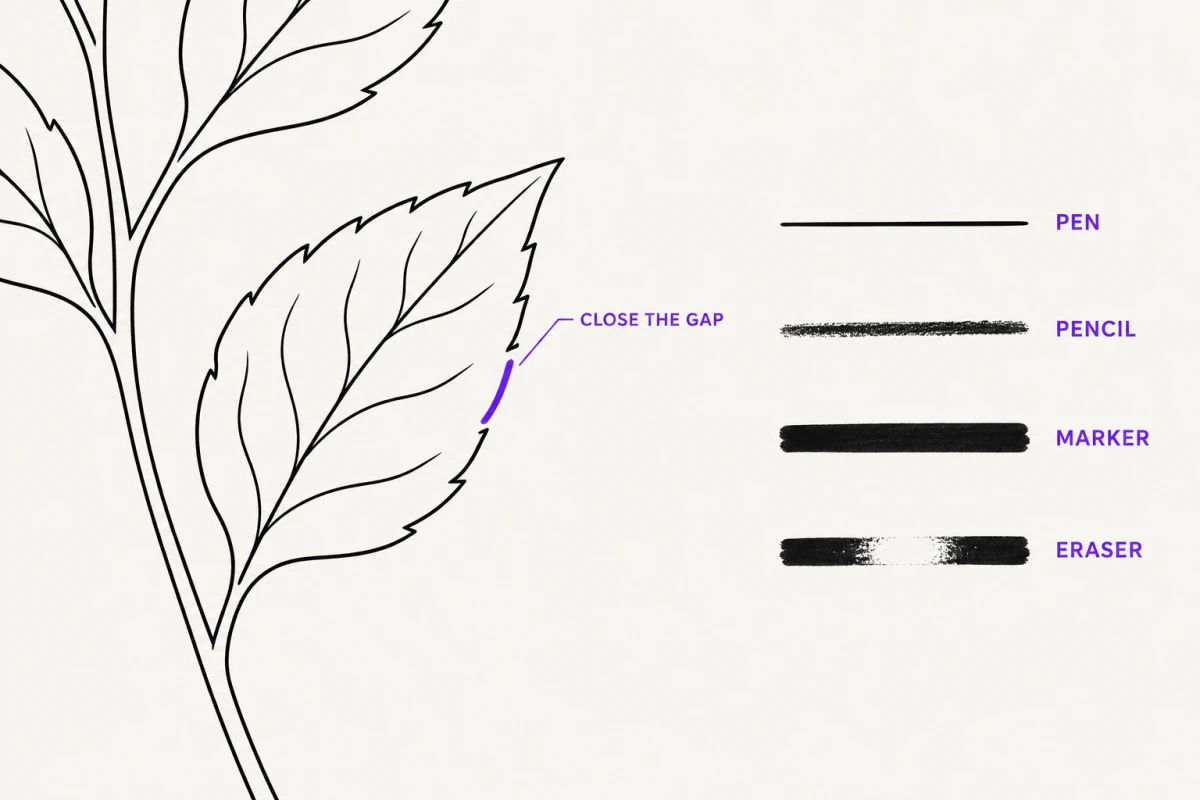
An iPad with an Apple Pencil is the closest thing tattooing has to a digital lightbox. The useful work is not drawing a design from nothing. It is drawing on top of a stencil you have already pulled out of a photo, closing the gaps the processing missed, and pushing line weight back up to something a thermal transfer can actually reproduce on skin.
Repair broken linework instead of re-processing the photo
Most failed stencils do not fail because the drawing was bad. They fail because a contour went thin, gray or discontinuous during extraction: a jaw line that fades where the photo’s contrast dropped off, a fine ornamental scroll that the Cleanup slider removed along with the sensor noise.
Re-running the extraction usually trades one broken area for another. Raise Detail to save the jaw line and the noisy background comes back with it. Raise Cleanup to kill the noise and the scroll disappears again. You can spend twenty minutes cycling sliders and land no better than where you started.
Drawing the gaps back in is faster and far more controllable:
- Get the extraction as close as you can with the mode and the Detail / Intensity / Cleanup sliders, then accept two or three broken areas rather than chasing perfection. If you have not settled on a mode yet, the trade-offs between Linework, Sketch, Outline, Dotwork, Tonal and Denoised are laid out in the stencil extraction modes.
- Zoom to roughly 200–300% (pinch zoom goes to 5x), far enough that the gap is obviously a gap and not an artifact of screen scaling. If you cannot tell where the line should run, switch on the photo guide so the original photo shows under the stencil.
- Take the Pen at a small size and start the stroke on the surviving line, not in the empty space next to it. Overlapping the existing contour by a couple of millimeters is what makes the repair invisible. While you change the size, it shows as a number and as a dot at the line’s true width on the canvas, so you can match the surviving line before you touch it.
- Zoom back out to the physical size you will print at and look again. A repair that reads as a clean join at 300% often reads as a lump at 100%, and 100% is the only view that matches what goes on skin.
The limit worth stating plainly: if you are redrawing more than about a fifth of the design, the source image was never good enough to convert. Below roughly 1000 px on the long edge, a photo cannot be rescued into a clean stencil by any slider; at that point you are illustrating, and you should treat the photo as a guide rather than a source. The causes and the tells are covered in why stencil lines break up.
The four brushes and what each one is for
The names describe the mark each tool makes, and each one has a job in stencil work specifically.
| Brush | The mark it makes | Reach for it when |
|---|---|---|
| Pen | Hard-edged line | Closing gaps in outline work; any contour that has to transfer as one continuous line |
| Pencil | Softer, more textured | Sketching a correction before you commit to it; suggesting shading that will read as tone rather than as a line |
| Marker | Wide and opaque | Filling solid blacks; thickening a contour that extracted too fine to survive the transfer |
| Eraser | Removes marks, by rubbing or by whole stroke | Cutting stray specks; reopening a line that closed up; removing one wrong stroke |
Each ink has two behaviors. With Pressure, lines get thicker as you press harder, so a stroke tapers as you lift. With Even width, a line keeps the same thickness from start to end, which is what an outline that has to transfer at one weight wants. The Eraser has two as well: the pixel eraser rubs out only where you rub, at the size you set, and the stroke eraser removes a whole line with one touch. Ink comes in black or white; white paints paper back over black, which is a clean way to cut an edge into a fill or reopen a gap. A ruler handles the straight lines in geometric and ornamental work.
The distinction that matters on skin is Pen versus Marker. Thermal transfer paper loses fine detail, and skin loses more. A hairline that looks crisp on a 12.9-inch display can arrive on the client as a broken dotted trail. If a line is structural, such as the outline of the subject, the edge of a panel or lettering, put it in with the Pen at a weight you can see clearly at 100% zoom, then thicken it with the Marker if the first pass looks fragile. Reserve the Pencil for marks you intend to be soft, because a soft mark and a broken mark look identical once they are on a forearm.
How the Apple Pencil behaves
A few behaviors are worth knowing before the first session, because they change how your hands work.
The Pencil draws; one finger moves the stencil. The first time an Apple Pencil draws, InkLine stops treating your finger as a brush: one finger now moves the stencil around and a pinch zooms, up to 5x, while only the Pencil puts down ink. If you would rather draw with a finger too, the Draw with finger switch in the brush options turns it back on.
Double-tap does what your iPad says. Double-tapping the Pencil follows the iPad’s own Apple Pencil setting, which by default switches to the eraser and back. Set it once in the iPad’s settings and InkLine follows it.
Size is shown at true width. The brush size shows as a number and, while it changes, as a dot at the line’s real width on the canvas at the current zoom, so a 3 is not a guess.
The Colors tool: keep one color, drop the rest
The Colors tool is the one people skip and then wish they had used. It offers the photo’s dominant colors as swatches; you pick one and set a tolerance, and everything that matches becomes black on white as a new step. Everything else goes to paper.
The cases where it pays off are the ordinary ones. A design drawn in dark ink on graph paper with blue grid lines: pick the ink, and the grid is gone. A client’s photo of an old drawing with a red pen correction on top: pick the original line color to leave the correction out, or pick the red to pull out only the correction. Widen the tolerance until the whole line comes through, and narrow it if the paper starts to come with it. Doing that by hand with an eraser takes twenty minutes and leaves a visible edge everywhere your stroke wobbled.
The tool works from the photo you loaded, not from your drawing, so use it as the first move rather than the last. Clean the image down to the marks you want to keep, then run it through a stencil mode if it still needs one, and only then start repairing with the Pen.
Mirror, flip, and the direction the stencil transfers
InkLine gives you three places to change direction: rotate and flip horizontally or vertically when you load a photo, mirror as a step in the workspace, and mirror on the print screen, which flips the printed output. All three are operations applied to the design, not a live symmetry mode that duplicates strokes as you draw them. That distinction changes how you work.
For a symmetric piece, such as a chest ornament, a mandala or a pair of wings, that means the symmetry has to exist before InkLine sees the design. Mirroring flips the whole image, so it gives you the same piece facing the other way, not a left half copied onto the right. Build the symmetric version in a drawing app with a symmetry guide, or start from a reference that is already symmetric, then extract it and spend your hand attention on the center line, where any asymmetry left in the source shows first.
Flip matters for a different reason: direction. Lettering, script and any design with a clear reading direction has to be checked against how you plan to transfer it. Getting this wrong is a recoverable mistake on paper and an unrecoverable one once the stencil is on skin, so build the check into your routine before the print step rather than after it.
Undo and step history change how you should work
Every stroke on the Edit screen can be undone and redone one at a time, and every operation in the workspace lands as its own step on a timeline you can move back along. The practical effect is that experimentation becomes cheap, so you should experiment more than feels comfortable.
Push Cleanup further than you think is safe and look at the result; if it stripped the fine linework, step back. Thicken every contour with the Marker to see whether the design still reads at print size, and if it now looks clumsy, undo. Try the aggressive fix first, because the cost of being wrong is a step rather than a re-import and a lost session. The one rule to remember: applying a new step from an earlier point on the timeline replaces the steps after it, so decide which version you are keeping before you branch.
Where this pairs well is with reference overlay tracing: switch on the photo guide so the original photo sits under the stencil at partial opacity, trace the contour you lost against it, and switch it off when you are done. The guide is never saved, exported or printed, so nothing of it leaks into the stencil.
What this editor is not
It is a stencil editor. It is not an illustration suite, and it is not trying to be one.
There is no configurable brush engine, no library of hundreds of textured brushes, no blend modes, no animation, no canvas-wide color workflow. If you are designing a piece from a blank canvas, building it up over layers, developing color and working for hours, Procreate is the better tool and it is not close. Procreate has years of depth here that a stencil-focused app has no business claiming to match.
What this app has instead is the part Procreate does not do: six stencil modes tuned for turning a photograph into transferable linework, and a print layout that puts the stencil on US Letter, US Legal, Tabloid, A4 or A3 at the size you type, with line-weight control and tiling for designs larger than one sheet.
The pairing most artists land on runs one direction or the other. Design in Procreate, export to Photos, bring the flat image into InkLine, extract, repair the linework that thinned out, and print at size. Or extract in InkLine first, save a PNG with a transparent background so only the lines come across, take it into Procreate for the artistic work, and come back to InkLine only for the print layout. Neither app resents the other, and the handoff is a normal image export in both directions.
One more honest boundary: none of this replaces a dedicated thermal stencil printer if you are running shop volume, and drawing corrections on an iPad does not change that. It changes what happens before the print, and for freehand work, drawing on the iPad is a rehearsal rather than a substitute for marking onto skin directly, which is still a hand-and-marker skill.
Frequently asked questions
Do I need an Apple Pencil, or will a finger work?
A finger works for large corrections like filling a solid black area or erasing a stray patch. It does not work well for the job that matters most, which is closing a 2 mm gap in a contour at 300% zoom. Once a Pencil has drawn in InkLine, a finger moves the stencil instead of drawing; the Draw with finger switch in the brush options brings finger drawing back.
Does drawing on a stencil require a subscription or credits?
Not credits: credits are spent on AI generation and AI Refine, which are also the parts that need a network connection, while manual processing and drawing run locally on the device. A subscription does enter it: the app is a free download, and the manual stencil workflow of processing, editing, print layout and export is free up to an allowance on how many images you carry through it, then needs a subscription, sold as its own tier for artists who never generate.
Should I use this instead of Procreate?
Use it alongside Procreate, not instead of it. Procreate is a full illustration suite with a brush engine, layers and blend modes that this editor does not attempt to match. This is a stencil editor: stencil modes, line repair, mirror and flip, a print layout that outputs at real physical sizes, and a PNG export with a transparent background that drops straight into Procreate as lines only.
Can I draw over a photo instead of an extracted stencil?
Not on a blank layer: you always draw on top of the generated stencil. What you can do is switch on the photo guide, which puts the original photo under the stencil at an opacity you choose, and trace, fix or redraw lines against it. Below roughly 1000 px on the long edge a photo cannot be rescued into a clean stencil at all, so on low-resolution client references plan on redrawing most of the design that way.
Does mirroring draw both halves of a design at once?
No. Mirror and flip are operations applied to the design, not a live symmetry brush that duplicates every stroke as you make it. Mirror flips the whole image horizontally as a new step, so it cannot copy a finished left half onto the right. For a symmetric design, build the symmetry before you load it, for example in a drawing app with a symmetry guide, and use InkLine for the extraction, cleanup and center-line check.