
How to Make a Tattoo Stencil From a Photo (Step by Step)
Direct answer
How to make a tattoo stencil from a photo: start with a sharp, high-contrast image of at least 1000 px on its long edge, crop it to the finished tattoo shape, convert it to linework, then print it at true size on stencil transfer paper. Contrast decides the result more than megapixels — a flat, evenly lit photo breaks into gaps no slider can close. On iPhone or iPad, InkLine runs that conversion locally in six stencil modes and lays the output out at the size you type on any of five paper sizes, from US Letter and A4 up to A3.

Photo to stencil, on an example
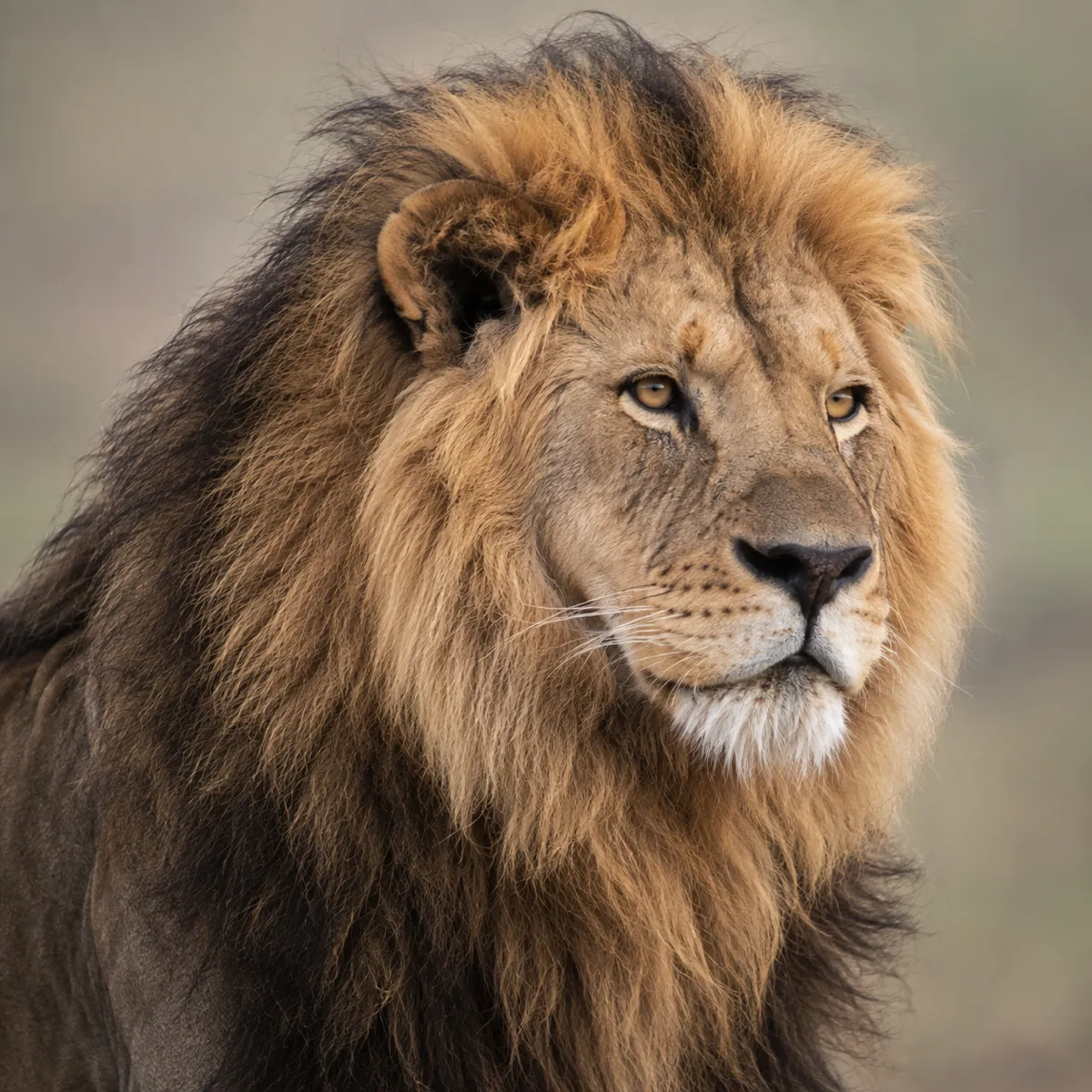
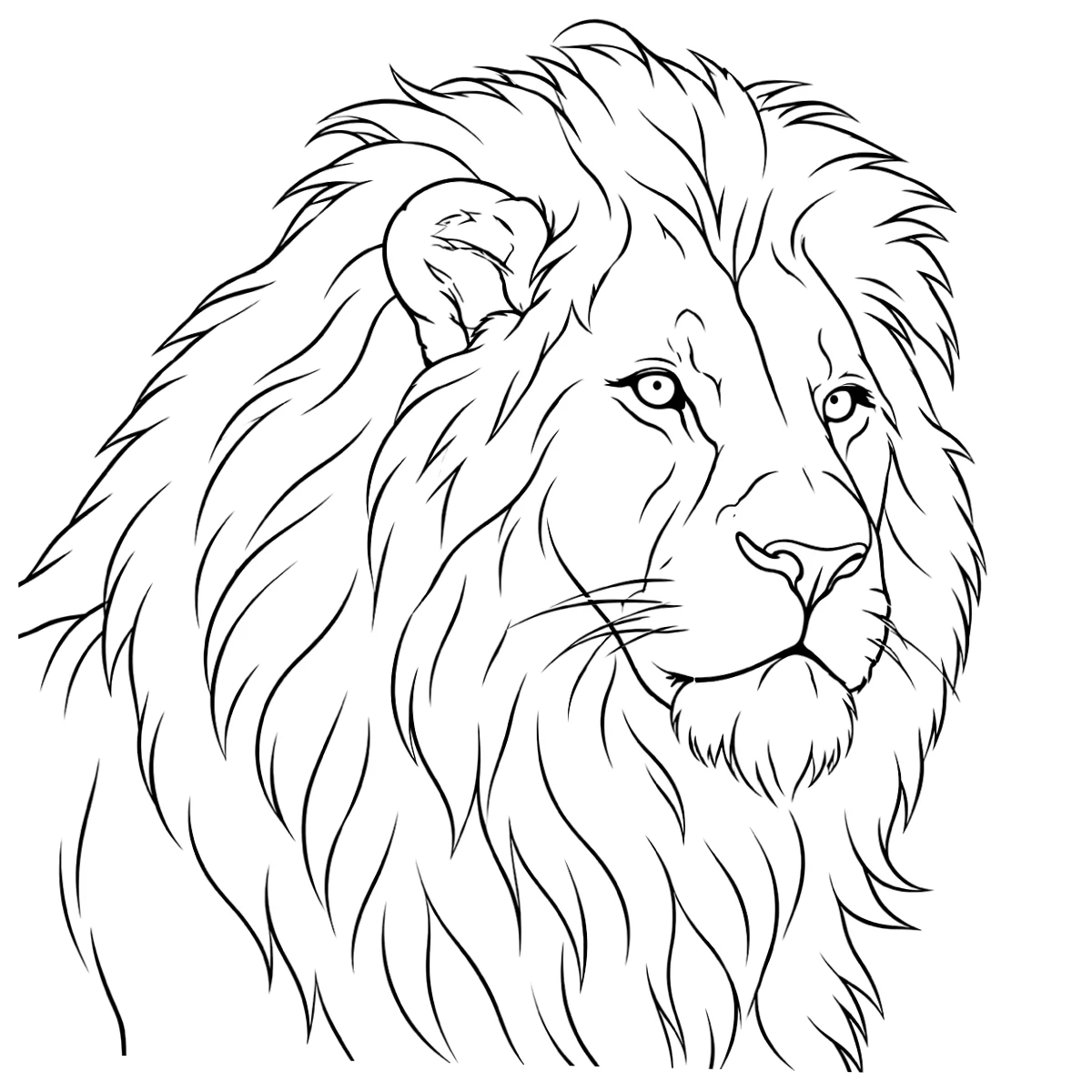
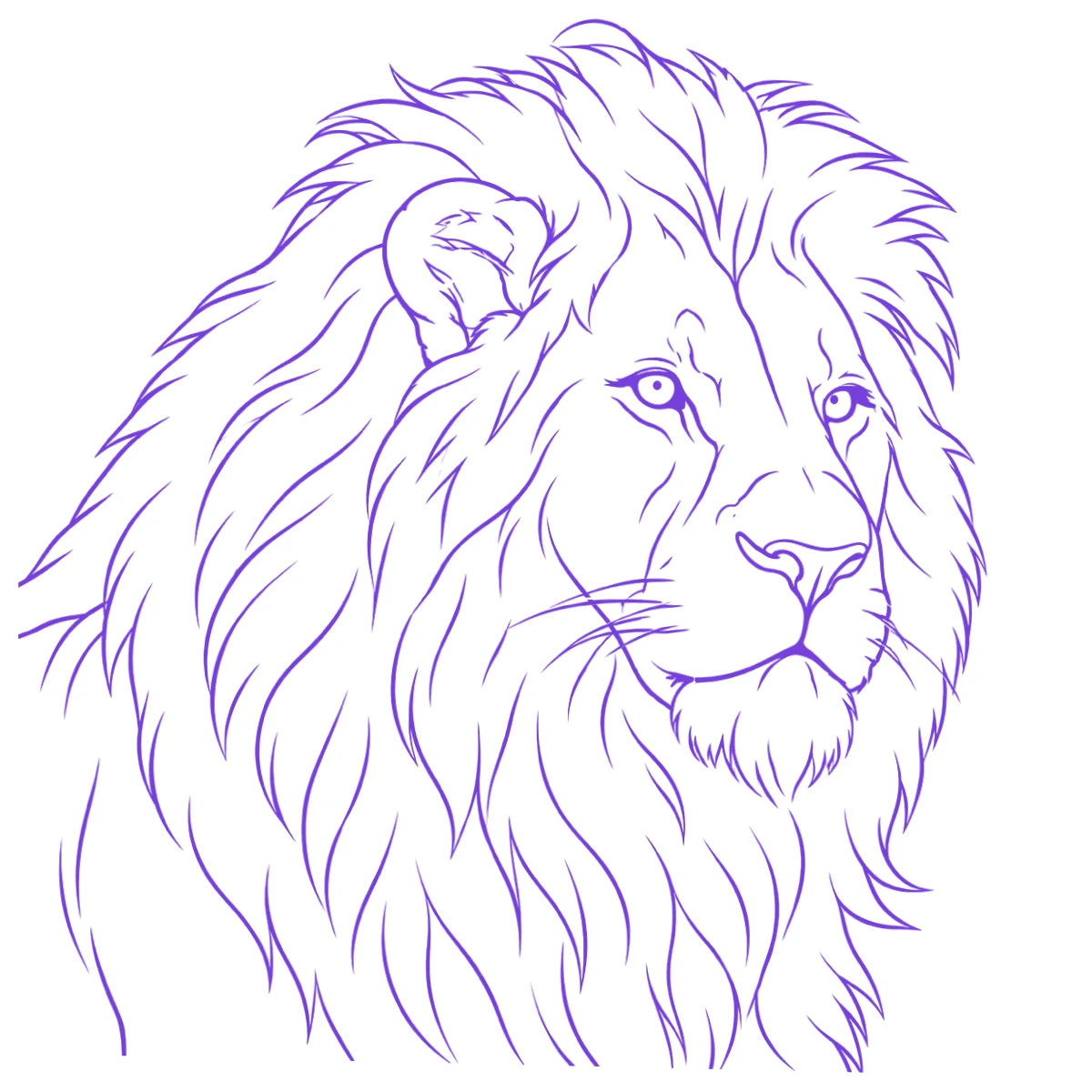
The reference photo and this stencil are AI-generated examples made for this library — not a client photo, and not InkLine output.
A photo becomes a usable tattoo stencil when three things line up: enough resolution to hold a line, enough contrast for the conversion to find that line, and a print at the exact size the tattoo will be. Miss any one of them and the failure shows up late — at the transfer, on the client’s skin. Here is the order that avoids that, plus the point where the honest answer is to stop converting and start drawing.
From photo to stencil, in order
- Choose the photo. Sharpness and contrast matter more than megapixels. A 12 MP phone shot taken in flat overcast light converts worse than a 3 MP image with hard side light, because the extraction is looking for tonal edges and flat light does not produce any. Check the long edge: below roughly 1000 px there is nothing to extract.
- Crop first. Crop to the shape the tattoo will occupy — background the piece will never include only drags the tonal range around and gives the converter edges to find that you will then have to erase.
- Convert. Choose the stencil mode that matches the design’s construction, not the one that looks prettiest on screen. Contour linework, shadow shapes and stipple are three different tattoos.
- Tune detail and intensity. Detail decides how much of the image survives as marks; intensity decides how heavy those marks are. Push detail until you can see everything you need to tattoo, then step back once.
- Clean up. Every conversion leaves speckle and fragments. Kill them now, at 100 percent zoom, because a stray dot you ignored on screen reads as a real line once it is purple on skin.
- Set the size. Enter the real width or height in centimeters or inches, pick the paper, and tile across sheets if the design is bigger than one page.
- Print and transfer. Print at 100 percent with scaling off, measure the print with a ruler, then apply.
Steps 1 and 6 cause most of the failures. Everything in between is adjustment.
Choosing and shooting the source photo
If you are shooting the source yourself, light it from one side at roughly 45 degrees and let the shadows fall. Shadow edges are what the conversion turns into lines. A ring light aimed straight at the subject produces the flattest, least convertible image possible — it is designed to erase exactly the shadow structure a stencil needs.
Resolution rules are arithmetic, not opinion. At 300 dpi, 1000 px prints 8.5 cm (3.3 in) wide. A 20 cm (8 in) forearm piece wants around 2400 px across the design itself — not across the whole photo, across the part you keep after cropping. A screenshot of a screenshot, a photo saved from a messaging app, or an image pulled off a social feed has usually been recompressed twice and lost both pixels and edge definition. Photo resolution for tattoo stencils covers how to check what you actually have before you promise a client a size.
Four sources that reliably fail: heavily filtered photos where the filter flattened midtones, night shots where noise reduction smeared fine detail, images with motion blur, and photos of screens with moiré patterns. Upscaling helps line edges print more smoothly, but it adds pixels rather than information — it cannot recover detail the camera never captured.
Copyright applies here too. A photograph belongs to whoever took it, and a design belongs to whoever drew it. Converting someone else’s tattoo photo or a published illustration into a stencil does not make it yours to tattoo commercially.
Crop before you convert
Cropping is not cosmetic. Extraction modes read the full frame’s tonal range to decide what counts as an edge, so a bright window behind your subject compresses everything else toward the middle and softens the lines you want. Crop the frame down to the subject, and set the aspect ratio to match the body area — a ribs piece is tall and narrow, a chest piece is wide, and discovering that after conversion means going back and redoing the tuning.
The six stencil modes and when each one wins
InkLine runs six stencil modes locally on the device, with no network involved. They are not six filters over the same result; they decide in fundamentally different ways what becomes a line. Linework is where a new user starts, and after that the app opens each new stencil in the last mode you applied.
| Mode | What it produces | Use it when |
|---|---|---|
| Linework | Solid black lines along the contours, with near-black areas kept as fills | Most line-led designs: traditional, blackwork, illustrative, clean scans |
| Sketch | A pencil-sketch look: darkened edges, even tones turned white, shading kept as greys | Sketch-style work where the grey pencil shading is the point |
| Outline | Contour lines only, coarser than Linework, with no fills or fine hatching | The barest skeleton for a piece you will fill or shade freehand |
| Dotwork | Outlines plus evenly spaced stipple dots, denser where darker | The piece will actually be built from dots, so the stencil matches the method |
| Tonal | A black-and-white shadow map: light outlines, a dotted line where each shadow level begins, hatching in the darkest | Realism and black-and-gray, where shadow shapes must be planned |
| Denoised | Linework run on a noise-reduced, lightly smoothed copy | Grainy phone photos and anything shot in low light |
The single most common mistake is running Outline on a portrait. Faces are built from shadow and value, not contours, so a contour pass throws away the likeness and leaves a mask of disconnected edges. Run Tonal instead. Conversely, a bold traditional design run through Tonal turns its flat areas into shadow levels and hatching it never had; Linework keeps it as lines and solid blacks. Sketch is the one to be careful with on a stencil: its grey shading prints pale and transfers faint or not at all, so treat it as a reference. If a design sits between categories, convert it twice and compare at print size — which stencil mode for which design works through the harder cases, and photo to line art explains what the conversion is doing underneath.
Detail, intensity, cleanup and the strays that remain
Detail controls how much fine structure survives as marks. Too low and features disappear; too high and film grain becomes linework. Intensity controls weight — thin lines vanish under stencil solution, heavy lines fill in and cost you accuracy on the skin. Cleanup removes small dark specks and pushes pale greys to white, and is available on Linework, Sketch, Denoised and Outline; Dotwork and Tonal do not use it, because on those modes the small marks are the image.
Whatever cleanup leaves behind, remove by hand: background fragments at the crop edge, blemishes and stray hairs the camera caught, compression blocks in flat areas, and half-formed shapes that mean nothing. Zoom to 100 percent and work across the image systematically. This is the step people skip, and it is why some stencils look like a photocopy of a photocopy. On an iPad, an Apple Pencil with the eraser makes it fast — set it to remove whole strokes or to rub out only where you touch — and stroke-by-stroke undo means an over-enthusiastic erase is recoverable.
Sizing and printing without surprises
Set the size in real-world units before you print, not by dragging on screen. Measure the client’s arm, decide the width, enter that number. In InkLine the width or height you type is the size of the lines on paper, because blank margins around the art are trimmed first. Then, in the printer dialog, turn off “scale to fit” or “fit to printable area” — those options shrink the page a few percent to respect margins, and a 5 percent shrink on a 20 cm design is a full centimeter of error that only shows up when the stencil is already on skin. Print, measure the paper with a ruler, and only then transfer; InkLine puts a 5 cm check ruler on every sheet so there is always something to measure. Designs larger than a single sheet tile across up to 3 × 3 pages, each labelled with its place in the grid, and you assemble the printed sheets yourself — cut along the dashed line, lay the cut edge over the registration marks on the next sheet, and tape from behind to check the whole design. Then cut the sheets apart again and transfer them section by section, because a taped seam does not transfer. How to print a tattoo stencil at home covers paper handling and the printer settings that matter.
The manual route, which is sometimes the better one
You do not need software for any of this. Print the photo at final size on plain paper, tape tracing paper over it, and draw only the lines you intend to tattoo. That editorial pass — deciding what stays and what goes — is the part software does worst and a tattooer does best. Then place that tracing over hectograph stencil paper with the carbon sheet underneath, and re-trace with a ballpoint pen; the pressure lays purple carbon on the back of the top sheet and you have a stencil.
Choose the manual route when the source photo is below the resolution floor, when the design needs interpretation rather than reproduction, or when a face has to be simplified into lines a machine can follow. A conversion is a fast, literal reading of a photograph. A hand tracing is a decision. On an iPad you can make most of those decisions digitally: in InkLine’s Edit screen, the Photo button puts the original photo under the stencil at an opacity you set, and you redraw, fix or erase lines against it with the Apple Pencil. You are working on top of the converted stencil rather than on a blank sheet, so a light Outline pass makes a good skeleton to start from, and the photo underneath is never saved, exported or printed.
What this method cannot do
A conversion cannot invent detail that is not in the file — below roughly 1000 px on the long edge you are redrawing, not converting, and no slider changes that. It does not replace a dedicated thermal stencil printer for shop-volume work; consumer printers and hectograph paper are slower and less consistent day to day. An on-skin preview is an AI-generated image of the design on a generic body part, useful for placement discussions and not a measurement of how a flat design wraps a curved limb — that still gets settled by putting the paper on the arm.
InkLine is a free download. The manual stencil workflow of processing, editing, print layout and export is free up to an allowance on how many images you carry through it, and needs a subscription past that allowance; AI generation runs on a credit system and needs a network connection. The six stencil modes described above are local image processing and work with the device offline.
Frequently asked questions
What resolution does a photo need to become a tattoo stencil?
Roughly 1000 px on the long edge is the floor for a small piece, and that is only about 8.5 cm (3.3 in) at 300 dpi. For a 20 cm (8 in) stencil you want about 2400 px across the design. Below the floor you are redrawing the image by hand, not converting it.
Can you make a tattoo stencil from a photo without any app?
Yes. Print the photo at the finished size, lay tracing paper over it and trace the lines you intend to tattoo, then re-trace that simplified drawing onto hectograph transfer paper with a ballpoint pen. It takes longer but gives you full control over what gets kept.
Which extraction mode should I use for a portrait photo?
Tonal for a black-and-gray realism portrait, because it maps where each shadow level begins as dotted boundaries and hatching, in black lines that actually transfer rather than grey that does not. Outline strips a face to contours and usually loses the likeness, so use it only when you plan to shade the portrait freehand from a reference.
Why does my stencil print smaller than the size I set?
Almost always the printer driver's "scale to fit" or "fit to printable area" option, which shrinks the page by a few percent to respect the printer's margins. Turn it off, print at 100 percent, then measure the printed stencil with a ruler before you transfer it.
Do I need a thermal printer to make a stencil from a photo?
No. A standard printer plus hectograph paper, or an inkjet print traced onto transfer paper, produces a usable stencil. A dedicated thermal stencil printer is faster and more consistent, and a shop doing several stencils a day will still want one.