
How to Print a Tattoo Stencil Larger Than One Sheet (Tiling)
Direct answer
To print a tattoo stencil larger than one sheet, tile it across several pages: print at exactly 100% scale, leave a 10–15 mm overlap on every shared edge, and align each sheet on marks or linework repeated inside that overlap before taping the seams from behind. Two A4 pages joined along the long edge give roughly 384 mm of usable width once printer margins and overlap are subtracted. Check the taped master on the bench, then cut it apart and transfer one section at a time. InkLine tiles up to 3 × 3 sheets with a fixed 15 mm overlap, three registration marks and a dashed cut line on every seam, and a grid label on every sheet.
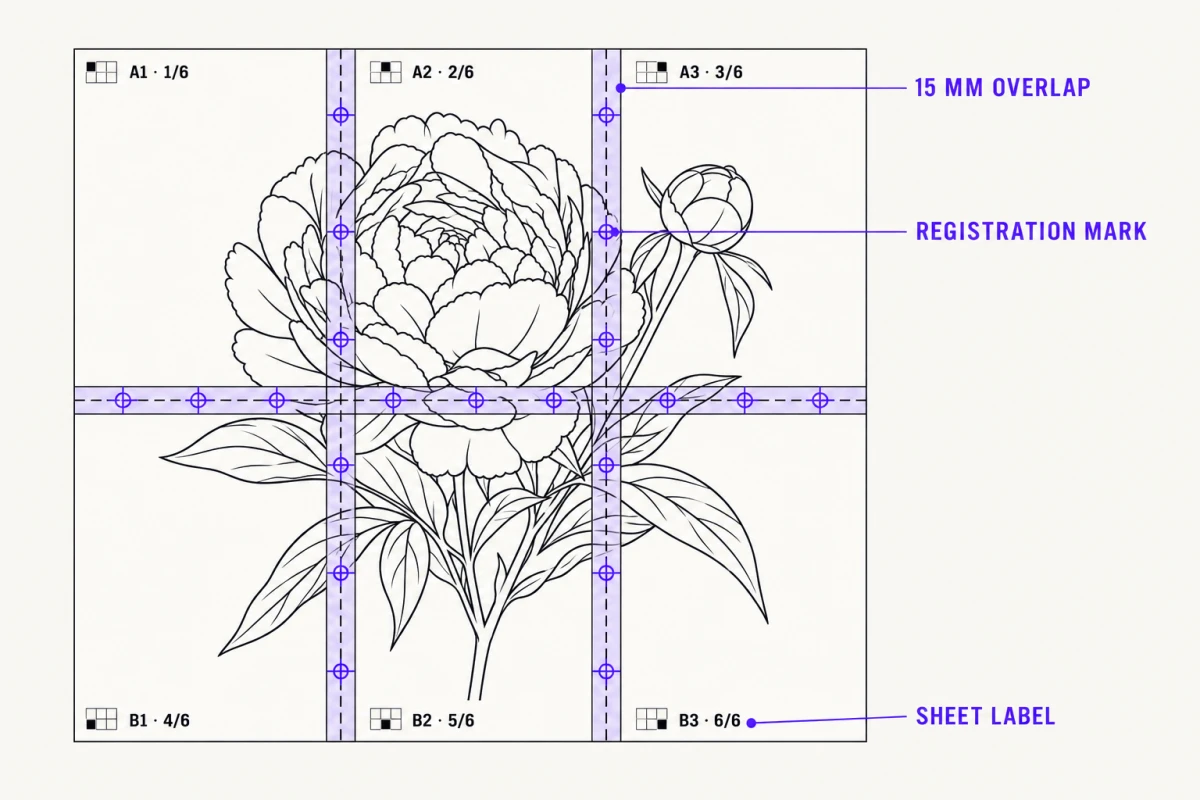
A design that runs past the edge of the paper is less a printing problem than a registration problem. Getting ink onto four sheets is trivial. Keeping a spine line straight across three taped seams, at the size the client actually agreed to, is where oversized stencils fall apart. The method below is built around that, and it assumes a normal home or shop inkjet rather than a wide-format plotter.
Tile at 100% scale, overlap every seam, transfer in sections
Three rules carry almost the entire job, and nearly every ruined oversized stencil traces back to breaking one of them.
Print at exactly 100%. Every print dialog on every platform ships with some variant of Fit to Page, Scale to Fit, or Shrink Oversized Pages turned on by default. On a single-sheet stencil that setting costs you a few percent and you might not notice. On a tiled set it is fatal, because the scale factor is applied per page — the tiles no longer share a common size, and no amount of careful taping will make the lines meet. Find the scaling control, set it to 100% or Actual Size, and print one tile on plain paper. Measure a known dimension across it with a steel rule before you spend transfer paper on the rest. A 50 mm reference bar that measures 48 mm tells you the driver is still scaling; that 4% error compounds across every seam in the set.
Overlap every shared edge by 10–15 mm. Consumer printers cannot print to the paper edge. Depending on the model you lose somewhere between 3 and 10 mm on each side, and that unprintable border is not always symmetrical. If you split a design on a hard butt joint with no overlap, the strip that falls in the margin is simply gone, and you will discover it when the two halves of a mandala refuse to close. An overlap band solves both problems at once: it puts the same content on both sheets, so nothing is lost to margins, and it gives you a region to register against instead of guessing at a bare edge.
Transfer in sections, not as one assembled sheet. This is the rule that gets broken most often, because taping a master together feels like finishing the job. It is not. Tape does not release stencil ink, so every taped seam prints a blank stripe across the skin. A taped assembly is also far stiffer than a single sheet, and a back or thigh piece needs the paper to wrap a compound curve. Assemble the master on plain paper to check the design, then work from separated transfer sheets and register each section against the linework already sitting on the client.
Sheet sizes and what a tiled set actually gives you
Nominal paper dimensions are not usable dimensions. The table below assumes a common 6 mm unprintable margin on each edge and a 12 mm overlap on shared seams. Your printer’s margins may differ — measure a full-bleed test page once and write the number down.
| Layout | Sheets | Nominal sheet | Approx. assembled artwork |
|---|---|---|---|
| US Letter, single | 1 | 215.9 × 279.4 mm | 204 × 267 mm |
| US Letter, two side by side | 2 | — | 396 × 267 mm |
| US Legal, single | 1 | 215.9 × 355.6 mm | 204 × 344 mm |
| A4, single | 1 | 210 × 297 mm | 198 × 285 mm |
| A4, two side by side | 2 | — | 384 × 285 mm |
| A4, two stacked | 2 | — | 198 × 558 mm |
| A4, 2 × 2 grid | 4 | — | 384 × 558 mm |
| Tabloid, single | 1 | 279.4 × 431.8 mm | 267 × 420 mm |
| A3, single | 1 | 297 × 420 mm | 285 × 408 mm |
Two practical readings come out of that table. First, orientation is worth more than people expect: a design 350 mm wide and 260 mm tall needs four A4 tiles in portrait but only two in landscape, which removes two seams and one registration step. Second, a 2 × 2 A4 grid tops out near 38 × 56 cm, which covers most thigh and calf work but not a full back panel. Genuinely large pieces — the kind discussed on the back tattoo stencil page — routinely need six or nine tiles, and at that point the cumulative registration error deserves as much planning as the artwork.
Assume roughly 1–2 mm of drift per seam under realistic bench conditions. Three seams can therefore push a line 5 mm out of true by the far edge. That is invisible on organic linework and obvious on a geometric grid, which is why symmetrical designs should be tiled so that seams fall in low-detail areas rather than through an axis of symmetry.
When A3 beats tiling, and when it does not
A single sheet has zero registration error. If the design fits inside about 285 × 408 mm of printable area, A3 is the better answer every time — no seams, no trimming, no cumulative drift, and one continuous piece of paper that will still conform to a limb. Tabloid, the 11 × 17 in US sheet, does the same job at almost the same size.
The catch is supply. Both need a printer that takes the large sheet, which most home setups do not have, and large-format stencil transfer paper, which is stocked far less widely than A4 or Letter and costs noticeably more per sheet. Buying an A3 printer to avoid two seams is rarely the right call for occasional oversized work; buying it because half your book is thigh and back panels probably is. Note too that InkLine can lay out and export an A3 or Tabloid page as a PDF from an iPhone even if you are sending that file to a print shop rather than a printer you own.
Below that, the decision is simple. Tile when the design exceeds a single sheet in one direction only and you can put the seam somewhere forgiving. Reach for a single large sheet when the design is dense, symmetrical, or geometric — those are the cases where a 2 mm seam error reads as a mistake instead of as texture.
Tiling in the app, and the manual poster-print route
InkLine handles the split inside its print layout. You type the stencil’s width or height in centimeters or inches, and that is the size of the drawn lines on paper, because blank margins around the art are trimmed first. Pick one of the five paper sizes — US Letter, US Legal, Tabloid, A4 or A3 — in portrait or landscape, and AUTO picks the fewest sheets that fit, up to a 3 × 3 grid; you can also pick the grid by hand.
Every shared seam carries a fixed 15 mm overlap strip. On the centre line of that strip sit three circle-and-cross registration marks, at 20, 50 and 80 percent of the seam’s length, printed at the same spot on both sheets. A dashed cut line with a scissors symbol runs down the centre of the strip on the left or upper sheet only. Every sheet is labelled with its place in the grid and the page count — “A1 · 1/4” is row A, column 1, page one of four — next to a small map of the grid with that sheet filled in, so page order is printed on the paper rather than kept in your head. Every sheet also carries a 5 cm (or 2 in) check ruler, captioned to print at 100%.
The layout runs from the paper’s corner at true scale rather than being fitted to the printer’s printable area. Anything a printer cannot reach is clipped rather than the whole design being quietly shrunk to fit, and a 5 mm margin is kept, with a warning when the art strays into it. If the printer ends up holding different paper from the one you picked, the job is re-tiled for the real sheet at the same size rather than scaled. The manual stencil workflow — processing, editing, print layout, and export — is free up to an allowance on how many images you carry through it; past that allowance it needs a subscription. If you want to sanity-check tile counts before committing paper, the stencil tiler works out how many sheets a given final size needs, and multi-page stencil tiling covers the layout options in detail.
The marks settle where two sheets meet; they do not decide where the seam falls in the design. That part stays with you in this or any other tiling workflow. In practice it means composing the design so each seam runs through content you can see and match — a continuous contour, a band of shading, a repeated ornament — rather than through a face or the axis of a mandala, where even a millimeter of drift shows. If your only reference at a seam is the cut edge of the paper, the seam will drift, because paper edges do not sit where the image does once printer margins are involved; that is what printed registration marks exist to replace.
The manual route is entirely viable and worth knowing, because it is how you tile a PDF that came from somewhere else. Export the design as a PDF at the true final size, open it in Adobe Acrobat Reader on a desktop, then go to Print → Page Sizing & Handling → Poster. Set Tile Scale to 100%, type an Overlap of 10 mm or 0.4 in, and enable Cut marks and Labels. Two warnings: Acrobat defaults the overlap field to zero, and it will happily tile at 97% if you leave Tile Scale alone after a previous job. Illustrator’s print tiling and standalone tools such as PosteRazor do the same thing with different vocabulary.
What you cannot do is tile from the iOS print dialog. AirPrint has no poster mode at all — hand it a page larger than the loaded paper and it scales the whole thing down to fit or crops it, usually without telling you. That is the specific reason tiling has to be resolved in the app or on a desktop before printing.
Assembling the master and checking it before it touches skin
Always proof on plain copy paper first. Transfer paper is expensive and a proof catches scale errors, wrong page order, and seams that land badly. Measure the check ruler on one sheet before you print the rest.
Cut one side of each seam only. On a set with a printed cut line, the choice is made for you: cut the left or upper sheet along the dashed line with a craft knife against a steel rule, then lay that cut edge over the crosshairs on the next sheet. Because the cut runs down the centre of the strip and the marks sit on that same centre line, the edge should pass through the centre of all three marks at once; if it meets one and misses another, the sheet is rotated, not just shifted. On a set without a cut line, cut the sheet that will sit on top anywhere inside the overlap band, then slide it until the shared linework sits exactly on the printed copy underneath. Either way, each line exists once on the finished master — cutting both sheets leaves a gap, cutting neither doubles every line in the overlap into a fat, blurred stripe.
Tape from behind. Tape on the face of a proof is fine, but building the habit matters, because on transfer paper the front surface has to stay completely clean. Lay the sheets out by their labels — letters are rows, numbers are columns — and once assembled, measure the overall dimensions against the size you agreed with the client and check the design against the placement one last time. Fixing a sizing mistake at this stage costs four sheets of paper; fixing it after the transfer costs the appointment.
Transferring a tiled stencil section by section
Cut the assembled master back apart at the seams and decide an order. Start with the section carrying the most structural content — the spine of the composition, the central figure, the line that everything else references. That section defines the geometry, and every later section will be aligned to it rather than to the body.
Prep and apply the first section normally, then stop and let it dry fully before continuing. Several minutes is not wasted time; transfer solution on a still-damp stencil will lift and smear lines you already placed. For the next section, apply solution only to the skin the new tile will cover, keep the film thin, and lay the sheet down from the side nearest the applied linework so you can match the overlap region to the lines already on the body. Peel toward the untouched skin rather than across finished work.
Expect the seam to need a small touch-up. A stencil pen or a thin marker closes a 1 mm break far more reliably than trying to reposition an entire section, and it is normal even with good registration. If a section lands badly, remove that section alone and reapply it — you kept the tiles separate precisely so one mistake does not cost the whole stencil. General printing setup, paper choice, and printer settings are covered in the home stencil printing guide.
Where tiled stencils go wrong
Five failures account for most of it. Fit to Page left enabled, so tiles are not the same scale. Zero overlap, so printer margins eat a strip of the design. Both sides of a seam trimmed, leaving a visible gap down the middle of the piece. A taped master applied as one sheet, producing blank stripes and a stencil that will not wrap a curve. And a source image that was never large enough for the final size in the first place — a photo under roughly 1000 px on its long edge cannot be rescued into clean linework at any paper size, and tiling only magnifies the problem across more sheets. At that point you are redrawing the design, not converting it, and it is more honest to plan for that than to print nine tiles of soft, broken lines.
Frequently asked questions
How much overlap should I leave between stencil tiles?
Between 10 and 15 mm on every shared edge. Consumer printers refuse to print within roughly 3–10 mm of the paper edge, so a butt joint with zero overlap silently deletes a strip of your design. The overlap band also gives you a region where both sheets show the same marks and linework, which is what makes accurate alignment possible.
Can I tape tiled transfer sheets together and apply them as one piece?
No. Tape does not transfer, so every taped seam leaves a blank stripe across the design, and a taped assembly is stiff enough that it will not conform to a shoulder, ribcage, or thigh. Assemble the tiles on the bench to verify the design, then cut them apart and transfer section by section.
Does tiling reduce the quality of the stencil?
Tiling itself does not resample anything — each tile is printed at full resolution. What tiling does is spread your source pixels over a larger physical area. A 2000 px design is sharp at 17 cm and mushy at 40 cm, so check the resolution against the final size before you split it, not after.
Can I tile a stencil directly from the iOS print dialog?
No. AirPrint has no poster or tiling option, so an oversized page is either scaled down to fit one sheet or cropped. The split has to happen in the app before the print sheet opens, which is why InkLine handles tiling in its own print layout screen, and why it re-tiles the job for the real sheet at the same size if the printer turns out to hold different paper than the one you picked.
Is A3 always better than tiling on A4?
Only if you have both an A3-capable printer and A3 stencil transfer paper, which is less commonly stocked and costs more per sheet. A single A3 sheet has zero registration error, so prefer it when the design fits within about 285 × 408 mm of printable area. Past that, tiling is the only route.