
Tattoo Stencil Tiling App: Split a Design Across Sheets at True Size
Direct answer
A tattoo stencil tiling app takes a design larger than one sheet and divides it into pages at true physical size, printing a shared overlap strip and registration marks at every seam so the tiles line back up. The split is driven by the finished measurement, not by pixels, and it has to happen before the print dialog opens because AirPrint has no poster mode. InkLine tiles up to 3 × 3 sheets on US Letter, US Legal, Tabloid, A4 or A3, with a 15 mm strip, three circle-and-cross marks and a dashed cut line on every seam, and a label such as A1 · 1/4 on every sheet.
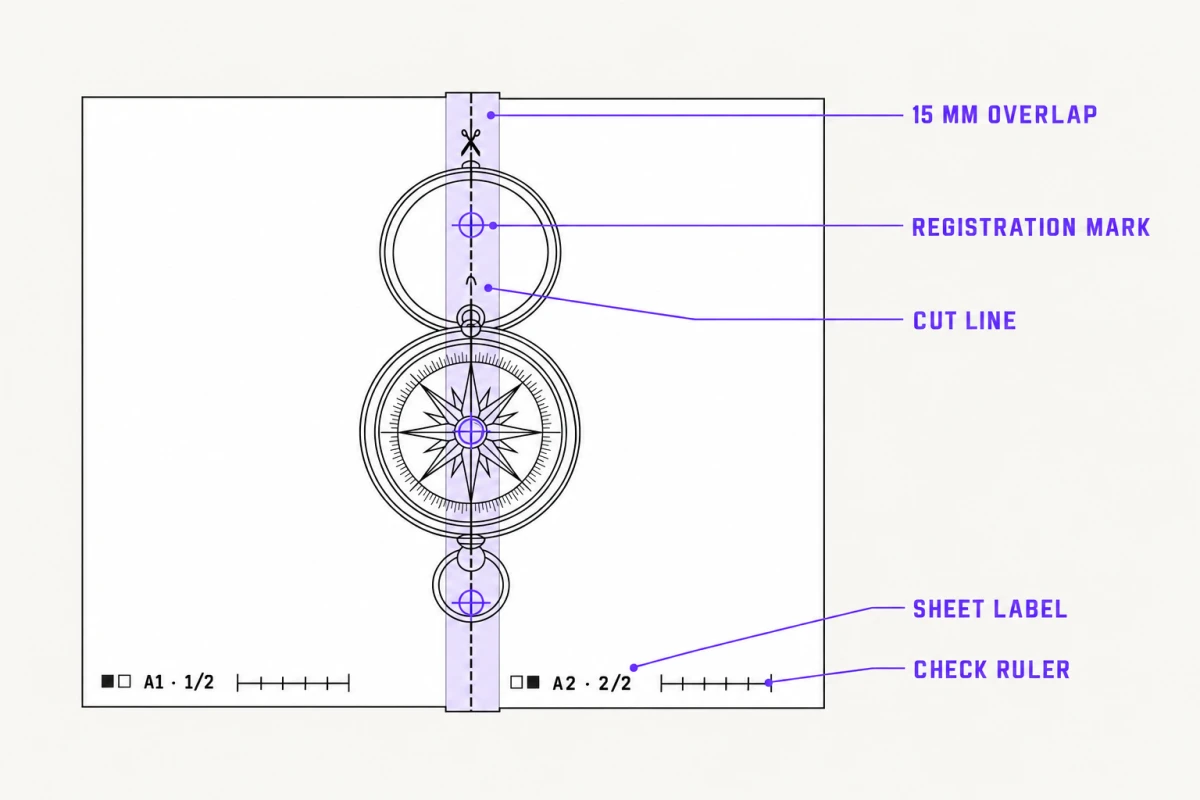
Tiling is the part of stencil work that general image tools handle worst, because it is not really an image operation. Splitting a design across sheets is a measurement problem: something has to know the finished size, how much of the paper the printer cannot reach, and how much of each edge to deliberately print twice. This page covers what happens between typing a size and picking a stack of registered, labeled sheets off the tray.
From a finished size to a stack of registered sheets
The layout runs in a fixed order, and each step consumes the result of the one before it. Understanding that order is what lets you predict the sheet count before you commit paper.
The finished size is fixed first. In InkLine you type the stencil’s width or height in centimeters or inches, or resize it with a pinch or the slider. Blank margins around the art are trimmed first, so the number you type is the size of the lines on paper, not of an image with empty space around it. The smallest stencil is 10 mm; the largest is whatever fits on 3 × 3 sheets. Everything downstream is derived from that number, which is why a tiling layout is not something you can bolt on at the print dialog. Pixels are an input to sharpness, not to geometry.
Sheet and orientation set the raw page. InkLine offers US Letter (215.9 × 279.4 mm), US Legal (215.9 × 355.6 mm), Tabloid (279.4 × 431.8 mm), A4 (210 × 297 mm) and A3 (297 × 420 mm), each portrait or landscape. Orientation is a real variable here, not a formality: it frequently changes both the sheet count and where the seams land.
The layout is measured from the paper’s corner, not the printable area. No consumer inkjet or laser prints to the paper edge; you lose a few millimeters per side, and the border is often asymmetrical. InkLine does not shrink the page to fit that border. It lays the stencil out at true scale from the corner of the sheet, keeps a 5 mm margin around the outside of the assembled design, warns you when art strays into it, and lets anything a printer physically cannot reach be clipped rather than shrinking the whole design.
Neighboring sheets share a strip. Every pair of sheets that meet shares a 15 mm strip in which the same artwork prints on both. The strip is fixed in InkLine, not a setting. Ten to fifteen millimeters is also the working range if you ever tile by hand.
The grid falls out of the arithmetic. The first sheet in a row contributes its whole length; every sheet after it contributes its length minus the 15 mm strip, because the strip is shared. AUTO adds sheets until the running total covers the design inside the margins, keeping a little room under the art for the check ruler and label, and picks the fewest sheets that fit, up to 3 × 3. You can override it with the grid picker.
Each sheet is marked and labeled. Onto every seam go the overlap strip, three circle-and-cross registration marks and a dashed cut line. Onto every sheet go a label saying where it belongs and a 5 cm check ruler. The next two sections cover what each of those is for.
The set leaves as print pages or a PDF. In InkLine that means either an AirPrint job or an exported PDF at the chosen paper size that you can hand to a print shop. The split is already resolved by this point. iOS gives you no poster or tiling option in the print sheet at all, so a tiler has to finish the job before the print dialog opens. If the printer ends up with different paper than the one you picked, InkLine re-tiles the job for the real sheet at the same size rather than letting the driver scale it. Printing from an iPhone is covered in more depth on the AirPrint printing page.
Why true size is the only input that matters
Every failure mode in tiling traces back to a scale that is not what you think it is, so the layout is built on physical dimensions from the start rather than on canvas pixels.
The consequence is that resolution has to be checked against the final measurement, not against the file. A 2400 px design is 300 DPI at 203 mm and about 152 DPI at 400 mm: identical file, very different print. For a 400 mm tall piece you want roughly 4700 px on the long edge to hold 300 DPI, and around 2400 px to hold 150 DPI, which is about where fine linework starts looking ragged on paper. Tiling does not change any of this; it just means the softness is now distributed across four sheets instead of one.
Line weight is the other half of true size. Scaling a stencil scales its lines, so a design sized for a forearm and printed three times as large across a back has outlines three times as heavy. InkLine’s LINES setting on the print screen handles this: As drawn lets the lines scale with the stencil, while Fine (0.3 mm), Medium (0.4 mm) and Bold (0.5 mm) redraw the stencil for its print size so the lines come out at that width. With a preset chosen, the sheets are cut from that redrawn stencil rather than from an enlarged copy of the original.
There is a hard floor underneath that. Below roughly 1000 px on the long edge, a client photo cannot be rescued into clean linework by any amount of processing: line tracing starts following JPEG compression blocks instead of edges. The 2x upscale on InkLine’s import screen resamples the pixels so thin lines have more to be traced across, but it does not recover detail that was never captured. At that point you are redrawing the design rather than converting it, and planning for that honestly is cheaper than printing nine sheets of broken line. The photo resolution guide works through where that line sits for a given size.
What the strip, the marks and the cut line actually do
The overlap strip is doing two separate jobs, and people usually only know about one of them.
The first is replacement. If you split a design on a hard butt joint with no overlap, the strip of artwork that lands inside the printer’s unprintable border is not shifted or squeezed; it is gone. You find out when the two halves of a mandala refuse to close. The strip puts that artwork back by printing it on the neighboring sheet as well.
The second is registration. InkLine prints a circle-and-cross registration mark at three points along every shared seam, at 20%, 50% and 80% of its length, on the center line of the 15 mm strip and at the same spot on both sheets. Because the marks are printed rather than implied by the artwork, there is always something to align against, even where the design goes blank at a seam.
The cut line ties the two together. It is dashed, runs down the center of the strip, carries a scissors symbol, and is printed on the left or upper sheet only. Cut along it, then lay that cut edge over the crosshairs on the next sheet, so each line exists exactly once on the assembled master. Cutting both sides of a seam leaves a gap down the middle of the design; cutting neither doubles every line in the strip into a thick, blurred stripe.
Every tiled sheet also says where it goes. The label reads like A1 · 1/4: a row letter and a column number, then the page number out of the total, next to a small map of the grid with that sheet filled in. On a 3 × 3 back piece that is the difference between assembling nine sheets and solving a puzzle.
And every sheet, tiled or not, carries a 5 cm check ruler (2 in when you work in inches), captioned to print at 100%. Put a real ruler against it before you cut anything. If it does not measure 5 cm, something in the print chain rescaled the job, and every seam will be off by the same percentage.
Even done well, expect roughly 1–2 mm of drift per seam under bench conditions. That is invisible on organic linework and obvious on a geometric grid, which is the real argument for choosing an orientation that keeps seams out of an axis of symmetry.
Worked example: a 38 cm back panel
Take a design 380 mm tall and 280 mm wide, a moderate upper back panel, and run it through InkLine’s arithmetic: sheets share a 15 mm strip, the assembled design keeps a 5 mm margin around the outside, and a little room is left under the art for the ruler and label. The grid is written across × down.
| Sheet and orientation | Grid | Sheets | Where the seams fall |
|---|---|---|---|
| A4 portrait | 2 × 2 | 4 | 1 vertical down the middle, 1 horizontal, one four-way junction |
| A4 landscape | 1 × 2 | 2 | 1 horizontal, none down the spine |
| US Letter portrait | 2 × 2 | 4 | 1 vertical down the middle, 1 horizontal |
| US Letter landscape | 2 × 2 | 4 | 1 vertical down the middle, 1 horizontal |
| US Legal landscape | 1 × 2 | 2 | 1 horizontal |
| Tabloid portrait | 2 × 1 | 2 | 1 vertical, straight down the spine |
| A3 portrait | 1 × 1 | 1 | none |
Read the A4 rows against each other. Portrait needs two columns because 280 mm will not fit across a 210 mm sheet, and that puts a vertical seam straight down the middle of the design. On a back piece that is the worst possible place for it, since the spine is the axis everything is symmetrical about and a 2 mm registration error there reads as a mistake rather than as texture.
Rotate A4 to landscape and one column covers the full width with room to spare, while two rows cover the height. The piece now needs two sheets instead of four, the only seam runs horizontally across the back, and nothing crosses the spine. Half the paper and one less failure mode, from a single toggle.
The Letter rows show that the rotation trick is not a universal rule. A landscape Letter sheet is 279.4 mm across, which leaves 269.4 mm inside the margins, about a centimeter short of 280 mm, so it still needs two columns and the vertical seam comes back. Tabloid makes the same point from the other side: portrait holds the full height on one sheet but is too narrow by the same centimeter, so it splits into two sheets right down the spine, while Tabloid landscape gives you two sheets with a horizontal seam instead. Run the arithmetic per design rather than assuming landscape always wins, or let AUTO run it and then try the other orientation.
The A3 row is the honest conclusion: if you own an A3-capable printer and can source A3 transfer paper, this piece fits on one sheet with no registration error at all. Tiling is what you do when that is not available. Sizing considerations for pieces at this scale are covered on the back tattoo stencil page.
Where tiling stops helping
Tiling solves paper size. It does not solve any of the following, and treating it as if it does is how tiled stencils fail.
It does not survive being applied as one piece. Assemble the master on plain paper to verify the design, then cut the tiles apart and transfer them section by section, starting with the section carrying the most structural linework. Tape does not release pigment, and a taped assembly will not conform to a curved back. The step-by-step method is in the oversized stencil guide.
It does not replace a dedicated thermal stencil printer. At shop volume, a thermal unit is faster and more repeatable than any tile-and-tape workflow, and nothing here changes that. This is a route for occasional oversized work and for people without that machine.
It does not verify how the design sits on a body. A back panel wraps a compound curve, and paper measured flat is not the same shape once it is on skin. The on-skin preview in InkLine is an AI-generated image of the design on a generic body part, useful for composition and not a measurement of that curvature; the tape measure on the client is still the authority.
It does not fix a source file that was never big enough. Spreading insufficient pixels over more paper produces more sheets of the same soft line.
Within those limits it is a well-defined mechanism: fix the size, pick the sheet, let the strip and the margins determine the grid, check the ruler, cut on the dashed lines, register on the crosshairs, transfer in sections. InkLine handles the layout and export half of that on an iPhone or iPad. The manual stencil workflow, meaning processing, editing, print layout and export, is free up to an allowance on how many images you carry through it, and past that allowance it needs a subscription, sold as its own tier for artists who never touch AI generation. Check where your own install stands before a big tiled job, rather than finding out at the export step.
Frequently asked questions
How does a tattoo stencil tiling app work out how many sheets a design needs?
It starts from the finished physical size and the sheet you picked. Neighboring sheets share an overlap strip, so the first sheet in a row contributes its full length and every sheet after it contributes its length minus the strip. It adds sheets until the running total covers the design with a margin to spare. InkLine's AUTO setting does this for you and picks the fewest sheets, up to 3 × 3, or you can pick the grid yourself.
Does tiling reduce the quality of the stencil?
Splitting does not; the size decision behind it does. The same pixels spread over 40 cm instead of 17 cm land at a lower effective resolution, and soft linework is soft on every sheet equally. In InkLine, a line-weight setting of Fine, Medium or Bold redraws the stencil for its print size before it is split, so the lines come out at that width on every sheet rather than being blown up with the design.
Why does the app print part of the design twice?
That doubled strip is the overlap, and it does two jobs. It replaces the sliver of artwork that would otherwise fall inside the printer's unprintable margin at the seam, and it gives both sheets identical linework and matching registration marks, so you align against printed references instead of a bare paper edge. In InkLine the strip is a fixed 15 mm, with the cut line down its center.
Is tiling on A4 better than printing one A3 sheet?
No. A single sheet has zero registration error, so if the design fits on A3 or Tabloid inside the margins, one large sheet is the better answer. Tiling is what you reach for when the design will not fit on the largest sheet your printer and your transfer paper both support.
Can I tape the tiles together and transfer them as one piece?
Assemble them on the bench to check the design, then cut them apart again. Tape does not release stencil pigment, so every taped seam leaves a blank stripe on the skin, and a taped assembly is too stiff to wrap a back or a ribcage.