
Ten minutes out
How to Resize a Tattoo Stencil Quickly Before a Session
Direct answer
To resize a tattoo stencil quickly before a session, go back to the stencil file and change the print dimensions there rather than rescaling the printed sheet — the artwork is untouched, only the paper layout moves. Check effective DPI first: enlarging divides it by the growth factor, so a design at 300 DPI can grow about 1.5x before it hits the 200 DPI floor bold linework needs. Rotating to landscape buys 30–45% more width before tiling is necessary. In InkLine you type the new width or height in centimeters or inches, and a design that outgrows one sheet is tiled with a 15 mm overlap, registration marks and a label on every sheet.
The client holds the printed sheet against their forearm, tilts their head, and asks for it about 30% bigger. You have ten minutes, one client watching, and a finite stack of transfer paper. The instinct is to fight the print dialog — type a percentage in and hope. That is the slow route, and the one that produces a stencil at 127% of something you can no longer measure. The fast route is to go back to the file, change the physical dimension there, and print once.
Change the size in the file, not in the print dialog
The printed sheet is not the master. The file is. A resize typed into a print dialog is a scale factor stacked on a layout that already had one, and the two compound in ways you will not notice until a tiled set refuses to line up or a 15 cm design measures 14.2 cm on the arm. A resize done in the file sets a single number — the final printed width or height, in centimeters or inches — and every other decision follows from it.
The sequence, in the order that costs the least time:
- Go back to the stencil, not the photo. If the stencil is still open in InkLine, return to the print screen; if you saved it, load the saved stencil rather than the client’s original photo. Either way you are adjusting a print layout rather than re-processing the photo from scratch. Re-processing is where the ten minutes actually disappears, and it risks landing on a slightly different stencil than the one the client just approved.
- Enter the new size as a dimension, not a percentage. “15 cm tall” is a number you can hold a tape measure against. “130%” is a number relative to something you will have stopped tracking within two edits. In InkLine the width or height you type is the size of the drawn lines on paper, because blank margins are trimmed first, so the number on the tape is the number on the sheet.
- Do the DPI division before you print anything. Pixels on the long edge, divided by inches on that same edge. It takes ten seconds and it is the only step that tells you whether this is a printing job or a redraw.
- Check the new footprint against the sheet, and rotate before you tile. A 30% enlargement very often pushes a design past a portrait sheet while it still fits comfortably in landscape.
- Proof on plain copy paper at 100%, and measure it. Set the printer to Actual Size or 100%, print, then put a steel rule across a known dimension — InkLine prints a 5 cm check ruler on every sheet for this. If Fit to Page is still enabled, the sheet arrives a few percent small and every measurement you just took is wrong.
If the client cannot decide between sizes, stop guessing and print the choice. InkLine’s multi-size sheet puts four copies on one page at 100, 95, 88 and 80 percent; set the largest size you would accept as the 100 percent copy, hold each against the arm, and let the client point.
Only once the plain-paper proof measures correctly do you spend transfer paper. That proof costs about forty seconds, and it is the difference between one reprint and three.
What 30% bigger costs you in resolution
Effective DPI is pixel count divided by printed inches, so enlarging divides your resolution by exactly the factor you enlarge by. Grow a design 30% and you keep 77% of your effective DPI. Double it and you keep half. The pixels never change; only how thinly they are spread.
Here is that arithmetic on a 2000 px source, which is roughly what a cropped phone photo of a reference gives you:
| Printed size | Effective DPI | Size at +30% | DPI at +30% |
|---|---|---|---|
| 10 cm (3.9 in) | 508 | 13 cm | 391 |
| 15 cm (5.9 in) | 339 | 19.5 cm | 260 |
| 20 cm (7.9 in) | 254 | 26 cm | 195 |
| 25 cm (9.8 in) | 203 | 32.5 cm | 156 |
The top two rows are free. The third row lands just under the 200 DPI floor, which is survivable for a bold outline and not for anything with a 0.3 mm element in it, because at that resolution a 0.3 mm line is barely two dots wide. The fourth row is where the reprint stops being worth doing — at 156 DPI a thin curve reproduces as a dashed line, and you will spend longer patching the stencil with a pen than the enlargement saved.
One number is worth memorizing:
growth headroom = current effective DPI ÷ the DPI floor for this design’s finest element
Use 200 DPI as the floor for bold outlines, blackwork fills, tribal, and lettering above about 15 mm cap height; use 300 DPI for single-needle script, dotwork stippling, ornamental filigree, and realism hatching. A bold design currently printing at 300 DPI therefore has 1.5x of headroom — comfortably enough for the 30% the client asked for. A fine-line design at the same 300 DPI has no headroom at all, and the honest answer is that it can go up perhaps 15% before its thinnest strokes start to soften. The print resolution checker does this division for you, and the reasoning behind the two floors is worked through in the photo resolution guide.
Upscaling is worth understanding before you reach for it here. InkLine’s 2x upscale lives on the import screen as local resampling, so it helps a photo you are about to convert rather than a stencil already on the print screen. AI Refine in the workspace doubles the resolution of a finished stencil, but it costs a credit and needs a connection, and like any AI pass it produces plausible edges rather than recovered ones. Neither invents detail that was never in the photo. Upscaling is a finishing pass for a source above the floor, not a rescue for one below it.
Growing past one sheet: rotate, then upsize, then tile
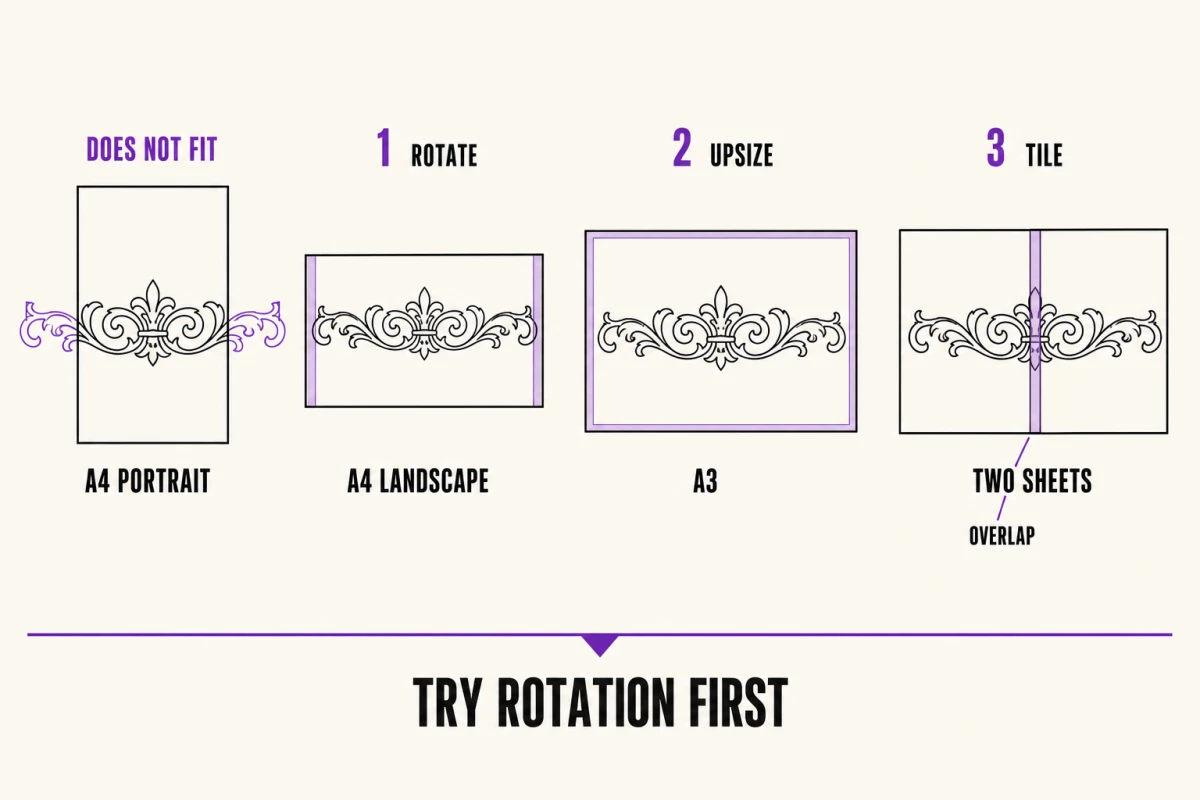
The escalation ladder has three rungs, and most people skip straight to the third.
Rotate. This is free, instant, and produces no seams. Allowing about 6 mm of unprintable margin per edge, A4 gives roughly 198 mm of printable width in portrait and about 285 mm in landscape — a 44% gain for one tap. US Letter goes from about 204 mm to about 267 mm, a 31% gain. A design that was 170 mm wide and just fit a portrait sheet becomes 221 mm wide at +30%, which does not fit portrait and does fit landscape with room left over. Check the other axis too: landscape A4 caps the height at about 198 mm.
Upsize the sheet. A single A3 sheet gives about 285 × 408 mm of printable area and has zero registration error; Tabloid, the 11 × 17 in US sheet, is close behind. Either is the best answer whenever you actually have a printer that takes it and stencil transfer paper in that size on the shelf. Ten minutes before a session is not the moment to discover you have one and not the other.
Tile. Past a single sheet in every orientation, the design has to be split across several pages and reassembled by hand. InkLine handles the split in its print layout — pick the paper and the orientation, and AUTO tiles a design larger than one sheet across the fewest sheets that fit, up to 3 × 3. Every shared seam is printed with a fixed 15 mm overlap, three circle-and-cross registration marks on the centre line of that strip, and a dashed cut line with a scissors symbol on the left or upper sheet, and every sheet carries a label such as “A1 · 1/2” with a small map of the grid, so you are aligning against printed reference points rather than against a cut paper edge. Joining those sheets accurately is still manual work, and how to do it — including why you assemble the master on plain paper and then cut it apart again before transferring — is covered in the guide to printing a stencil larger than one page, with the layout options themselves under multi-page stencil tiling.
Be realistic about the clock. Two tiles joined on one seam is a five-minute job. A 2 × 2 grid, with four sheets to trim, three seams to register, and a section-by-section transfer, is not something to start ten minutes out. If the enlargement takes you into a four-tile set, the better conversation is about moving the session or accepting a size that fits two.
Going smaller crowds the linework
Shrinking looks like the easy direction because effective DPI goes up. It is the direction that ruins more stencils, because line weight and gap width shrink with everything else, and skin does not.
Multiply your tightest measurement by the shrink factor before you agree to it. Two parallel lines sitting 1.5 mm apart at 10 cm are 1.05 mm apart at 7 cm. A 1.0 mm gap becomes 0.7 mm. As a working rule, gaps much under 1 mm between two lined elements tend to close over the first few years as the ink spreads, so a design that reads as detailed on paper heals as a solid patch. The stencil will look perfect. The tattoo will not.
Line width is the half of this that software can hold. Left as drawn, every line shrinks with the design; InkLine’s line-weight setting redraws the stencil for its print size so the lines come out at fine 0.3 mm, medium 0.4 mm or bold 0.5 mm however small you go. It keeps the lines printable. It does nothing for the gaps between them.
The fix for the gaps is subtraction, not scaling. Reduce the number of elements rather than the size of all of them: drop a layer of internal hatching, merge two adjacent parallel lines into one heavier line, delete the smallest ornamental flourishes, and open up the negative space that separates the remaining shapes. InkLine’s Pen, Pencil, Marker, and Eraser brushes with Apple Pencil are the right tools for that — the eraser can remove a whole stroke at a touch — and stroke-by-stroke undo means you can strip detail aggressively and walk it back if you overshoot. What no software does is decide which details are load-bearing. That judgment is the job.
A useful sanity check: print the shrunk version and look at it from the distance the tattoo will actually be viewed at — arm’s length, not 20 cm. If elements merge visually on paper at that distance, they will merge permanently in skin.
The photocopier fallback, and the four ways it distorts
Sometimes the file is genuinely gone — a stencil handed over by another artist, a print with no digital original, a phone that died. A photocopier with a zoom function will enlarge or reduce the sheet, and for bold linework the result is usable. Know what you are trading.
Generation loss. You are scanning a print that already lost detail at the first printing, then thresholding gray back to hard black. Some strokes fatten, the thinnest ones drop out entirely, and any speckle in the original is promoted to solid dots.
Anisotropic stretch. Sheet feeders pull paper with rollers that slip. The image stretches along the feed direction and not across it, so a nominal 130% can land at 130% one way and 133% the other. On organic linework nobody notices. On a mandala or anything symmetrical, it reads as a mistake. Copy from the flatbed with the lid closed instead.
Zoom is nominal, not exact. A copier set to 130% is not promising 130.0%. Put a 100 mm reference bar on the original before you copy, then measure it on the output — it should read 130 mm.
Cropping. Enlarging Letter-to-Letter at 130% pushes about 30% of the design off the edges. You need a larger output sheet or the copier’s own poster/split function, which brings back all the registration work you were trying to avoid.
There is a fifth practical problem: the copy comes out on plain paper, and plain paper is not a stencil. Getting it onto hectograph or thermal transfer paper means either hand-tracing it or running the transfer sheet through the machine, and not every copier will feed stencil paper safely. If the digital file exists at all, the digital resize is faster, more accurate, and cheaper in paper.
The ten-minute call, and when to make a different one
Budget the time honestly. Going back to the stencil and changing a dimension is under a minute. A plain-paper proof and a measurement is another minute. A single-sheet reprint on transfer paper is one to two minutes. That is a four-minute resize with margin to spare, and it is what most size changes actually are.
The three cases that break the budget are a drop below the resolution floor, a jump to a four-tile set, and a shrink that needs detail removed. Each of those is real work, and each is better named out loud than absorbed silently while the client watches you reprint. “I can take it up 30%, but the thin script inside it will soften — do you want me to redraw that part heavier, or keep the size?” is a thirty-second conversation that prevents a bad tattoo.
Where a resize is genuinely off the table, say so and offer the alternative. A source under roughly 1000 px on its long edge cannot be enlarged into clean linework at any paper size — you are redrawing the design, not converting it, and it is more honest to book the redraw than to print something you will have to patch by hand on the skin. The tooling cost is worth stating plainly too: InkLine is a free download, and its manual stencil workflow — processing, editing, print layout, and export — is free up to an allowance on how many images you carry through it, and past that allowance it needs a subscription. A saved stencil you load back in counts as an image like any other, so resizing while the stencil is still open is the cheaper habit as well as the faster one. That is one more reason to settle the size on a plain-paper proof before you commit transfer paper, or a client’s arm, to it. The one thing worth protecting is the client’s confidence that the size on the sheet is the size on their arm.
What this cannot fix
- Enlarging never adds detail. The optional 2x upscale on import resamples the pixels you have, and the AI options (a x4 upscale on AI-generated results, 2x AI Refine in the workspace) cost a credit, need a connection and guess rather than recover — a design already sitting near the resolution floor will not survive being doubled.
- Below roughly 1000 px on the long edge you are redrawing, not resizing. No print setting, upscale pass, or paper size changes that, and enlarging a sub-floor source only spreads the same broken edges over more paper.
- Shrinking is not a one-tap operation. The line-weight setting can stop lines printing thinner, but gaps that read cleanly at 10 cm still crowd at 6 cm. You can erase, thin and redraw elements with Apple Pencil; the app will not decide which details to drop for you.
- A stencil already applied to skin cannot be resized. It has to come off with alcohol and go back on, which costs the client's prep time as well as yours.
- Tiling solves size, not schedule. Trimming, registering, and transferring a multi-sheet stencil section by section is a 5–15 minute job, and it is usually what makes a ten-minute resize run late.
Frequently asked questions
Can I just enlarge the stencil in the printer's dialog instead of in the app?
You can, but it is the least reliable route. Print-dialog scaling applies a percentage on top of a layout that already has its own scale, the two compound, and most drivers quietly re-enable Fit to Page on the next job. It also crops rather than reflows: at 130% on the same sheet size, roughly 30% of the design falls off the paper. Set the physical dimensions in the file, leave the printer at 100% or Actual Size, and the number you measured on the client's arm is the number that prints.
How much bigger can I go before the stencil breaks up?
Divide your current effective DPI by the floor your finest element needs — 200 DPI for bold outlines, blackwork, and lettering, 300 DPI for single-needle script, stippling, or fine ornamental detail. A bold design printing at 300 DPI has 1.5x of headroom. A fine-line design at 300 DPI has none, and a 30% enlargement will already soften its thinnest strokes.
Does enlarging a stencil on a photocopier work?
It works well enough for bold linework and badly for anything fine. A copier rescans a print you already lost detail to, then thresholds the gray back to hard black, which fattens some strokes and drops others. Sheet feeders also stretch the image along the feed direction only, so a nominal 130% can land at 130% one way and 133% the other. If you use it, copy from the flatbed rather than the feeder, and measure the output against a known dimension before trusting it.
The resized design now spills onto two sheets. Can I avoid tiling?
Try rotation first — it is free and instant. A4 gives about 198 mm of printable width in portrait and about 285 mm in landscape, so turning the page sideways buys roughly 44% more width with no seams at all. If it still does not fit and you own an A3 printer with A3 stencil paper, that is the next step. Tiling is the answer after both of those fail.
Should I re-run the extraction after changing the size?
Usually no. Changing the printed dimensions does not re-run the conversion, so the stencil you approved is the stencil that prints; with a line-weight preset on, only the line width is redrawn for the new size. The exception is a large enlargement of a Dotwork or Tonal stencil, where dots and dotted shadow boundaries that read as tone at the old size can separate into visible individual dots at the new one.