
AI Tattoo Design Generator App: Prompt to Printable Stencil
Direct answer
An AI tattoo design generator app turns a written prompt into original artwork instead of retrieving existing designs. Prompts work best when they name three things: subject, style and composition. Generation needs a network connection and a credit per result, and what comes back is a starting point an artist refines, not a finished stencil. In InkLine a generated design can go into the same local processing, editing and print pipeline as a photograph, and any design made this way should be disclosed to the client as AI-generated.
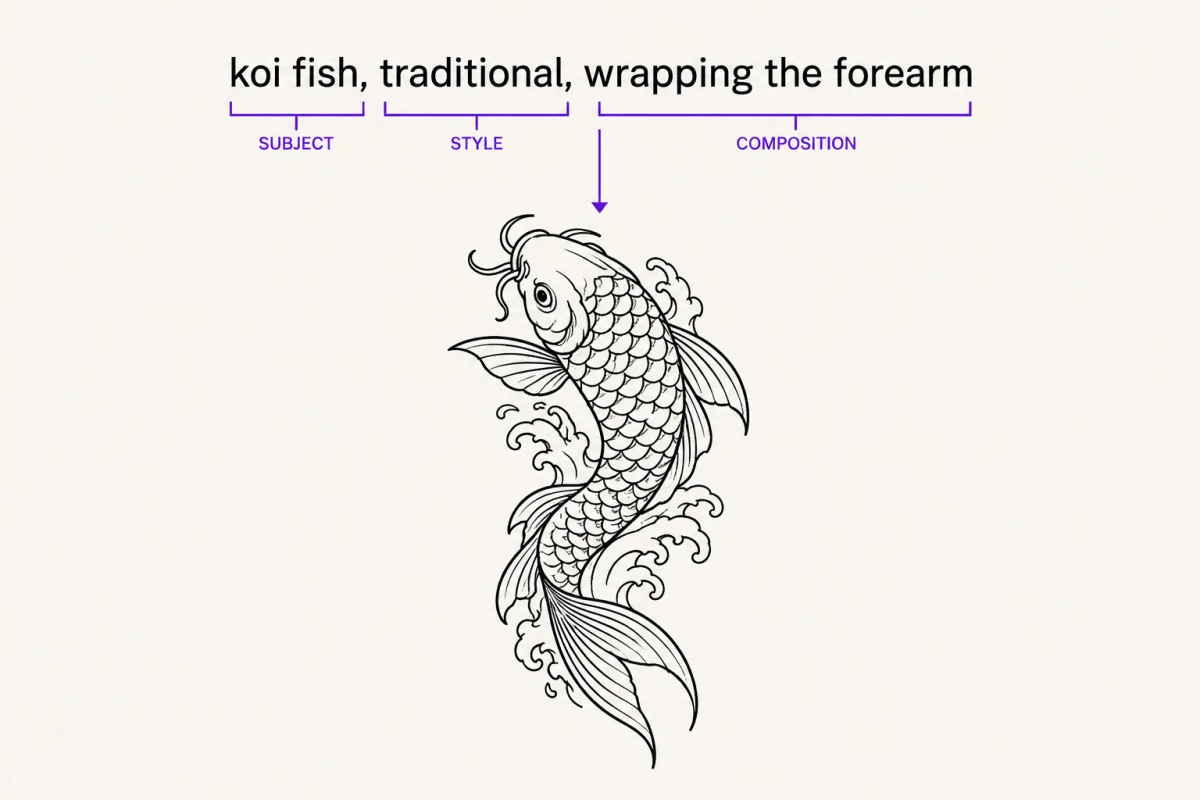
A generator that produces a pretty image and nothing else has solved the easy half of the problem. The hard half is turning that image into linework a machine can follow at a specific size on a specific piece of skin. This page covers how prompting actually behaves in InkLine, what each AI mode is for, what generation costs in credits and connectivity, and what happens to a generated design once it enters the stencil pipeline, which is the part most generators leave to you.
Write the prompt as subject, style, composition
Almost every disappointing generation comes from a prompt that names a subject and stops. “A wolf” is not a brief. It gives the model no arrangement, no line weight, no sense of where the eye should land, so it invents all three and usually invents them badly for tattoo purposes: centered, symmetrical, evenly detailed edge to edge, and impossible to read at 12 cm.
Build the prompt in three parts.
Subject is the concrete noun and its state. Not “a snake” but “a coiled snake, head lowered, mouth closed”. State beats adjective. Two or three elements is the working limit; a fourth does not add richness, it subdivides the available space and everything comes back smaller.
Style is largely handled by the picker rather than the prompt. For a design, InkLine offers 16 styles, from Traditional, Neo-traditional and Japanese through Blackwork, Dotwork, Geometric, Ornamental and Chicano to Realism, Surrealism and Biomechanical, plus No style. Selecting one is more reliable than describing it in words, so spend your prompt text on the parts the picker cannot express. Where prompt words do help is line character: “bold uniform outlines, minimal interior shading” or “fine stippled shading, no solid black” will steer density inside a chosen style.
Composition is the part people skip and the part that decides whether the design is tattooable. Say the shape you want it to occupy and how it flows: “tall vertical composition, narrow at the base”, “horizontal spread, symmetrical about the center line”, “diagonal sweep, negative space on the lower left”. Placement is not part of a design request in InkLine; the 10 body placements belong to the Tattoo to Skin mode, which shows a finished design on a body. So if the piece needs to be a tall narrow column for a forearm, write that into the prompt rather than expecting the model to infer it.
| Weak prompt | Stronger prompt | What changed |
|---|---|---|
| A wolf | Wolf head in three-quarter view, jaw closed, tall vertical composition, heavy outlines and minimal interior shading | Added state, viewpoint, shape and line weight |
| Flowers for a forearm | Three peony blooms on a single stem, staggered vertically, largest at the top, open negative space between blooms | Fixed the element count, the flow and the spacing |
| Something geometric and cool | Nested equilateral triangles over a circular mandala base, symmetrical, uniform line weight throughout | Replaced an adjective with a construction |
| A skull, roses, a dagger, a clock and a snake | Skull with a dagger through it, single rose below, vertical composition | Cut five elements to three so each survives at size |
Two things to leave out of every prompt: lettering, which generators render unreliably and which is better set as real type or drawn by hand, and any named artist or recognizable copyrighted character. The second is a rights problem for you and your client, and it produces worse output regardless.
The AI modes and what each one is for
Generation in InkLine is not one feature. The AI mode picker offers five, and picking the wrong one wastes a credit.
| Mode | Input | Output | Use it when |
|---|---|---|---|
| Tattoo Design | A written prompt and one of 16 styles | A full-color design on a white background | You have an idea and no reference |
| Stencil | A written prompt and an AI stencil style | Line art meant for transfer | You want linework directly, not a color design |
| Photo to Stencil | A photograph and an AI stencil style | Stencil-ready outlines | A photo has the subject but no usable contours |
| Stencil to Tattoo | A black-and-white stencil and a style | A full-color tattoo design | The client needs to see the finished intent |
| Tattoo to Skin | A design, one of 10 placements, a male or female body | An AI image of the design on a generic body part | Placement and composition need discussing |
The Stencil and Photo to Stencil modes have their own style picker, and it is easy to confuse with something else in the app. The AI stencil styles are Clean, Standard (the default), Detailed, Dotwork and Sketchy, and they are instructions to the model. The six stencil modes in the workspace, Linework, Sketch, Outline, Dotwork, Tonal and Denoised, are a different thing entirely: local image processing that runs on the device, costs no credit and gives the same result every time from the same settings. One name, Dotwork, appears in both lists and means something different in each.
Photo to Stencil is the mode worth understanding, because it overlaps with those local modes and is not always the better choice. Local extraction is instant, costs no credits and works offline; it converts what is genuinely in the image. The AI path interprets, which helps when a photograph has a clear subject but muddy edges, and hurts when you needed a faithful conversion. Try the local modes first, described in photo to line art and in the workflow guide on making a stencil from a photo. Neither path rescues a source below roughly 1000 px on the long edge; at that resolution you are redrawing, not converting.
Stencil to Tattoo is a communication tool, not a production step. It answers the question a client asks when they are looking at black linework and cannot picture the result. The on-skin preview from Tattoo to Skin does the same job for placement, with a larger caveat: it is an AI-generated image of the design on a generic body part, not a photo of the client and not a measurement of how a design will sit on a curved surface, so it settles a conversation about intent and not one about millimeters.
Credits, connection and what stays local
Generation runs on a model that does not live on the device. That produces two constraints worth planning around.
It needs a network connection. In a shop with reliable Wi-Fi this never registers. At a convention on saturated cellular, or on a flight, generation is exactly the step that fails. Everything downstream of it, meaning the six stencil modes, the sliders, Apple Pencil editing, the print layout and PDF export, is local image processing that works with the radios off.
It spends credits: one per generation, regeneration, x4 upscale of a result, AI conversion to a stencil, or AI Refine in the workspace, charged only when it succeeds. Credits come with the monthly plans. That is not the only metering in the app. The app is a free download, and the manual stencil workflow of processing, editing, print layout and export is free up to a separate allowance on how many images you carry through it; past that allowance the manual side needs a subscription too, sold as its own tier (Manual Pro) for artists who never generate. The allowances are configured remotely per install and can change without an app update, so treat any number you were quoted secondhand as unreliable and read what your own install offers. The image count is held outside the app’s own storage, so deleting and reinstalling does not reset it.
Two kinds of upscaling are worth keeping apart. The x4 upscale offered on an AI result is AI, costs a credit and needs a connection. The 2x upscale on the import screen, used when you bring in a photo, is local resampling: no credit, no connection, and no added detail.
The practical consequence is a scheduling habit rather than a technical one: generate while you have signal and time, then treat the resulting file as a normal image asset that the rest of the pipeline can finish offline.
Every generated design can enter the same stencil pipeline
This is the part that separates a design generator from a stencil tool. A generated image is a starting point in a workflow, not a deliverable. From the result screen you can send it into the workspace, where it goes through the identical local pipeline a photograph does, or convert it to a stencil with AI for a credit. The local route is the one that gives you control.
Run it through the stencil modes. Generated art is already clean and high contrast, so Denoised, which exists for grainy photos, is usually unnecessary and costs you fine detail for nothing. Match the mode to the style instead.
| Generated style | First mode to try | Reason |
|---|---|---|
| Traditional, Neo-traditional, Blackwork, Tribal, Geometric, Ornamental | Linework | The design is defined by contour and solid black, and Linework traces lines and keeps near-black areas as fills; Outline if you want only the bare contours |
| Realism, Surrealism, Biomechanical | Tonal | The information lives in shading, and Tonal turns it into a shadow map of dotted level lines and hatching instead of gray that will not transfer |
| Dotwork | Dotwork | Outlines plus stipple, denser where the design is darker, rather than flattening it to gray |
| Sketch | Sketch | The pencil look with gray shading is the style itself |
| Watercolor | Linework | The linework is what the stencil needs; the washes are put in freehand and do not belong on a transfer |
Then edit what the model got wrong, with the Pen, Pencil, Marker and Eraser brushes, full Apple Pencil support, stroke-by-stroke undo and a step timeline you can move back along, so an aggressive correction is reversible. Then lay it out for print at the size you type, on US Letter, US Legal, Tabloid, A4 or A3, portrait or landscape, tiled across sheets when the piece is larger than one, and print it, export a PDF or save a PNG. Style-specific transfer behavior is covered on the style pages, for example traditional tattoo stencils.
What AI output gets wrong, and the disclosure you owe the client
Generated designs fail in consistent, recognizable ways, and knowing the list saves credits.
Symmetry drifts. A mandala or an ornamental piece that looks balanced on a phone screen frequently has mismatched repeats that become obvious at transfer size. Hands, faces and text degrade first. Line weight wanders, which reads as artistic variation on screen and as inconsistency once it is ink. Detail density is the most expensive failure: a model given no size constraint will happily pack detail that cannot hold at 8 cm and will blur into a gray mass within two years of healing.
None of that makes generation useless. It makes it the first ten minutes of the job rather than the whole job. The fix is the same one artists have always applied to reference material, which is to redraw it with intent, and the editing tools exist precisely so that redrawing happens on top of the stencil rather than in a separate app.
Disclose it. Tell the client the design was AI-generated before money changes hands, not after the stencil is on the skin. Three honest reasons: some clients care about provenance and are entitled to decide; some shops and conventions have written policies on AI-assisted work; and the copyright status of purely AI-generated images is unsettled in several jurisdictions, which matters if anyone expects exclusivity over the design. This is a professional practice point, not legal advice, and if exclusivity is genuinely part of the deal it belongs in your paperwork.
A working routine
- Pick the mode first: Tattoo Design for a color concept, Stencil for linework straight from a prompt.
- Pick the style from the picker rather than describing it in prose.
- Write the prompt as subject, then state, then composition, including the shape the placement needs. Cap it at three elements.
- Generate once and read the result for structure, not for polish. Structure is what a regeneration fixes; polish is what you fix by hand.
- Regenerate only if the composition is wrong. If the composition is right and the detail is messy, stop spending credits and start editing.
- Send it into the workspace and through the stencil mode that matches the style, not the mode you always use.
- Redraw the parts that will not hold at size, then check the printed size against the body before you cut the sheet.
- Tell the client where the design came from.
Frequently asked questions
What makes a good prompt for a tattoo design generator?
Name the subject, then the composition, and let the style picker handle the style. Two or three concrete elements with a stated arrangement beat a long list of adjectives, because every extra element competes for the same space and comes back smaller and busier.
Does AI generation work offline?
No. Generation needs a network connection because the model does not run on the device. Stencil processing, editing, print layout and export are local, so once a design exists you can finish and print it with no signal at all.
Do I have to pay to use the app?
The app is a free download. The manual stencil workflow, which covers processing, editing, print layout and export, is free up to an allowance on how many images you carry through it, and needs a subscription past that allowance, sold as its own tier if you never generate. AI generation runs on credits, one per result, charged only when it succeeds. The allowances are configured remotely per install and can change, so check what your own install has rather than a number someone quoted you.
Should I tell a client a design was AI-generated?
Yes. Disclose it before the deposit, not after the stencil is on the skin. Some clients care about provenance, some shops and conventions have written policies, and the ownership status of purely AI-generated images is unsettled in several jurisdictions.
Can I generate a design in a specific artist's style?
Do not. Naming a living artist or a copyrighted character is a legal problem before it is a quality problem, and the results are usually a blurred average rather than a usable design. Describe the visual traits you want instead: line weight, shading density, palette, era.